
Appearance
Downloading cards with a Reader BT
Audience: Timing operators at the download desk.
The SPORTident Reader BT is a download station that connects over Bluetooth instead of a USB cable. Cards read on it are downloaded exactly as they are from a USB station: same result banner, same downloads table, same splits print. This page covers connecting it, and what it does that a USB station doesn't. For everything after the card is read, see Downloading cards.
Get going
- Wake the reader by inserting any card. It stays visible for 20 seconds.
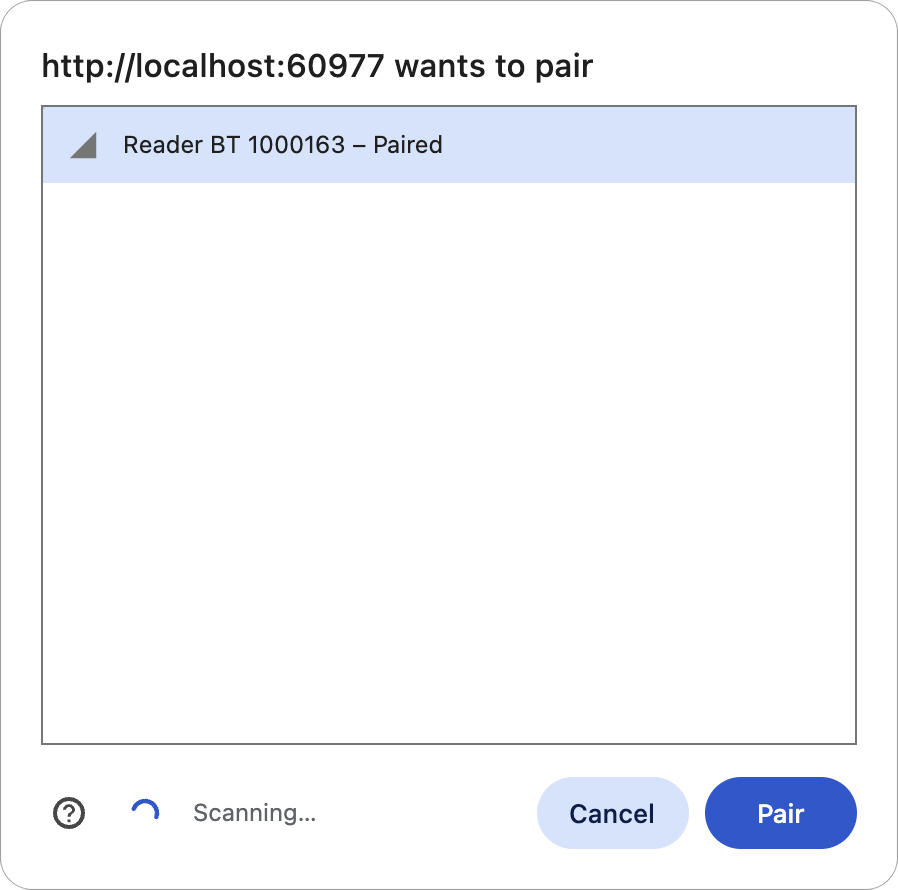
- Click Connect Reader BT on the Card downloads page or the dashboard's Download card tile, pick Reader BT and its serial number in the browser's list, and click Pair.
- Read cards. The panel says Listening. Insert each card; the reader beeps twice for a good result and four times when the competitor should come to the desk.
That's all for a normal day. The rest of this page covers what you need first, each step in more detail, and what to do when something is off.
What you need
- Chrome or Edge on Windows, macOS, Linux or Android. Safari and Firefox can't use Bluetooth readers, and nor can any browser on an iPhone or iPad.
- A secure connection, the same as a USB reader needs: open Manager at http://localhost on the server itself, or over HTTPS from any other computer or tablet. See HTTPS and certificates.
- The reader in Readout mode, with firmware 2.0 or later. Both are set in SPORTident's Config App on a phone, not in Manager. A new reader comes in Readout mode.
- On a Mac: Chrome needs permission to use Bluetooth. If the list in step 2 stays empty, open System Settings → Privacy & Security → Bluetooth and turn Chrome on.
An Android tablet in Chrome is a complete download desk: it can't use a USB station, but it can use a Reader BT.
Connecting
The Card downloads page offers Connect Reader BT under Connect USB reader. The dashboard's Download card tile shows the same two buttons.
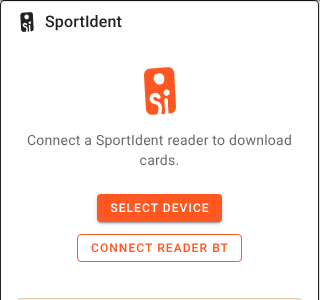
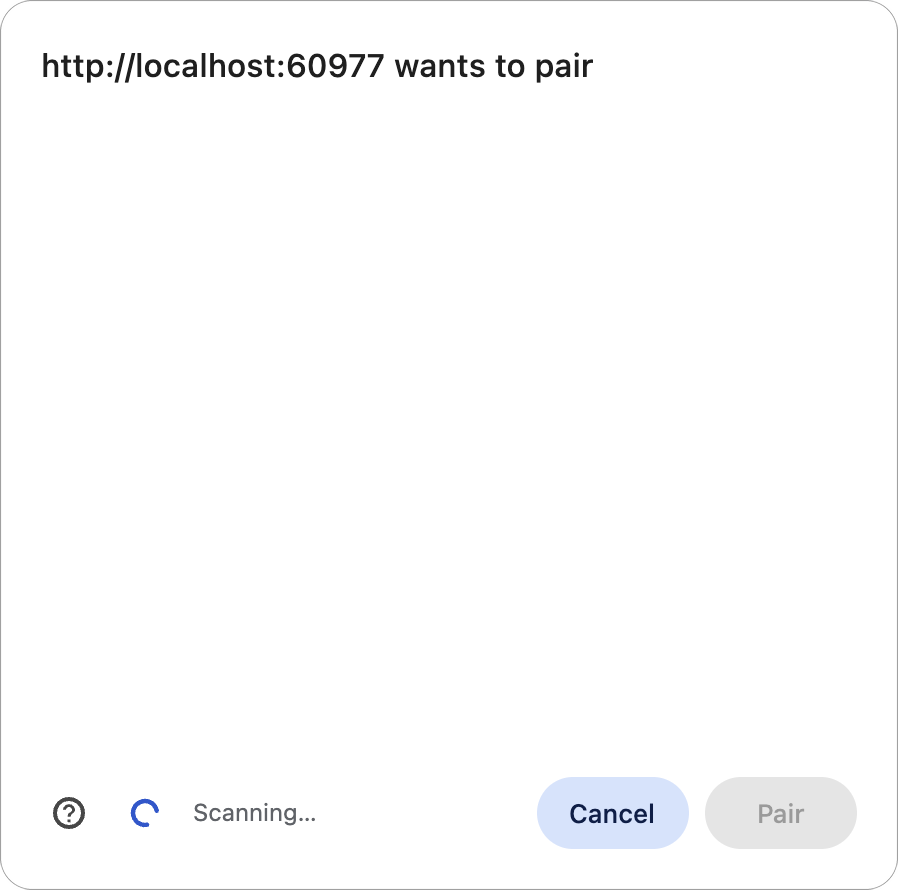
Click Connect Reader BT. The browser opens its own list and starts scanning:
When the reader is awake it appears as Reader BT and its serial number. Select it and click Pair:
The chip at the top of the panel turns green and reads Listening:
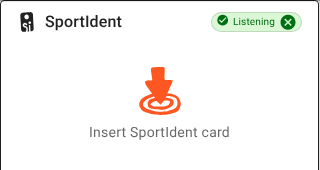
What to do: nothing more. The reader stays connected as you move around Manager.
| You see | It means | What to do |
|---|---|---|
| The list stays empty | The reader is asleep, or (on a Mac) Chrome has no Bluetooth permission | Insert a card to wake it, then wait a few seconds. On a Mac, check the permission above. |
| Paired beside the reader's name | The browser remembers it from an earlier connection | Nothing — pick it as usual. |
| The Reader BT is not in Readout mode | It's set to Printout or Standalone, so it would never send a card | Set it to Readout in the Config App, then connect again. |
| That device is not a Reader BT… | Another device was picked, or the firmware is older than 2.0 | Pick the Reader BT, or update it in the Config App. |
Don't pair the reader in your computer's Bluetooth settings. Manager connects to it directly, and a pairing made in Windows' or macOS's settings can stop that working. If you already did, remove it there and connect from Manager again.
Reading cards and the beeps
Insert a card. The reader sends it to Manager the moment it's in, and the result banner appears as it does for any download.
The reader doesn't beep when it reads the card. It beeps once Manager has checked the result, so the beep tells the competitor something:
| Beeps | Result | What to do |
|---|---|---|
| Two | OK, overtime, or a card already downloaded | Nothing — the competitor can go. |
| Four | Missing punch, did not finish, a card nobody is entered on, a card already used by someone who finished, not competing, or the download didn't reach the server | Ask the competitor to come to the desk, and deal with it from the result banner as usual. |
A USB station beeps only when a read works, so this is something only the Reader BT can do: send a competitor with a mis-punch to the desk before they walk off.
When something goes wrong
| You see | It means | What to do |
|---|---|---|
| The Reader BT disconnected… | It went out of range, or switched itself off | Insert a card to wake it, then click Connect Reader BT again. Cards already read are safe on the server. |
| The card could not be read over Bluetooth… (shown briefly, with four beeps) | The card's data arrived damaged | Ask the competitor to insert the card again. |
| A card is inserted and nothing happens | The reader isn't connected to this computer | Check the chip says Listening; connect again if it doesn't. |
A refreshed or closed browser tab drops the connection, as it does for a USB reader. Click Connect Reader BT again; you won't need to pick the reader from scratch if the browser remembers it.
Using a Reader BT and a USB station together
You can have both connected in the same browser. Cards from either are downloaded; the panel describes the Reader BT while it is connected.
What the Reader BT doesn't do in Manager
- Station memory. Manager can't read the Reader BT's backup memory. If you need it, read it with SPORTident's tools.
- Card numbers into a form. Clicking into a Card number box and inserting a card fills the number in from a USB station only.
Related
- Downloading cards — the result banner, the downloads table and fixing a result
- HTTPS and certificates — downloading on a computer other than the server
- SportIdent cards