
Appearance
Station configuration
Audience: Whoever prepares the SportIdent units before an event: setting each unit's code and mode, its switch-off time, its clock and AIR+ (contactless) settings.
How to read a SportIdent station's settings, change them, and program a whole box of units one after another.
What you need
The same as for reading a station's memory:
- A SportIdent USB station (a BSM7 or BSM8) plugged into this computer. Manager calls it the direct station.
- The coupling rod, to connect it to the unit you're setting up, which Manager calls the remote station.
- A browser with Web Serial: Chrome, Edge, or Firefox 151 or later.
You don't need an event. Open Station configuration from the USB icon at the top of the Events list (hover over the icons to find it).
It's the same reader card download uses. If the station is already connected for card download, it's connected here too, and disconnecting here disconnects card download as well. Configure units before the event or away from the download desk, not while cards are being downloaded.
Reading a station
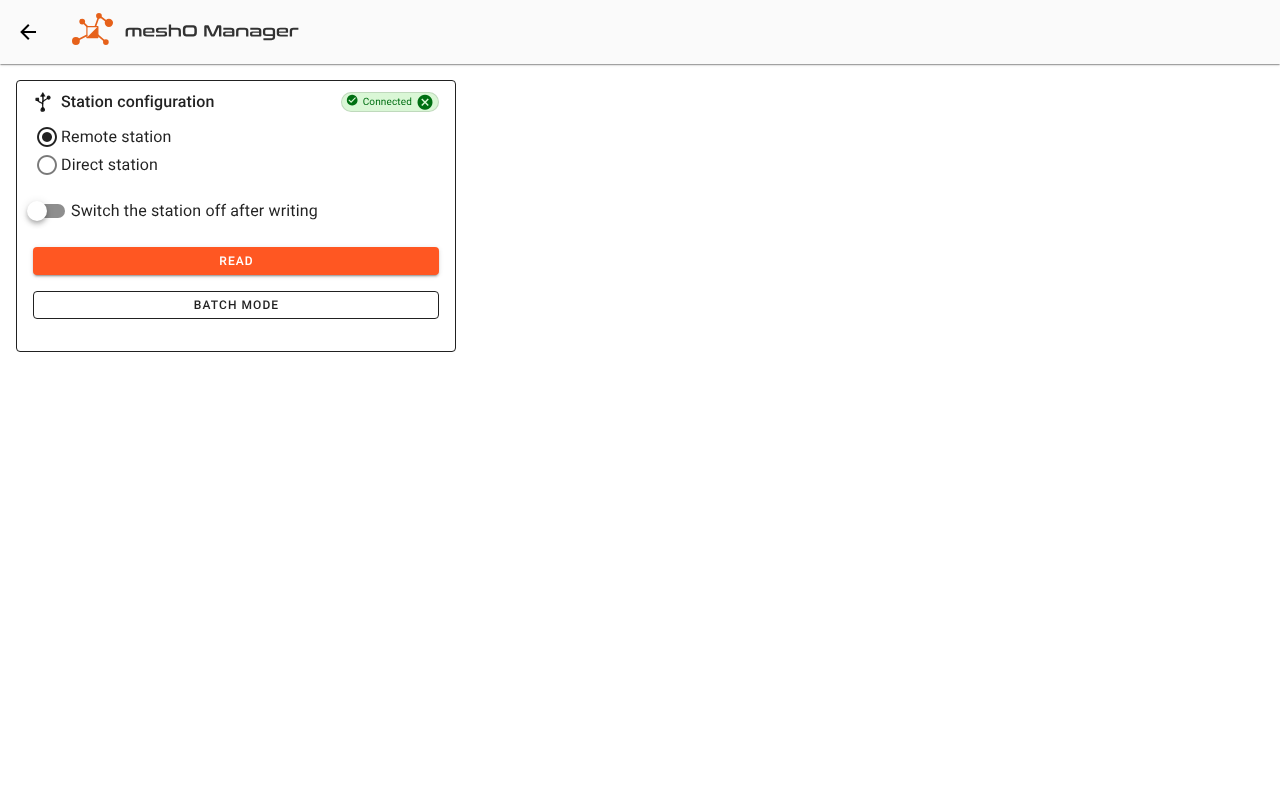
- Connect the reader, if it isn't already (Connected shows at the top of the panel).
- Choose which station to talk to:
- Remote station — the unit on the coupling rod. This is the usual choice.
- Direct station — the USB station itself, for example to check its firmware or set its mode.
- Put the unit on the coupling rod and click Read.
Manager shows two more columns:
- Settings — what you can change (see below).
- What the station reports, which can't be changed here:
- Station — serial number, product (such as BSF8), board version, firmware, boot version and when it was made;
- Protocol — its operating mode and code, its communication settings (such as Handshake and 192 records from an SI Card 6), its switch-off time and when its settings were last changed — and, for a unit with a display, whether it is upside-down;
- Battery — when the battery was fitted, its capacity, how much has been used, its voltage and temperature. A USB station has no battery, so this card isn't shown for one;
- Memory — the size of its backup memory, how many records it holds, and how full it is. A count shown as ≥ means the memory has filled and started again from the beginning, so it holds at least that many.
Anything the station didn't report, or Manager couldn't read, shows as Not known.
The station clock
For a station with a battery, the Station clock section shows its time, ticking, and how far it is from this computer's (Drift vs PC: In sync, or seconds ahead or behind). Read at says when the station was read, so you can tell an old reading from a fresh one.
Click Set to PC time to set it. There's no confirmation, because setting the clock to the right time is always safe. Every station that will punch should be in sync before the event: a control whose clock is out puts the wrong time on every punch it records. If one went out with its clock wrong, a Time Offset on that control corrects every punch it recorded.
Changing the settings
| Setting | What it does |
|---|---|
| Operating mode | What the unit does: CN - Control, STA - Start, FIN - Finish, CHK - Check, CLR - Clear, the beacon (AIR+) modes such as BC CN - Beacon Control, and the SIAC modes (SIAC on, SIAC off, SIAC battery test, and so on). Only the modes this unit accepts are listed. The names are SportIdent's own, as on the unit and in its software. |
| Station code | The control code the unit punches with. Some modes fix it, such as the SIAC modes, and the field is then greyed out with Fixed by the operating mode. |
| Auto increment | After a successful write, add one to Station code, ready for the next unit. Handy when setting out a sequence of controls (31, 32, 33…). |
| Switch off after (minutes) | How long the unit stays awake after its last use. Between 2 minutes and just under 4 days; the time is shown in hours and minutes beneath. |
| Beep, Flash | Whether the unit beeps and flashes when punched. |
| Extended protocol, Auto-send, Sprint mode, Stop when the memory is full | SportIdent's own settings, as in its software. A setting a mode doesn't allow is greyed out. |
| AIR+ radio, AIR+ timing | Only for the beacon modes: whether the unit sends punches over AIR+ radio (Off, Send the last punch, Send every punch, Send every unsent punch) and its AIR+ timing. |
To write them:
- Change what you need. A setting you leave alone keeps the value the station has.
- Click Write. Manager lists the settings it will write. Check the operating mode and the station code: the station keeps them until somebody changes them.
- Confirm. For a station with a battery, its clock is set to this computer's time as well.
Manager then reads the station back and reports The station was written, and read back to confirm it only if the read-back matches. If it doesn't, it says which part didn't take: read the station again before using it.
Switch the station off after writing turns the unit off once it's been written, so it isn't left awake on the bench running down its battery. It applies to the remote station only, and is remembered on this computer.
Note: The settings go onto whichever unit is on the coupling rod when you click Write, which may not be the one you read. That's how you set up several units the same way: read one, change the settings, then swap the unit and write again. For a whole box of units, use batch mode.
Programming many units: batch mode
Batch mode writes the same settings to unit after unit with no clicking in between. You put a unit on the coupling rod, take it off once it's switched off, and put the next one on.
Click Batch mode.
Tick each setting to write, and set its value:
- Operating mode;
- AIR+ radio (only once the mode is a beacon mode);
- Switch off after (minutes).
A setting you don't tick is left as each unit has it. The station code is never changed, so every control keeps its own number. To number a run of units one after another (31, 32, 33…), use Write with Auto increment instead.
Click Start. Manager shows Waiting for a unit….
Put a unit on the coupling rod. Manager writes it, checks it, sets its clock, and switches it off. Switching off is how Manager knows to move on.
Take it off and put the next one on.
Click Stop when you're done.
The list shows each unit's product and code with what happened: Written and time set to a time, Failed, a reason it refused, or a warning that its clock couldn't be set. Units written counts the successes. A unit that fails doesn't stop the run: take it off, put the next one on, and deal with the failed one afterwards. A unit written in a contact mode can't take an AIR+ radio setting, and says so.
When a station won't take the settings
| Message | What it means |
|---|---|
| meshO cannot configure this product. | Manager can read it but not write it: SportIdent configures that product differently. Use SportIdent Config+. |
| …firmware version that is not a number… | Manager can't tell which layout the station uses, so it writes nothing. Use SportIdent Config+. |
| This product does not offer that operating mode on firmware… / …does not list that operating mode… | Choose another mode, or update the unit's firmware with SportIdent's software. |
| …set to control code…, which meshO cannot write back. | Writing would renumber the unit. Use SportIdent Config+. |
| The station did not answer in time. | Check the unit is seated on the coupling rod and awake, and try again. |
| The station's reply was damaged in transit. | Check the cable and try again. |
| The settings were written, but the station clock could not be set. | Click Set to PC time before the unit goes out. |
For the errors the reader itself reports, such as the direct station left in an unknown mode, see Station memory.