
Appearance
Hire items
Audience: Registration desk volunteers and timing operators lending equipment to competitors.
Almost every organiser lends something. Hire cards (rental cards) are the big one — SportIdent cards for newcomers, visitors, or the regular who left theirs on the kitchen table — and the same table usually has a box of compasses and a stack of map boards on it too. The job never changes: hand the right thing out, know who is holding it, and get it back before they drive home.
Manager tracks all of it. This page is mostly about hire cards, because that is most of what gets lent and it is the part Manager can do the most for; everything else you lend is covered from Everything else you lend onwards.
How hiring works in Manager
Everything you lend is set up once, in Settings, and shared by every event on this server. There are two registries, because the two kinds of thing reach a competitor differently:
| Hire cards | Everything else | |
|---|---|---|
| Set up in | Settings → Hire card registry | Settings → Other hire registry |
| What it is | A pool of card numbers | A list of named items — Compass, Map board |
| How a competitor gets one | Automatic: they're "on a hire card" whenever the card number recorded against them is one of the pool numbers | Ticked on the competitor's own record |
| How it comes back | By itself, when the card is downloaded | Only when somebody takes it off the competitor |
Two consequences worth knowing before you start:
- Both registries are global. Set them up before your first event and they are there for every event afterwards.
- Because being "on a hire card" is worked out from the pool, a card moves on and off hire by itself. Add a number to the pool and every competitor already carrying it is flagged retrospectively; take it out again and they go back to being treated as own-card. There is no "hand out a hire card" step to remember — you assign a hire card by recording its number as that competitor's card, exactly as you would their own.
Set up your hire-card pool
Do this once, before your first event, and again whenever you buy more cards.
- Open Settings → Hire card registry.
- Add your card numbers. There are two ways, and you can mix them:
- Quick add card numbers — type one or more numbers and/or ranges into the field and press Enter (or click Add). Separate them with commas or spaces, and write a range with a hyphen:
411001, 411002 411005or411001-411010. - Range from / Range to — enter the first and last number and click Add range. Handy for a contiguous batch straight out of the box.
- Quick add card numbers — type one or more numbers and/or ranges into the field and press Enter (or click Add). Separate them with commas or spaces, and write a range with a hyphen:
- Everything you add is merged into the list, de-duplicated and sorted, so it does not matter if numbers overlap or arrive out of order.
- Click Save. Until you do, an Unsaved — click Save below chip sits at the top as a reminder.
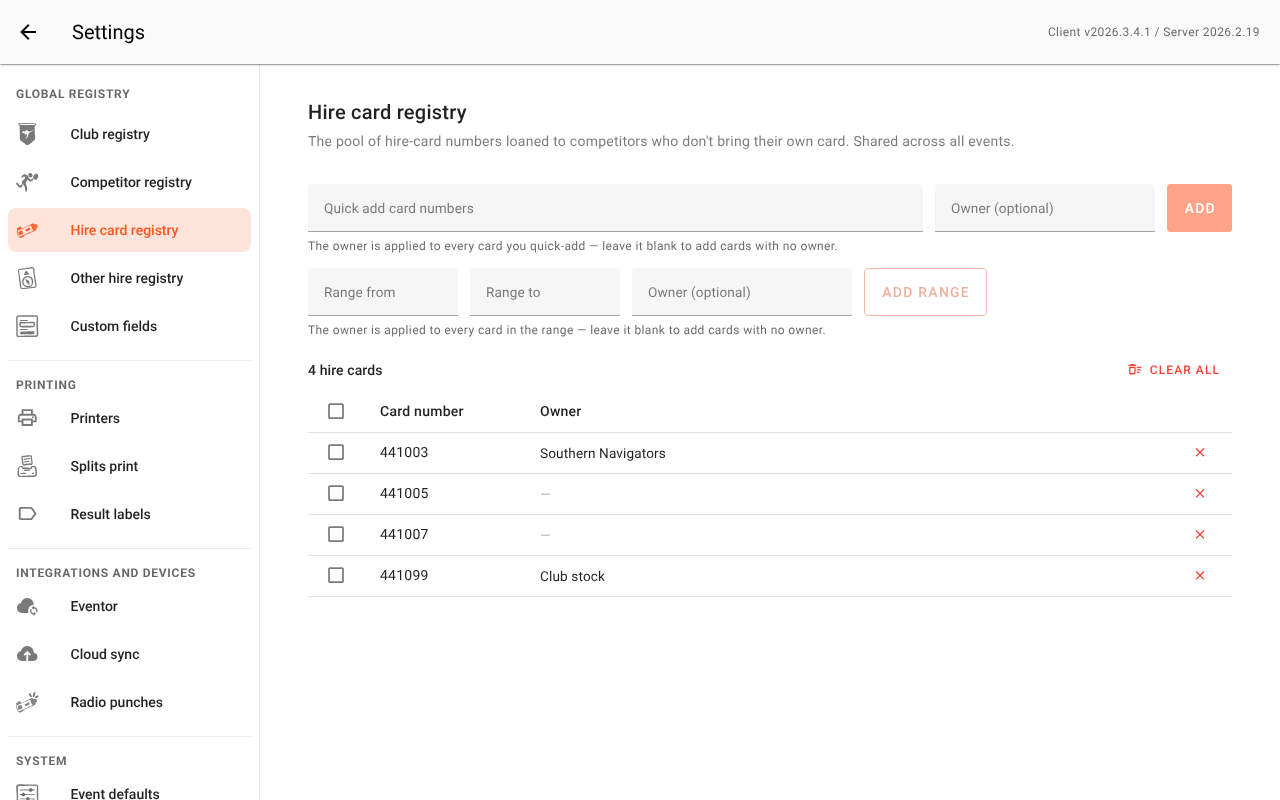
To take cards out again: the × at the end of a row removes one, ticking several rows gives you Remove selected, and Clear all empties the pool.
Tip: Hire cards usually come in a numbered run. Label the physical cards to match and enter them as one range (e.g.
411001-411050), so the numbers in the box are the numbers in Manager.
An event where members borrow the same club card every week can treat none of these as hire cards — see Ignore hire cards. The pool itself is untouched, and every other event goes on using it.
Note: Anything Manager cannot read — letters, zero or negative numbers, a backwards range — is listed back to you as ignored rather than being added silently. If a count looks wrong, read the message.
Whose cards are they?
Owner is free text for whoever the physical card belongs to: the club it was borrowed from, or the person who wants it back at the end of the day. Leave it blank for cards with no particular owner. It travels with the pool, so it shows against that card in every event, and it appears on the Hire items screen and at the registration desk.
There are three ways to set it:
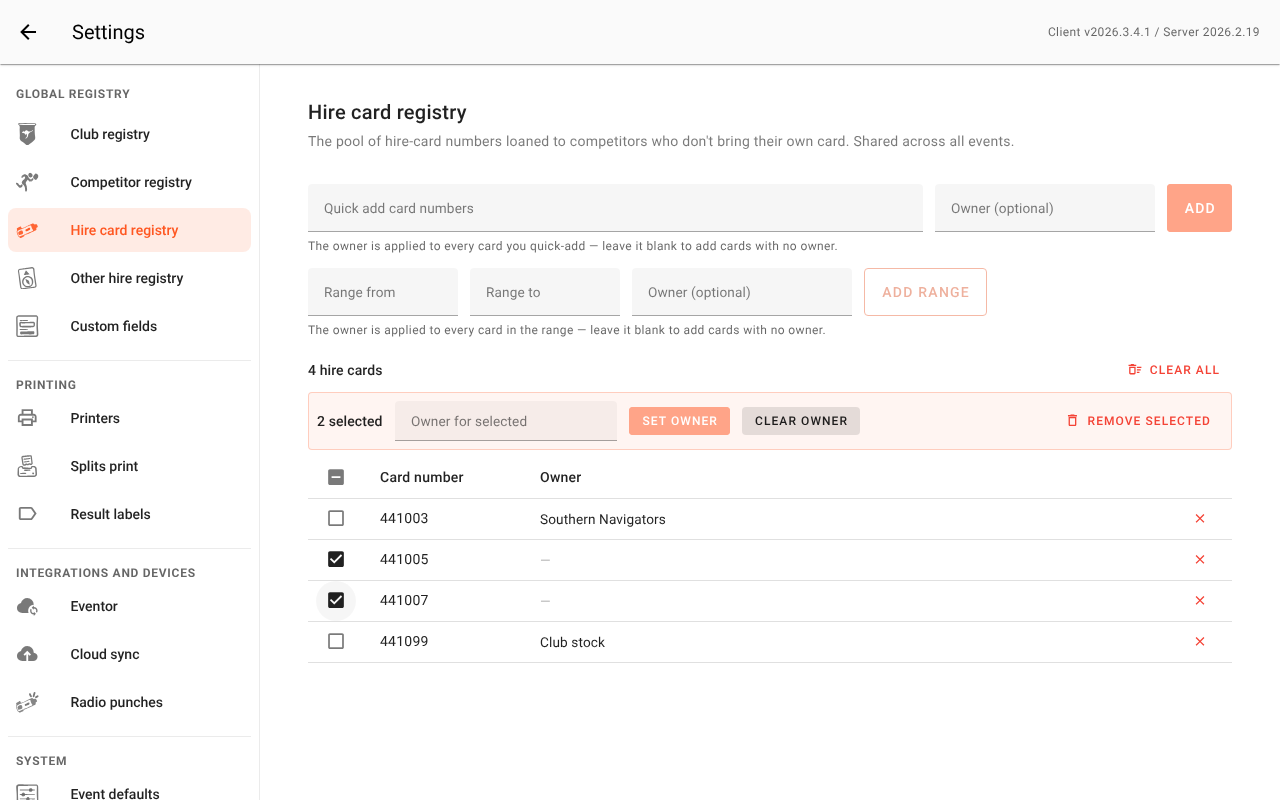
- As you add — type into the Owner (optional) field next to Quick add. It is applied to every card you add (by quick add or by range) while that field has something in it, so a whole club's batch gets its owner in one go. Clear the field before adding cards that have no owner.
- In bulk — tick the checkbox on any rows, then use Set owner or Clear owner in the bar that appears above the table.
- One at a time — type straight into the Owner cell on a card's row.
Everything else you lend
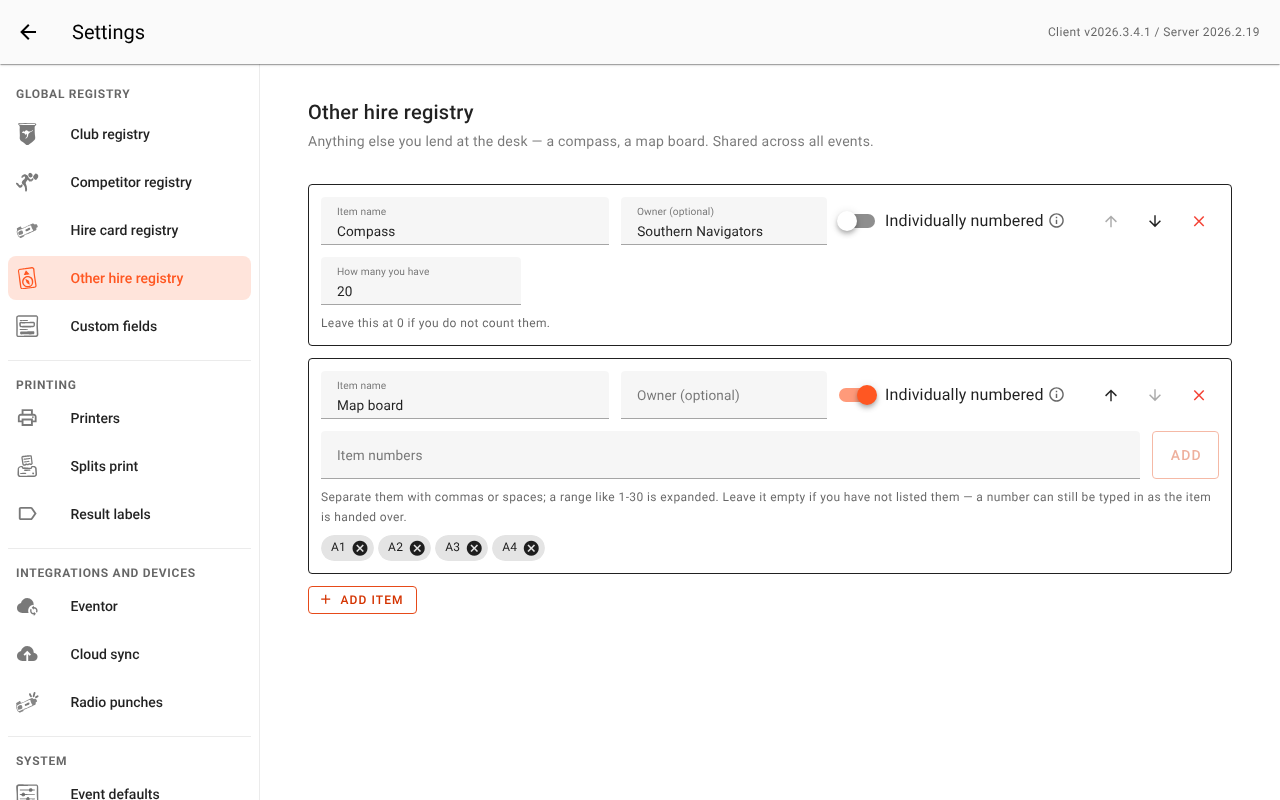
Settings → Other hire registry is the list of everything that is not a card. Click Add item, give it a name (Compass, Map board), and choose its shape:
- Leave "Individually numbered" off when one is as good as another — a compass. Set How many you have if you want the desk to know how many are left in the box; leave it at 0 if you do not count them. Handing one out records only that the competitor has one.
- Turn "Individually numbered" on when each one carries its own number and you need to know which one went out, the way a card does. List the numbers in Item numbers — commas or spaces, and a range like
1-30is expanded — and they appear as chips you can remove one at a time. You can leave the list empty: the item is still numbered, and the number is typed in as it is handed over.
Owner works as it does for cards, with one difference: it is per item rather than per unit, because a box of compasses came from one place. It shows in the Owner column of the Hire items screen and at the registration desk.
Use the arrows to reorder items — that is the order they appear in on a competitor's record — the × to remove one, and Save when you are done.
Note: Removing an item only stops it being offered. Competitors already holding one keep it, so adding it back under the same name brings them back with it.
Hand a card over
A hire card is just a pool number recorded against a competitor, so you give one out the way you record any card:
- At the registration desk — when entering or editing the competitor, type the hire card's number into Card number. See The registration desk and Late entries.
- On the fly at download — if somebody has run on a hire card that was never recorded, download the card and assign it to them in the usual way. See Downloading cards.
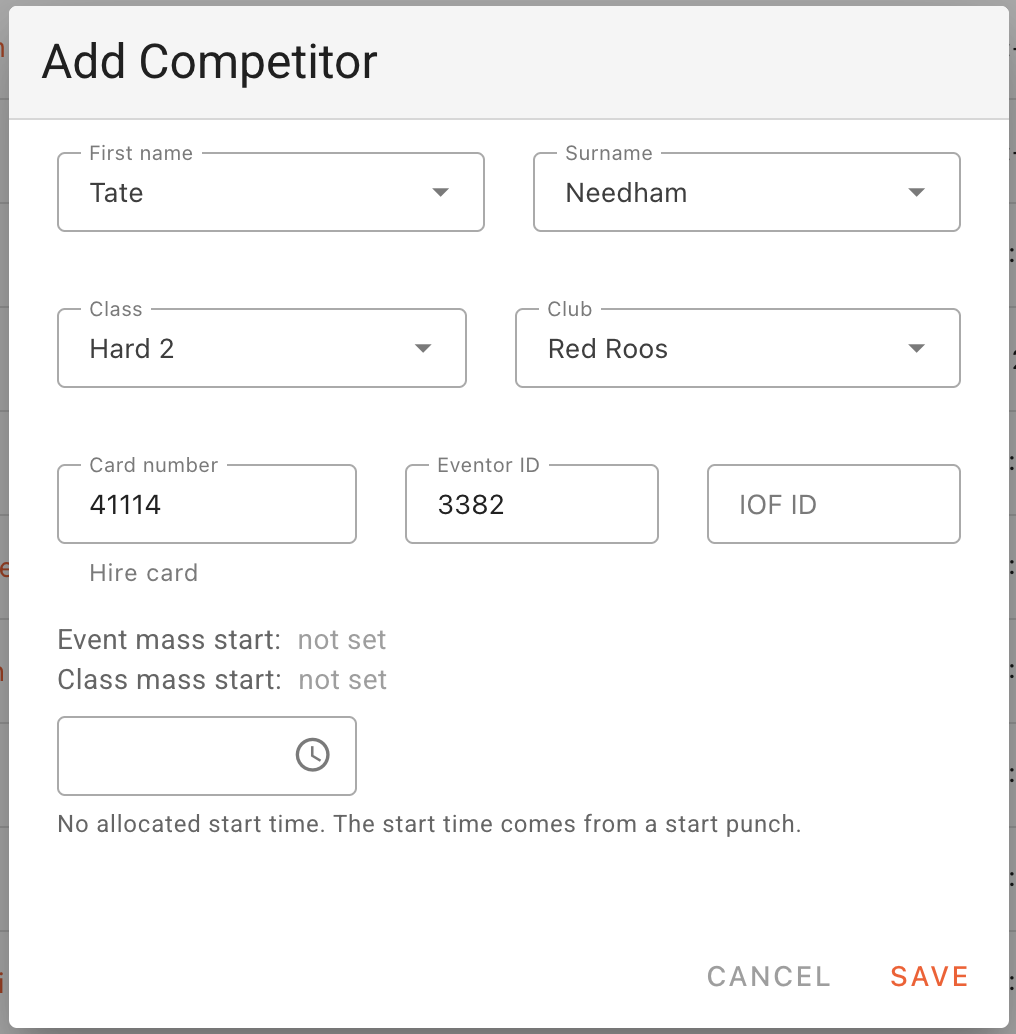
As soon as the recorded number is one of your pool numbers, Manager flags it — you do not tell it anything:
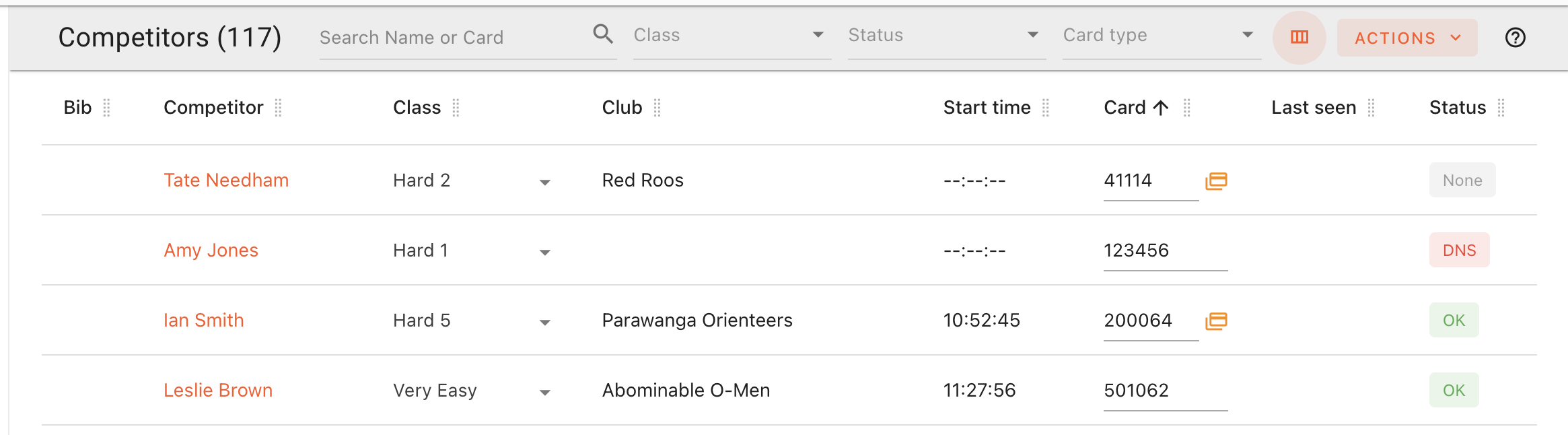
- The Competitors list shows a small hire-card marker next to the number, and the Card type filter in the toolbar narrows the list to Hire card or Own card.
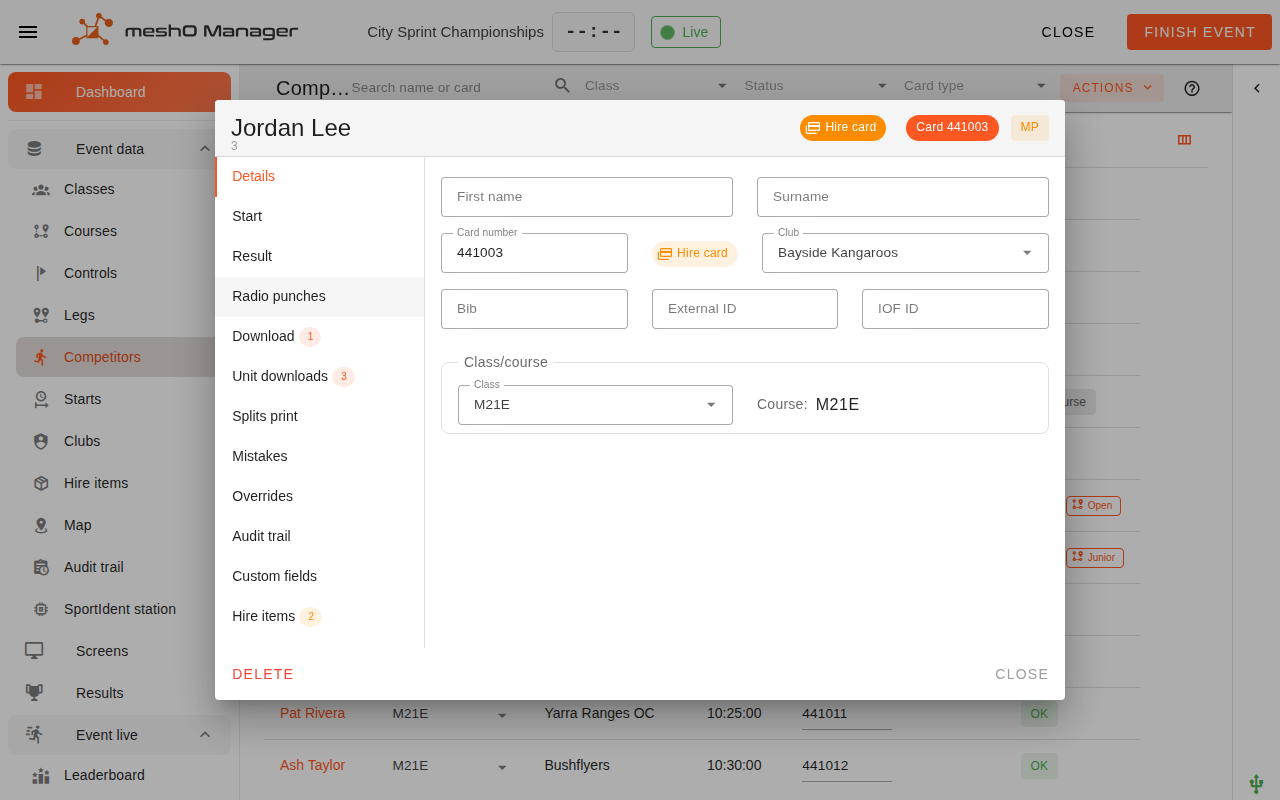
- The Edit Competitor dialog shows a hire-card chip in its header and another beside the card field.
To move somebody onto a different card mid-event, change their Card number. There is nothing hire-specific to undo first.
Hand anything else over
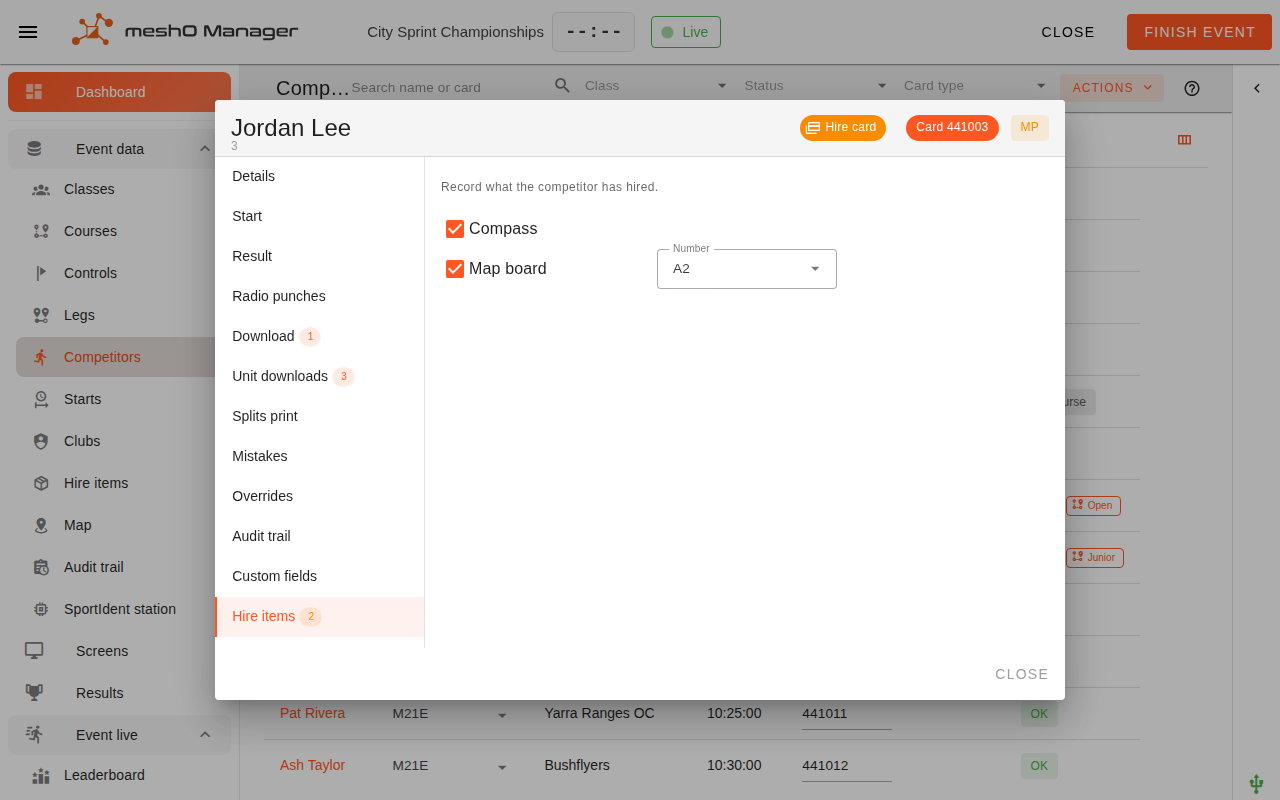
Other items are ticked on the competitor. Open them — from the Competitors list, from the registration desk, or by clicking their name on the Hire items screen — and go to the Hire items tab. The tab is there whenever the Other hire registry lists something.
Tick what they took. For a numbered item, pick the number you handed over from the list or type it in. A badge on the tab counts what they are holding.
Track what is out during the event
Event data → Hire items is the live picture of what has left the table. Two chips across the top count it:
| Status | Meaning |
|---|---|
| Out | It is with a competitor and still has to come back. |
| Returned | The card has been downloaded, so it has been handed back and read. Only cards reach this state on their own. |
The table lists a row per thing that is out (and per card that has come back): the Item — a hire card, or one of your own items — its Number, the Owner you recorded, the Competitor holding it (click the name to open their record), the Status, and the Returned at time once a card has been downloaded. Use the search box to jump to one, or the Status and Item filters to narrow the list.
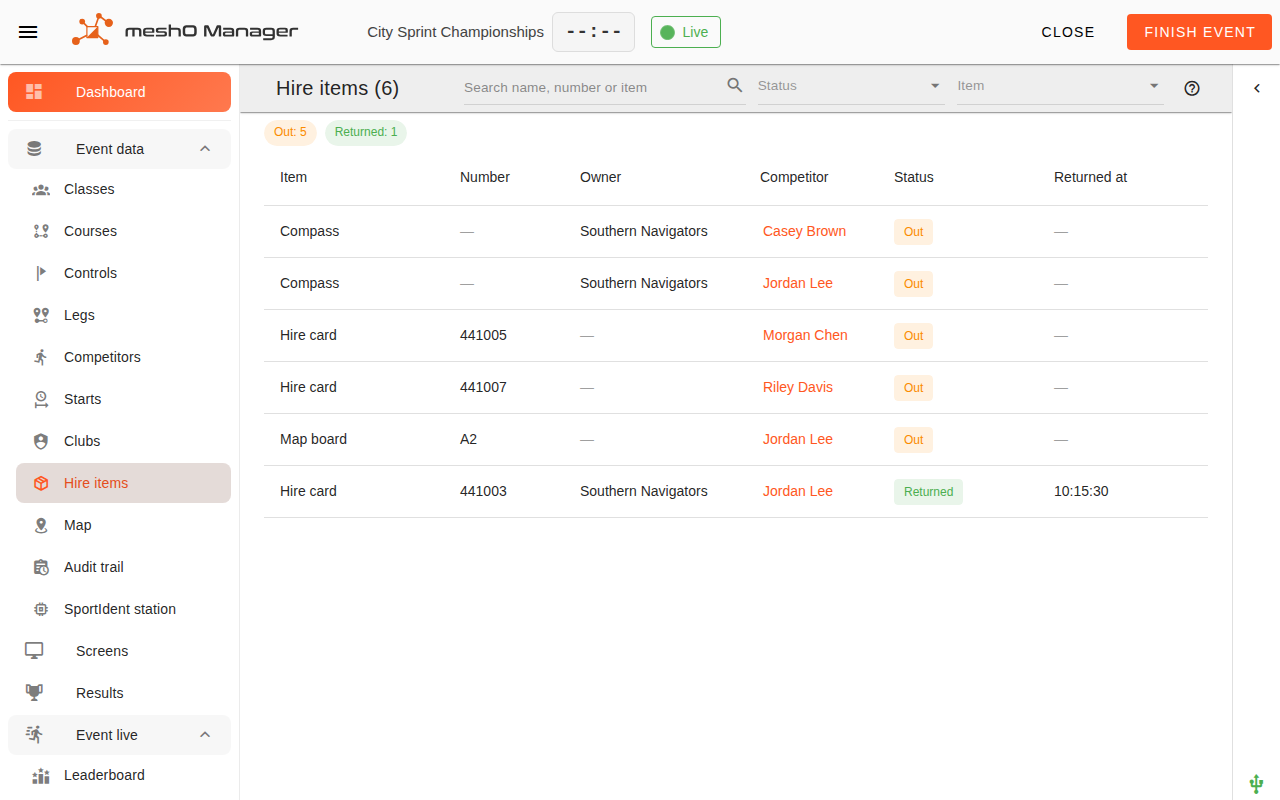
Note: A card returned by one runner and then lent to a second appears as two rows — the first Returned, the second Out — so reusing a card for a later starter never makes the earlier runner look like they still have it.
At the end of the day, filter to Out to see exactly what has not come back, and who has it.
The same box, at the registration desk
The desk has its own view of the same thing, sized for a tablet: Hire items in the bottom bar of the registration desk. It answers the two questions a desk actually asks — what can I hand over, and who has the rest:
- The Available and Out chips count the card pool, and they are also the filter. Tap one to see that half of the box; tap it again for all of it.
- The search box takes a name, a card number or an item name. A card matches by its number, its holder or its owner; an item matches by its name or owner, and a runner's name or a unit number narrows an item to just those holders. Putting a card on the desk's reader types its number in for you.
- Your other items come first, one summary each: how many are out (of how many you have, if you said), and who is holding them. Compasses have no numbers to look up, so the desk's question about them is only ever "have we got any left?".
- Below the items is the card box itself, a row per card. Tapping anything that is out — a card, or a name under an item — opens the competitor holding it, so you can go and find them.
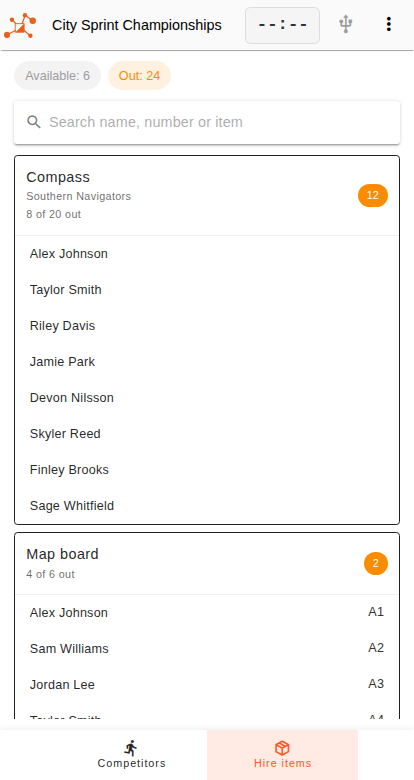
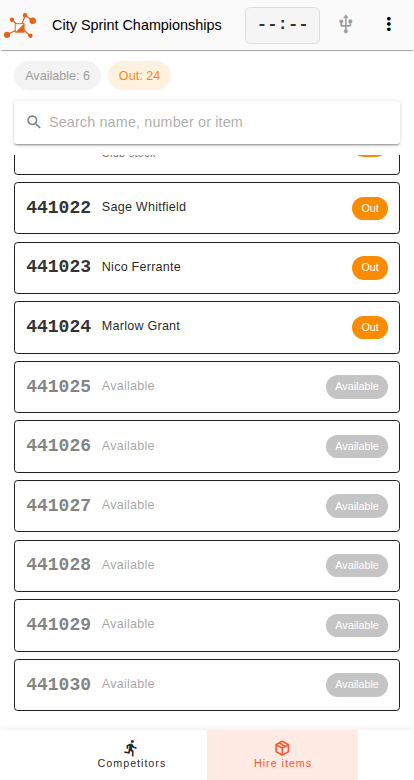
Note: The desk reads a card as Available simply because nobody in this event is holding it, while the manager's Hire items screen reads a card as Returned because it was downloaded. The desk does no downloads, so it never claims a card came back — it only knows whether the card is out with somebody.
Collect it all back
A card counts as returned the moment it is downloaded; there is nothing to tick off by hand. Other items do not come back by themselves — nothing downloads a compass, so it stays out until somebody takes it off the competitor.
Manager brings both into a single prompt at download time. Download a card that is in the hire pool — or any card belonging to a competitor who has other hire items out — and a Collect hire items prompt lists everything to collect from that runner.
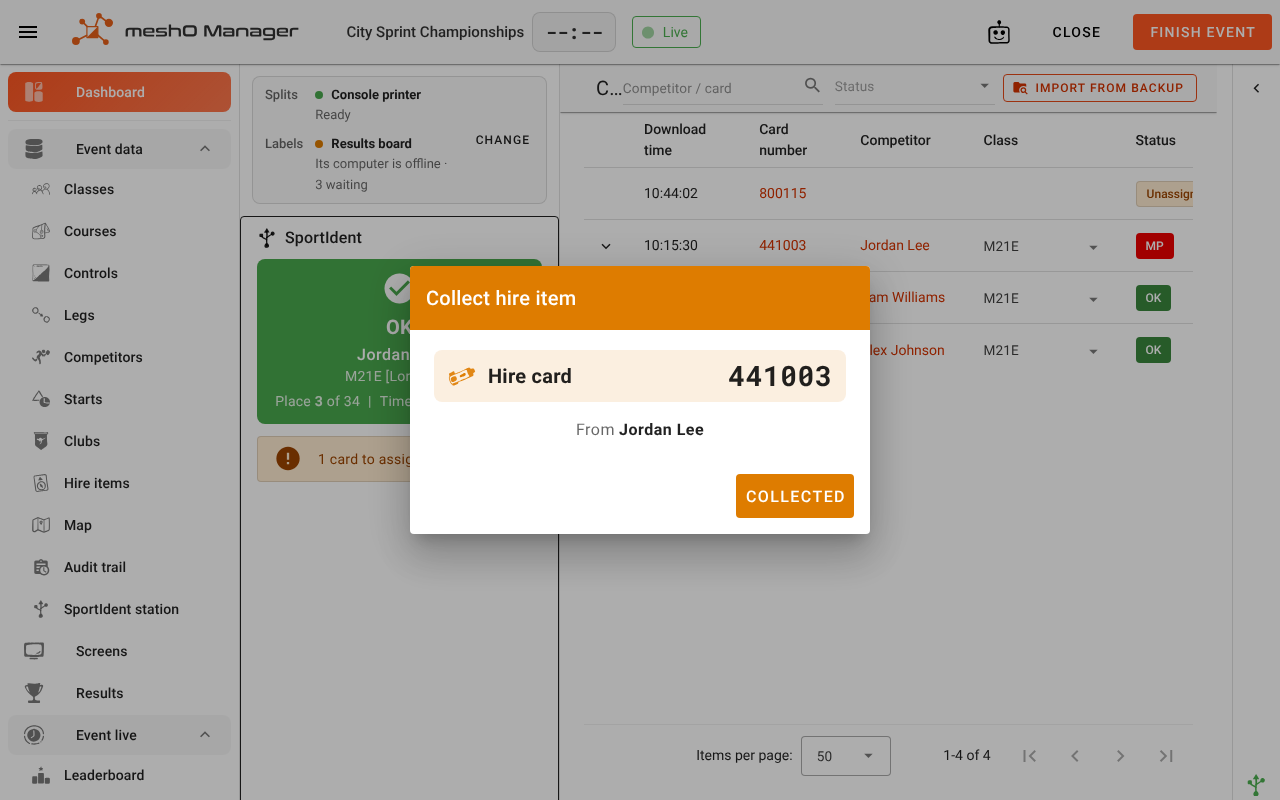
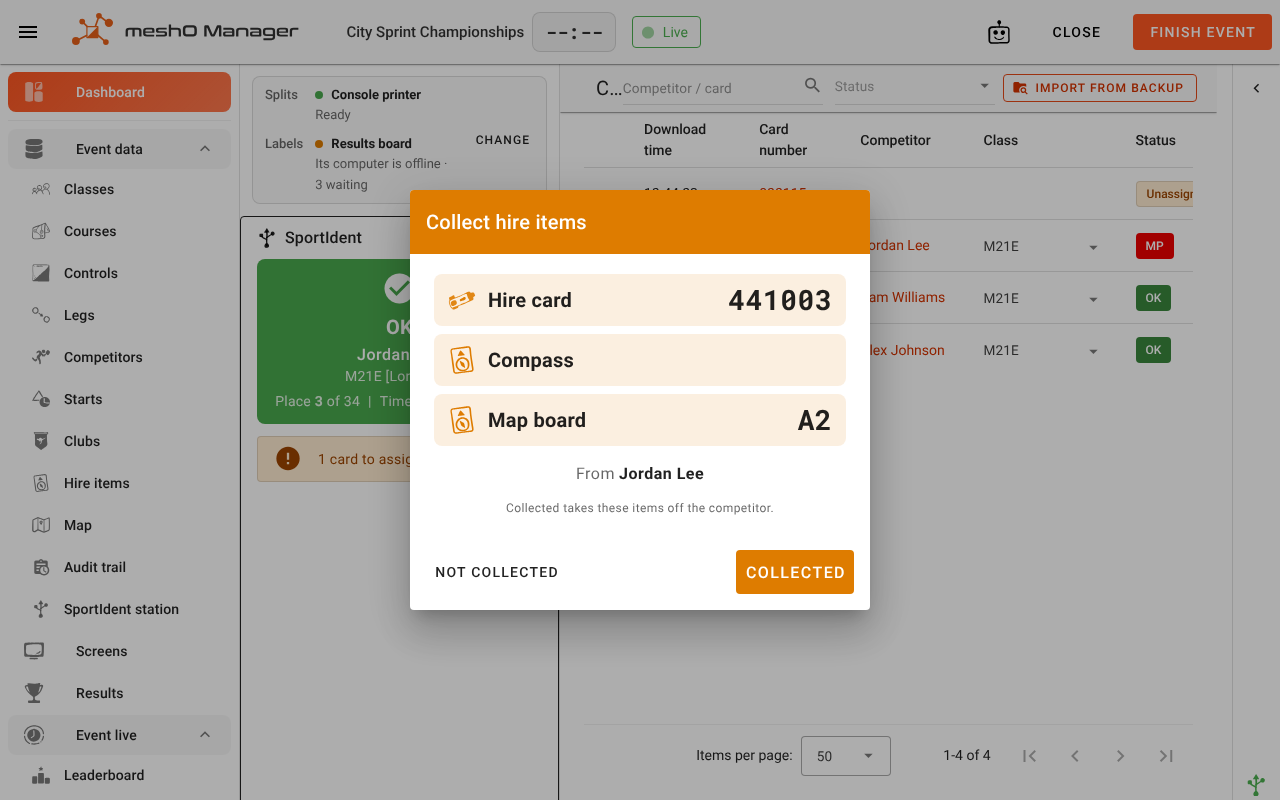
If they hired more than the card, it is still one prompt. Each row is the same size, whether or not the thing has a number on it:
And a competitor on their own card who borrowed a compass gets the prompt too, with no card row on it:
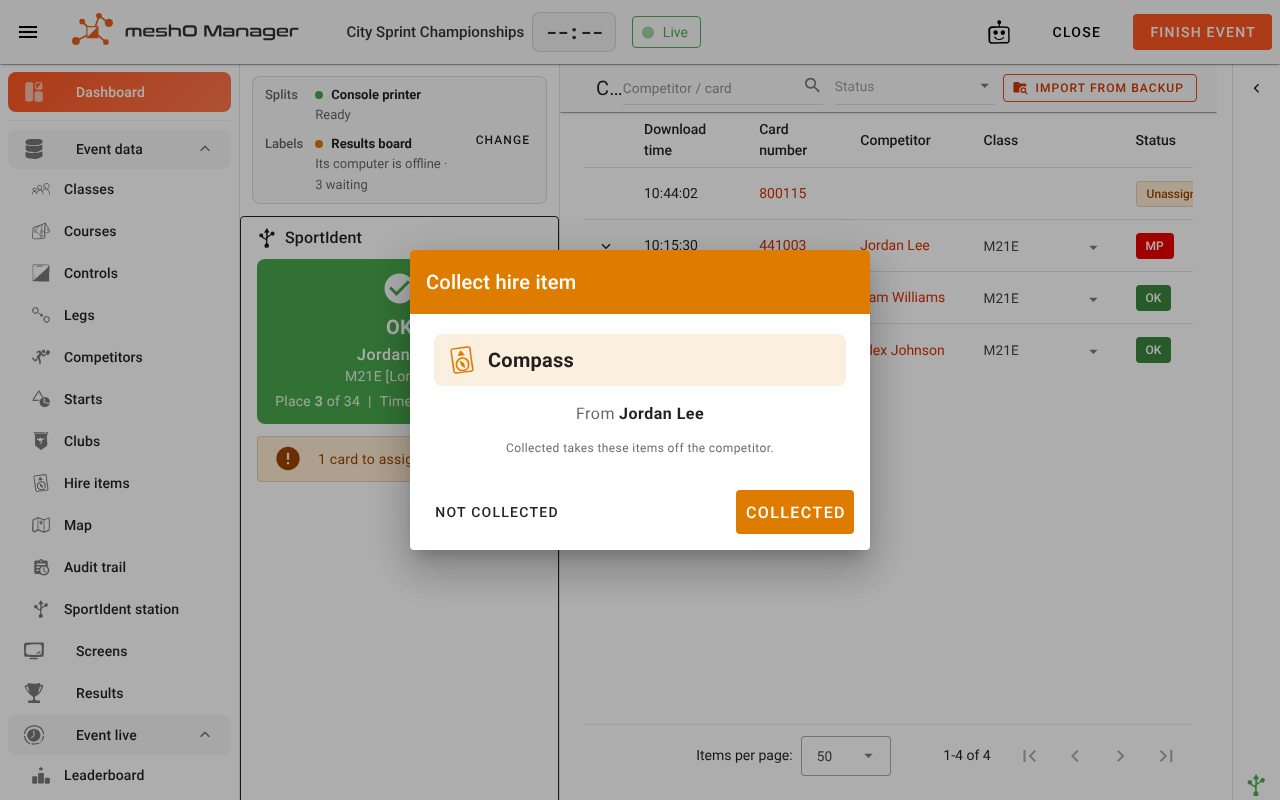
What the buttons do:
- Collected takes those items off the competitor, so the Hire items screen stops chasing them. The card needs no action — downloading it was the return.
- Not collected leaves everything exactly as it was. That is the button for the runner who wanders off with the compass still in their hand.
- When the only thing to collect is the card, Not collected is not offered: both buttons would do the same nothing.
The prompt stays on screen until you answer it, so it cannot be clicked away by accident, and it appears wherever you are downloading — the Card downloads screen, the dashboard tile, or any page of the open event.
Hire cards across a multi-stage event
At a stage of a multi-stage event, most hire-card runners keep the same card for every stage they run. So the prompt only asks for a hire card back at the last stage that runner carries it to:
- A runner entered in a later stage on the same card keeps it — no prompt for the card. A runner who skips a stage keeps it across the gap.
- At their last stage on that card, the prompt asks for it as usual.
- A runner whose later stage is on a different card — they lost their own card, hired one for a day, then bought a replacement — is asked for the hire card after the day they used it.
- Anything else they hired (a compass, a map board) is still asked for at every stage.
"The same runner" means the same person on the multi-stage event's Competitors tab. If Manager cannot be sure — the runner is not matched across stages, or their match is ambiguous — it asks for the card, so a card is never let go by mistake. If a runner is asked for a card they are meant to keep, check their card number on the later stage and their match on the Competitors tab.
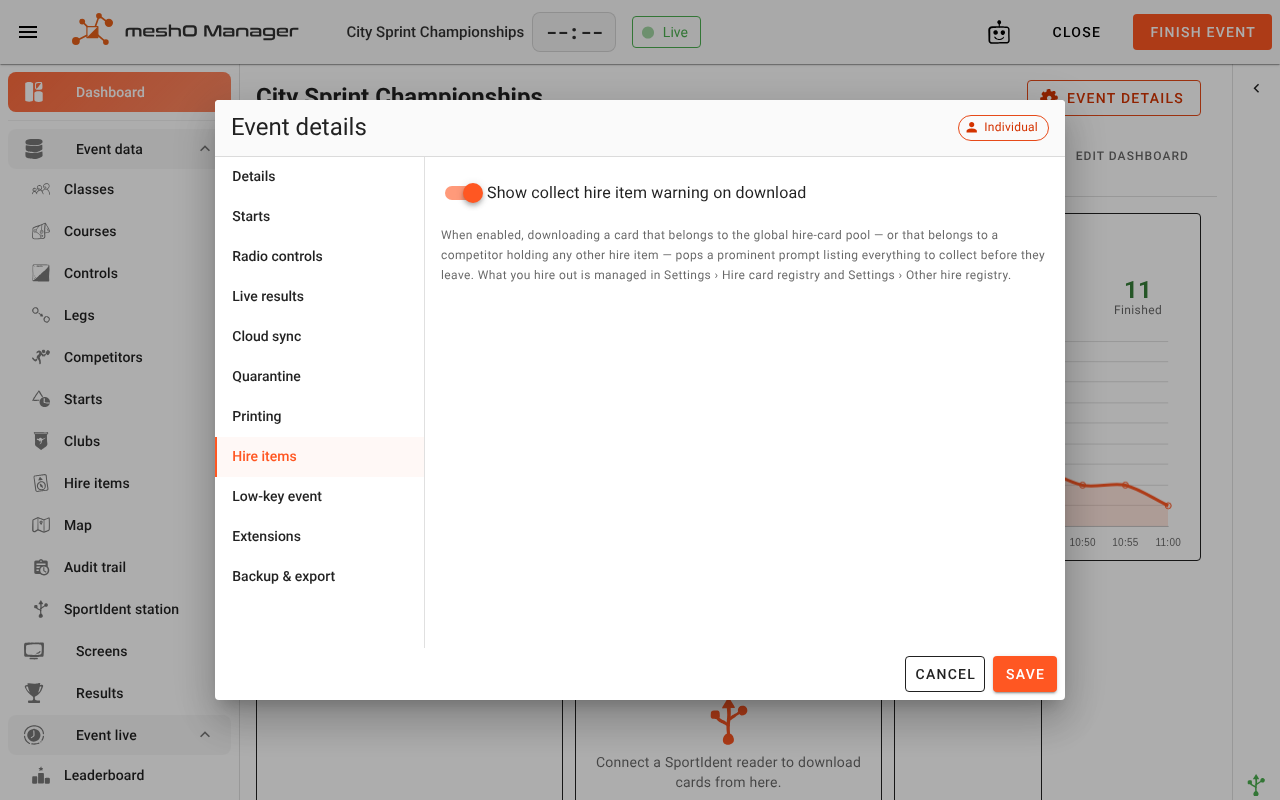
Tip: If you lend nothing at a particular event and the prompt is just noise, turn it off for that event: Event details → Hire items, and switch off Show collect hire item warning on download. It is on by default, and the setting is per event, so your other events are unaffected.
If something looks wrong
| What you see | Why | What to do |
|---|---|---|
| A competitor's card shows no hire marker | That number is not in the pool | Add it in Settings → Hire card registry; the competitor is flagged as soon as you save |
| The Hire items screen says nothing has been set up | Both registries are empty | Fill in one or both — the screen reads them, not this event |
| No collect prompt on download | The event's switch is off, or that competitor has nothing on hire — or, at a stage of a multi-stage event, they run a later stage on the same hire card | Check Event details → Hire items, then the competitor's card number and their Hire items tab, and their later stages |
| An item vanished from the competitor's Hire items tab | The item was removed from the Other hire registry | Add it back under the same name and its holders come back with it |
| The desk shows a compass as out but nobody has it | Somebody took it back without it being recorded | Open the holder (tap their name) and untick it on their Hire items tab |
| A card still says Out at the end of the day | It has not been downloaded — the runner may not have come back through the finish | Chase the runner, and see Resolving issues for a competitor who never downloaded |
Related
- Competitors, clubs and teams
- Downloading cards
- Late entries
- The registration desk
- Resolving issues
- Settings
- Pre-event checklist
- Low-key events — an event that ignores the hire-card pool