
Appearance
Safety check: accounting for everyone
Audience: Timing operators and event organisers making sure nobody is left out on the course at the end of the day.
The single most important thing timing does for participant safety is answer one question: is everyone back? Before search-and-rescue is even a thought, the timing system is the first place anyone looks to see who is still out. This page explains how Manager tracks who is On course, where to view who still hasn't returned, how radio punches and card/station downloads move people in and out of On course, and how to manually correct the picture when the automatic rules get it wrong.
Manager uses the term On course in the UI. This is the same as In Forest in other event systems. This page uses On course throughout.
The short version
At the end of the event, you want the On course count to be zero — every competitor either has a result (finished, MP, DNF, …) or has been explicitly marked DNS because they never started. Anyone still showing On course is, as far as Manager knows, still out on the course.
A safe wrap-up is therefore:
- Open the dashboard and look at the Competitors tile. If On course is not zero, click it.
- Work down the On course list — for each person, confirm they're genuinely still out, have already finished (and just need a download or a manual nudge), or never started (mark them DNS).
- Don't power anything down until that list is empty and you're confident every remaining name has been physically accounted for by the organisers — not just by the computer.
The rest of this page explains each step and the things that can mislead you.
What "On course" actually means
A competitor is On course when Manager has evidence they started but no evidence they finished. They get there one of several ways:
- Their allocated start time passed. A background timer moves anyone with status None and an allocated start time to On course once that start time is reached — even if there's no radio start punch. This is deliberate: it means people show as out on the course even at events with no start radio.
- A radio start punch arrived. A start punch from a radio control moves them to On course and sets their start time from the punch.
- Any radio control punch arrived. A punch at a normal radio control also moves them to On course — Manager now knows they're physically out there, even if it missed the start.
A check punch is different: it does not start anybody. Reaching the check says the runner is at the start area, not that they went out, so their status stays blank and the public screens (leaderboard, spectator pages, commentary, liveresultat) go on showing them as not yet started. Manager records it as checked in instead, and counts a checked-in runner in your On course figures until something says they're back — a radio finish punch, a card download, a finish station read, or a status you set. That covers the runner who checks in and then never punches the start: nothing else would tell you they might be out there. Where the check-in is the only reason somebody is on one of Manager's own lists — no status yet, or a relay runner still waiting in the changeover pen — they carry a Checked in tag so you can tell them from runners who have started. (A runner already out on course has almost always checked in too; they aren't tagged, because the tag would explain nothing.)
In a relay, a check-in doesn't hand a runner the course: to the public, leg 1 is out from the mass start and every later leg from the moment the previous leg comes back, whether or not they've punched the check. On your own lists, though, a relay runner who has checked in counts as on course until they're back — even while they're still standing in the changeover pen.
They leave On course when a result appears: a radio finish punch (→ provisional OK, see below), or a card download (→ OK, MP or DNF), or a manual status set by you.
Important caveat about the auto-start transition: because a passed allocated start time alone is enough to flag someone On course, your On course list at the end of the day will normally include every no-show who had a start time but never actually turned up. Those people are not a safety problem — but you can't tell them apart from genuine missing runners just by looking. Clearing the no-shows (see Marking no-shows as DNS) is what makes the remaining list meaningful.
The full set of rules behind every status is in Status and race time rules.
Radio starts and finishes
If your event has radio controls at the start and finish, they do a lot of the safety bookkeeping for you in real time:
- A radio start punch flips a competitor to On course during the start procedure. A radio check punch marks them checked in, which keeps them on your On course list without showing them as started anywhere public — using a radio on check is ideal for allocated starts, and a radio on check and/or start is ideal for punching starts.
- A radio finish punch flips them to OK the moment they cross the finish — before they reach the download tent. This is the key point for safety: a radio finish is proof the person has returned, even though their card hasn't been read yet.
So at a well-instrumented event, the On course count tracks the real field closely all day, and the dashboard graph of "On course over time" rises through the start window and falls as people finish.
What radios don't guarantee:
- Not every event has start/finish radios, and not every control is a radio control. Where there's no radio coverage, people only move to On course via the allocated-start timer, and only leave it when their card is downloaded. Plan your safety check around what's actually instrumented.
- Radio punches are not 100% (out of battery, out of range, or other anomaly). As an extra precaution, also download the start/check/finish units station memory to confirm.
Recommended start / finish hardware
How you configure the start, finish and check units has a direct bearing on how reliable your safety picture is.
- Use SRR units (e.g. BSF8-SRR or BSF9-SRR) for the start, finish and check. These capture every punch — both manual (contact) and contactless (SIAC "air") — and, being radio-reporting units, broadcast them to Manager via a meshO Control as radio punches as they happen. That keeps the live On course count accurate without waiting for downloads.
- Don't make the start a Beacon Start — require a punch. Contactless "air" punching is very confusing for competitors, so it should not be used for the start: a beacon start fires when the competitor is in proximity instead of a deliberate action.
- A Beacon Finish is fine. Air punching at the finish is common and convenient. With an SRR finish unit you'll get radio finish punches for both SIAC (air) and manual punches, so contactless runners still flip out of On course the moment they cross the line.
In short: contact punch at the start, beacon allowed at the finish so nothing is lost whichever way a runner punches. Requiring a manual start and/or check punch makes reading the station backups definitive - all competitors are recorded. Note that SIAC punches are never recorded by the SportIdent station as that's a limitation of the technology.
"OK" but not downloaded (provisional OK)
When a competitor gets a radio finish punch but hasn't yet downloaded their card, Manager marks them OK but flags the result as provisional. In the UI this shows as OK* — an orange-outlined chip, and on the leaderboards the row is tinted and in italics, with no medal colour on the place.
For the safety check, provisional OK counts as "accounted for" — a finish punch means the person is back from their course. But it is not a finished result yet:
- A provisional time is never published as a result. An exported or uploaded results file (IOF XML, JSON, Eventor) won't go out while anyone is
OK*: you're asked to download their card or set them DNF or Overtime first. If you publish anyway, the file lists them as DNF with no time — the card hasn't been read, so nothing confirms they completed the course. See What an exported results file contains. - The provisional OK is replaced by the real result when the card is downloaded — which may turn out to be OK, MP or DNF.
So OK* people are safe but unfinished business: chase them to the download tent so you get a real result. You can list them quickly — the Status filter on the competitor list has a dedicated OK - pending download option that sits right next to OK.
DNF* — a radio finish with no start time. If the finish punch arrives for somebody Manager has no start time for (no allocated start and no start punch), there is no race time to give them, so they are marked DNF instead — still provisional, and shown as DNF* in italics everywhere a status appears, including a splits print made by hand before the download. It means the same as OK* for safety: they are back. Their card download replaces it with the real result.
Reading SportIdent stations
When radios let you down — a finish radio missed people, a control stopped reporting, or you simply want to prove who came through somewhere — read the station's own internal memory using Station Memory. Every control unit keeps a backup of every manual punch.
This is the authoritative safety net for the "is everyone back?" question:
- Finish station — reading the finish unit's backup tells you exactly which cards manually punched the finish. Anyone in the finish backup is out of the forest.
- Start station — reading the start unit's backup tells you who actually started. Cross-reference against your On course list: a name that's On course but absent from the start backup probably never started (a no-show), not a missing runner.
- Check station — the check unit catches people who checked in near the start. It says only that they were present at the start area, not that they went out — but that is useful corroboration, and very useful for allocated starts.
The Station Memory view auto-detects the station's mode and labels it (START / CHECK / FINISH, or the resolved control name for ordinary controls). Recovered punches that duplicate radio punches Manager already has are reconciled rather than double-counted. See Station Memory for the full read-out procedure and hardware notes.
Applying station records also changes status
Reading a station's memory is not just informational — when you apply the recovered records, Manager records each as an independent station download on the matching competitor and updates their status, which directly moves people in and out of the On course count. Every record that still needs applying is ticked when the memory is read, so Apply to selected applies the lot; untick any stale card you want left out.
Start station → puts a competitor On course. A competitor who hadn't started yet (status None) is promoted to On course — the punch is proof they went out. Someone already On course or already finished keeps their status, and the start download never overrides an allocated start time or race time.
Check station → checks a competitor in. Exactly like a radio check punch: their status is left alone and they're counted in your On course figures until they're back.
Finish station → takes a competitor off course. Any competitor with no status or On course is marked DNF (Did Not Finish) — they came back, so they're accounted for and drop out of the On course count, but a finish-station read alone gives no verified result (there are no splits to check). To turn that into a real result, download their card. This holds whether or not anything saw them start or check in — the same call a radio finish punch makes — so it doesn't matter which station you read first. Anyone with a final result already (a real OK/MP/etc., or a status you set) is unchanged — except a DNS nothing had seen (below).
Any station → takes back a DNS that nothing had seen. A competitor marked DNS with no check-in and no other sign of having started, who turns up in a Start, Check or Finish memory, has the DNS taken back: a Check read leaves them checked in (on your On course list until someone accounts for them), a Start read puts them On course, a Finish read makes them DNF. That is what makes it safe to DNS everyone the first check unit missed and then read a second one. A DNS you set on someone who had checked in — they withdrew at the start — is left alone.
A few practical points:
- A bad time is still a punch. A record whose time wasn't recorded on the card, or isn't a time of day, is applied with the time left blank — the card touched the station, and that's the fact you're reading the memory for. The row is labelled Time not recorded.
- An unreadable date is a warning. A record whose date didn't decode is labelled Date unreadable and starts unticked: the same bytes carry the card number and time, so it may be damaged. It is kept by Today only, since nothing says it wasn't today. Tick it to apply it; its time is left blank, so it can never become anybody's start time.
- Applying is idempotent — a record already recorded on a competitor is skipped, so you can safely re-read and re-apply a station.
- For unmatched cards (no competitor has that card number), a Start or Check read can create an Unknown competitor on the spot — On course from a Start read, checked in from a Check read; unmatched Finish cards are listed for information only and are never auto-created (an unknown finisher carries no lost-in-forest risk to chase).
- This is exactly why the finish station is the strongest tool for clearing the On course list at the end of the day: reading it sweeps everyone who came back but missed their finish punch into DNF, leaving only the people genuinely unaccounted for.
Who is accounted for
Once a Start, Check or Finish unit's memory has been read in full, the Station Memory panel shows Who is accounted for, and keeps it up to date as downloads and punches arrive:
- No record of starting — entered competitors that nothing has seen: no check, start or finish punch, no radio punch at a control, no card download — and no status you set saying they're out. Read once everyone has started, the check (or start) unit is the master record of who went out, so these are your non-starters. Review lists them with everyone ticked; untick anyone you know started, then Mark as DNS. Competitors whose start time hasn't come yet — or whose event day hasn't — are counted separately and never offered, so a read part-way through the start can't DNS the late starters. Anyone with no start time (a punching start) is listed but left unticked, because nothing says when they meant to go. Relay runners are never listed — their status belongs to the changeover chain.
- Still out — competitors something saw go out (a check, a start, a radio punch), and nothing has seen come back. Read the finish unit at the end of the day and this is the list to chase. Runners the course closure marked Overtime without anything having seen them are under No record of starting, not here.
If records from the memory you just read haven't been applied — you unticked them, Today only hid them, or they failed — the panel says how many. Each one names somebody the list may be calling unseen, so apply them (or be sure they're stale) before you mark anyone DNS.
A DNS set here is the same as one you set by hand, with one difference in practice: if a station read later shows the competitor, it is taken back (see above).
Course closure: settling the list at a set time
Most events declare a course closure — the time of day everyone has to be back — and Manager can act on it. Set it in Event details → Details → Course closure (it is off unless you set it).
When that time of day arrives, Manager settles the entries nobody has accounted for, so the event stops claiming results it cannot produce:
| Where they were | Where course closure puts them |
|---|---|
| On course | Overtime — they went out and are not back |
| On course, still waiting in a relay changeover pen | DNS — they were never handed the map, so they never started. Unless they checked in and nothing has seen them since: then Overtime, as below |
| No status at all | DNS — nobody started them and the course is shut |
| No status, but checked in and not back | Overtime — they reached the check and nothing says whether they went out, so they stay on your On course list until you account for them. Setting them DNS is how you say they never started |
| DNS that the closure set, then a check-in reaches them | Overtime, on the closure's next pass — a radio check punch arrived late, or you read the check unit's memory after the closure (which takes the DNS back straight away). The closure leaves a DNS you set yourself alone — though a station read that shows someone nothing had seen takes back any DNS, yours included (see Applying station records also changes status) |
Provisional OK* (radio finish, card not read) | DNF, keeping the time and the * — the card is still to be read |
It also scores a card downloaded afterwards as Overtime rather than OK, when the card's finish punch was at or after the closure — the runner got round, just not by the time you set. Only a clean OK is affected; a mis-punch stays MP. Both this and the sweep above are worked out rather than stored, so fixing a mis-typed closure time re-scores everybody, and you can set any competitor back to OK by hand and have it stick.
Two things it deliberately does not do, and they are the ones that matter for safety:
- It does not decide anyone is accounted for. A runner marked Overtime with no time and no finish behind them is still on the On course list, still in the dashboard's On course count, and still in the class list's column — because nobody has seen them. The status changed; the safety picture did not. This is true of an Overtime you set by hand as well: marking a late runner Overtime is a call about their result, not a report that they are back. They leave those lists when something says they are: a race time, a radio finish punch, a downloaded card, or a finish read out of the finish station's memory. Likewise the
OK*runners the closure moved to DNF stay on the Pending list and the download tent's screen until their card is read. - It does not overrule you. Any status you set by hand is yours, and course closure — the sweep and the download rule alike — leaves it alone.
So course closure does not replace the safety pass below; it does the bookkeeping half of it — the no-shows, the un-downloaded finishers and the late results — and leaves you the names that need a person to answer for them.
Where to see who is still out
Manager surfaces the On course picture in several places. The two below are the ones the safety check itself is run from; every other place it shows up — the competitor and class lists, the Results view, the public screens, the download tent's own info screen — is collected in Seeing who is still on course.
The dashboard Competitors tile
The Competitors tile on the event dashboard shows the running totals — Total, Not started, Started, On course, Pending and Finished — plus a graph of how many people have been on course over the day. The On course figure is the headline safety number, highlighted in orange; it, Pending and Not started are drawn as buttons whenever they are above zero, because clicking them opens the list behind each.
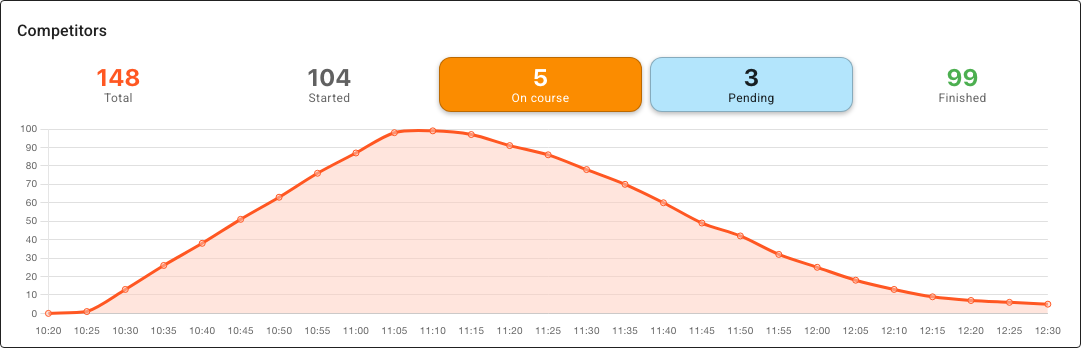
It includes:
- competitors whose status is On course,
- competitors who checked in and haven't come back — no status yet, because a check punch is not a start (they're also counted under Not started, which is true too, until course closure makes them Overtime and moves them to Started), and relay runners who checked in while still waiting in the changeover pen, and
- cards no entry accounts for — radio activity, with no finish punch seen, from a card that nobody entered in the event can still be out on. That is a card matched to no competitor at all, and also a competitor out on a second course whose first run has already finished and downloaded. Either way somebody is out there, so they're counted too. See More than one run on a card.
The "On course" dialog (click the tile)
When the On course count is above zero, the number becomes clickable. Clicking it opens the On course dialog — the single most useful screen for the safety check. It lists everyone still out, with:
- Name — click it to jump straight to that competitor's information. A card no entry accounts for shows in italics: Unknown, or the runner's name and which run this is (Jordan Blake, run 2). A runner who is listed only because they checked in — no start yet, or still in a relay changeover pen — carries a Checked in tag: they may never have started, and finding out is the job.
- Card number — their card number.
- Class and Start time.
- Elapsed — how long they have been out, ticking up as you watch. It is measured from their start time against the event clock, so it reads
--:--when the event is no longer running, and for anyone Manager has no start time for. Sort on it when the question is who has been out too long rather than who has not been seen. - Last seen — the last thing that saw them and when: a radio control they punched (e.g.
31 @ 11:03:18),STARTwhere they have punched nothing since starting, the check they punched over the radio, or the Start station or Check station whose memory you have read. A runner who checked in has been seen, so they always show where.-means nothing has seen them at all. The chip shows the control's code, or the radio's name if you gave it one.
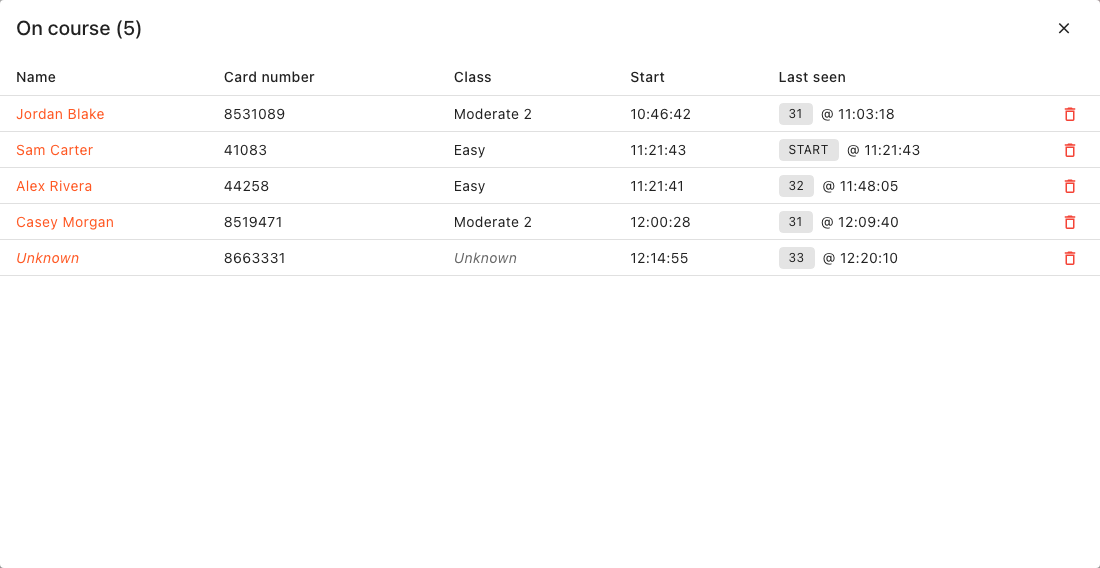
Read the Last seen column in the example above and the list sorts itself into jobs. Jordan Blake punched control 31 at 11:03 and has not been seen since, which is why he is at the top even though three people started after him — the sort is on when somebody was last seen, not on when they started. Sam Carter shows START: he punched the start and no control since, which is the least Manager can know about somebody who is out there. The bottom row is an Unknown card (SI 8663331) that is out on the course but isn't matched to any competitor.
The list is sorted so the people seen longest ago (or never) are at the top — i.e. the most concerning names surface first. Cards no entry accounts for appear as italic rows with whatever start/last-seen radio activity that run has.
Each row also has a delete radio punches action (the trash icon). Use this only to remove genuinely spurious punches — for example a phantom or mis-read punch that's keeping a card showing as still-out. Deleting punches is permanent and re-evaluates the affected competitor from their remaining punches.
Everywhere else
The Competitors page's Status filter (which offers both On course and the OK - pending download option described above), the Classes page's per-class On course column (whose count opens this same dialog for that class), the Results view, the public screens and the download tent's Pending downloads screen all show a slice of the same picture. They are covered, with screenshots, in Seeing who is still on course.
Marking people on course or not
Sometimes the automatic picture is wrong and you need to set it by hand.
Manually setting a competitor's status
Open a competitor (from any list, or from the On course dialog) to reach the Edit Competitor dialog, then use the Status dropdown on the Result tab. You can set On course directly (to mark someone as out when Manager didn't catch it), or move them off the course by setting a finished status (OK, MP, DNF, Disqualified, Out of competition, Overtime), Not competing or DNS. A status you set stays set — the tab says Manual beside it — until you click Auto to hand it back to Manager.
A couple of rules the dialog enforces:
- You can't set OK unless the competitor has a running time (an existing result, or one you enter). There's nothing to rank otherwise. OK is also checked against the card's punches: on someone still missing a control it is corrected straight back to MP. To accept such a run, mark the missed control visited on their Overrides tab instead, and the OK follows: see Approving a run with a missed control.
- Resetting to None ("no result at all") is restricted. Manager only lets you clear a competitor back to None when there's no evidence they started or finished — no race time, no provisional radio result, no punched start, no Start/Finish station read, no assigned card download, and no timed radio control visits. (An allocated start time alone doesn't count as evidence — that's the no-show case. Nor does a check-in, by radio or from the check station: they stay checked in, and so stay on your On course list.) If real evidence exists, the dialog blocks the change and shows a "Can't set status to None" dialog listing the specific evidence (e.g. "a recorded race time (00:45:30)", "a downloaded card", "2 radio punches"). This guard exists so a genuine result is never quietly discarded by relabelling.
Marking no-shows as DNS (bulk)
The most common end-of-event correction is clearing out the no-shows that the auto-start timer flagged as On course. Rather than editing each one, open the competitor list's Actions menu and choose Set competitors DNS…. It lets you select classes and a status filter of None and/or On course (no radio punches). When you include On course, Manager only sweeps up people nothing saw out there: no radio start punch, no start in a start station's memory, and no radio control visit — so you can't accidentally DNS someone who punched the start or was seen by a radio. That's exactly the set of "had a start time, never actually turned up" no-shows you want to clear. Runners who checked in and haven't come back are always left out of the sweep, whether their status is blank or On course: they got as far as the check and nothing has seen them since, so set each of them DNS by hand once you know they didn't go out.
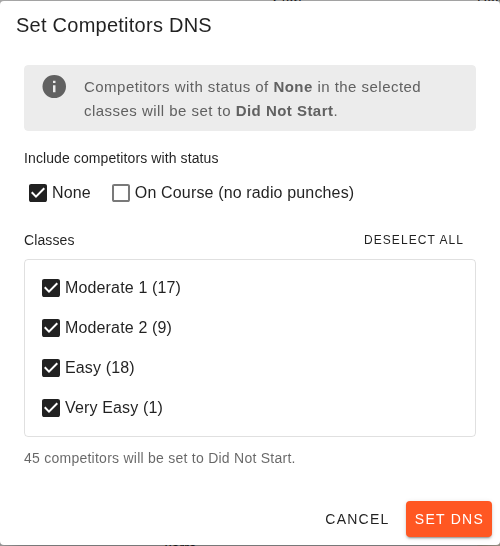
Each class shows how many competitors currently match, and the dialog totals how many will be set to Did Not Start before you confirm. Do this only once you're confident those people really didn't start — that's the judgement call Manager can't make for you.
Tip: To see the individual names first, click Not started on the dashboard's Competitors tile. Anyone there with a blank status is a name nobody has accounted for; the ones already reading DNS have been cleared. See The Not started dialog.
Phantom radio punches keeping someone "on course"
If a stray or duplicated radio punch is wrongly holding a competitor (or unknown card) in the On course bucket, you can suppress it. On the competitor list, the radio punch in a competitor's Last seen chip offers a Suppress action, whichever radio feed the event uses; suppressing hides that punch from the Leaderboard and recalculates the competitor's predicted position without it. For an outright bad punch, the On course dialog's per-row delete removes the radio punches entirely. See Radio punches and Resolving issues on the day for the detail.
A worked end-of-event safety pass
Putting it together, once the last expected competitor should be home:
- Dashboard → Competitors tile. Note the On course count. If zero, you're done — confirm with the organisers and move on. (If you set a course closure, the no-shows have already been marked DNS for you — but everyone the count still holds is a name you have to answer for, whether Manager calls them On course or Overtime.)
- Click On course to open the dialog. Work top-down (longest-unseen first).
- For each name, decide:
- Genuinely still out → tell the organisers; this is the real safety case.
- Finished but no result (showing
OK*, or you know they came in) → download their card, or read the finish station memory to confirm, or set the status by hand. - Never started (no radio activity, not in the start or check station backup) → mark DNS — from No record of starting in the Station Memory panel once the check or start unit is read, individually, or via the bulk Set competitors DNS dialog.
- Re-read start/finish stations to confirm the list against hardware truth, noting that beacon punches aren't recorded by stations.
- Recheck the On course count is zero (and there are no leftover Unknown cards) before declaring everyone is back.
Then continue with the rest of the end-of-event checklist.