
Appearance
Changes report
Audience: Event organisers and entry-desk leads running a series, a carnival or back-to-back events.
What changed about people during an event, and how to carry those changes into the next event and the competitor registry.
What it's for
During an event the desk changes things about people: a runner buys a new card, moves up a class, has their club corrected, or turns up and enters on the day. Those changes are wanted again at the next event. Without this report, someone has to remember them and type them in again.
The changes report reads the event's audit trail and lists the net change for each person: what each field was at the start, and what it ended up as. You can print it or export it, and you can push the changes you choose into:
- future events: today's afternoon race, tomorrow's stage of a carnival, next week's club event;
- the competitor registry, so every future event starts with the new card number or club.
Open it from Competitors → Actions → Changes report….
Building the report
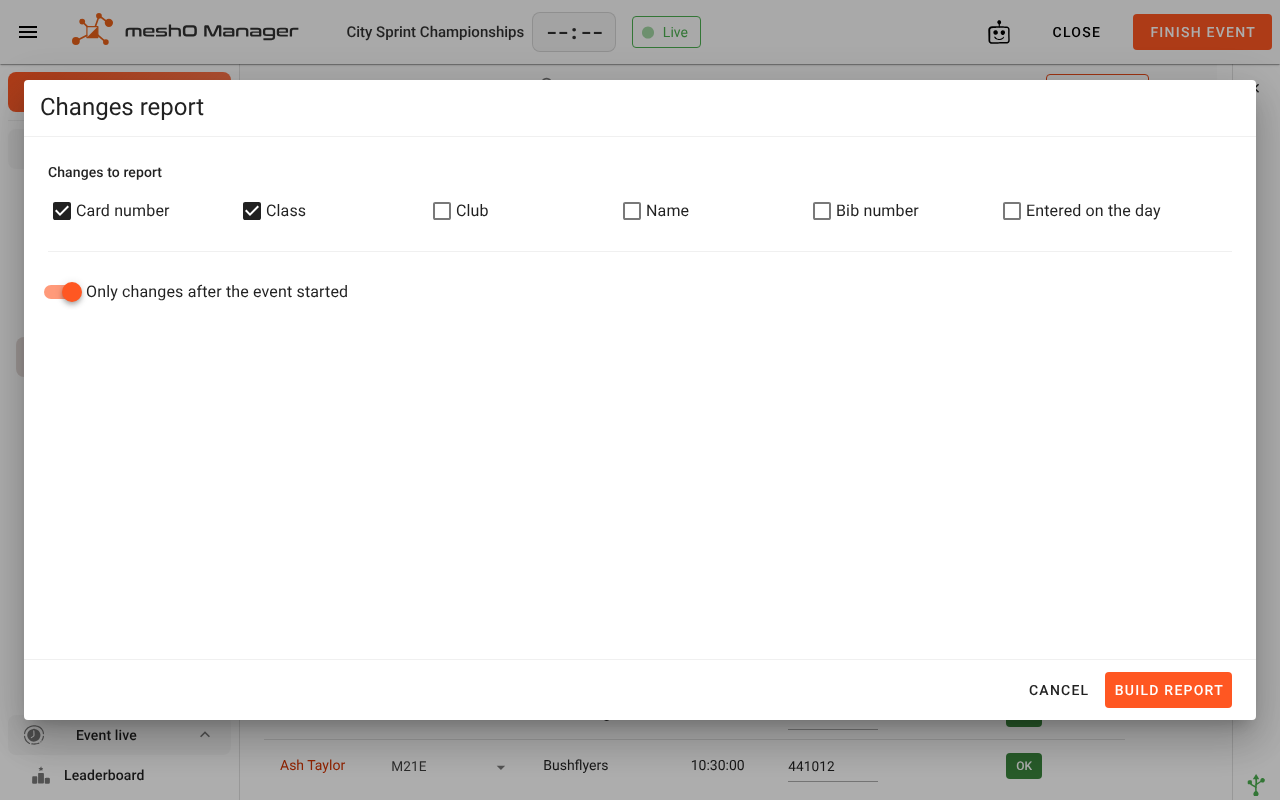
Under Changes to report, tick what you want listed:
Change What it lists Card number A new or different card. Ticked to begin with. Class A move to another class. Ticked to begin with. Club A club added or corrected. Name A name corrected. Bib number A bib given or changed. Entered on the day Someone who wasn't in the event when it started. Their card, class and club are folded into this one row. Leave Only changes after the event started on to list just the race day. Turn it off to include changes made during setup as well.
Click Build report.
Reading the report
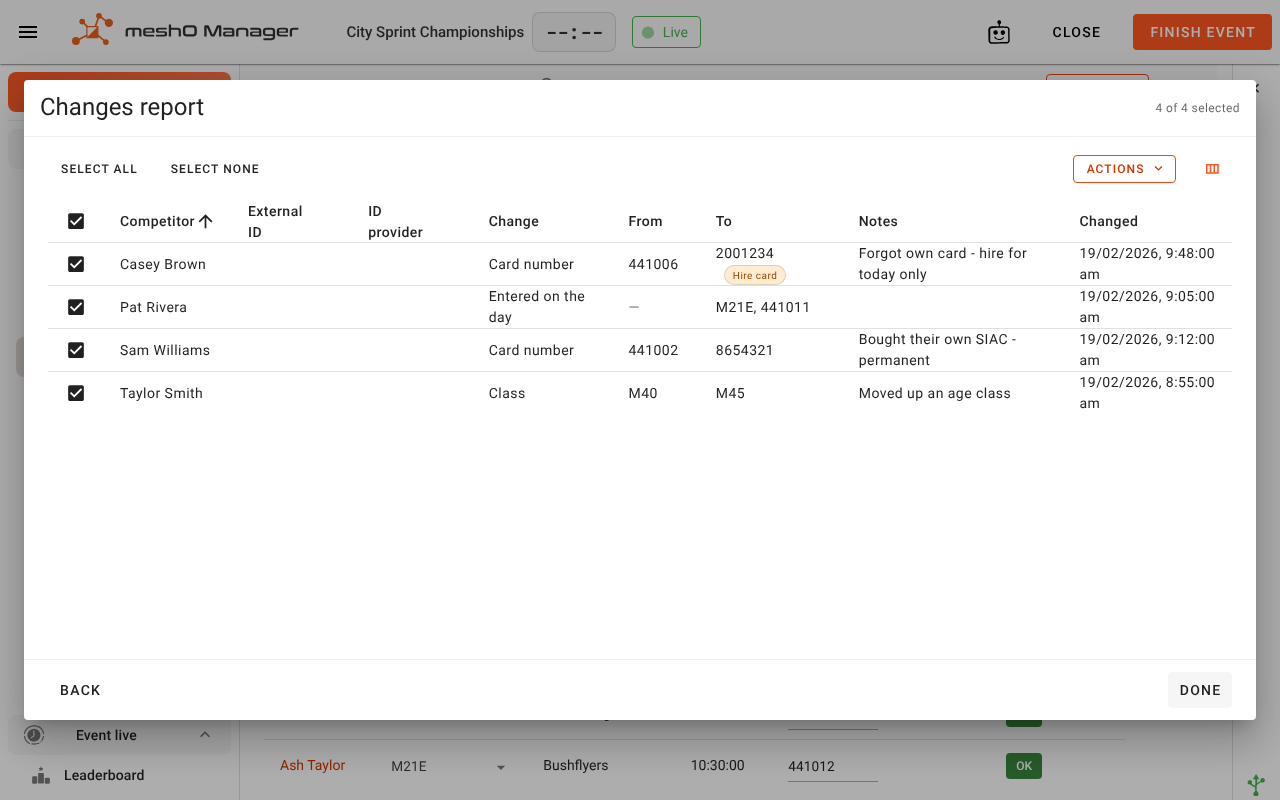
The report lists one row per person per kind of change, sorted by name. Click any column heading to sort by it instead. Each row shows the change From and To, the competitor's Notes (where the desk writes things like "borrowed card, back Sunday"), and when it Changed. A card from the hire pool is marked Hire card.
More columns are available from the column button at the top right: the person's Class and Club, First changed, Times (how often it changed), Source (console, entry desk, AI assistant), Computer, and Registry (how the person was matched in the competitor registry). External ID and ID provider are shown to begin with, because they're how the person is found again in another system.
What the report leaves out:
- Round trips. A card changed and changed back isn't a change.
- Imports. Re-importing the entry list restates hundreds of classes at once; that's a file arriving, not a decision. Only changes someone made count: at the console, the entry desk or by an AI assistant.
- Anything Manager worked out itself, such as a result or a status.
- People removed from the event. There's nothing to carry forward.
Reading the report is often the whole job. Click Done when you're finished.
Exporting it
Actions offers Export PDF, Export CSV and Export JSON. All three export the ticked rows, in the order the table is showing. PDF and CSV include the columns you can see; JSON includes every field, for a program to read.
Applying changes to future events
- Tick the rows you want to carry forward (Select all and Select none help).
- Choose Actions → Apply to future events….
- Tick the events to apply them to, then click Apply.
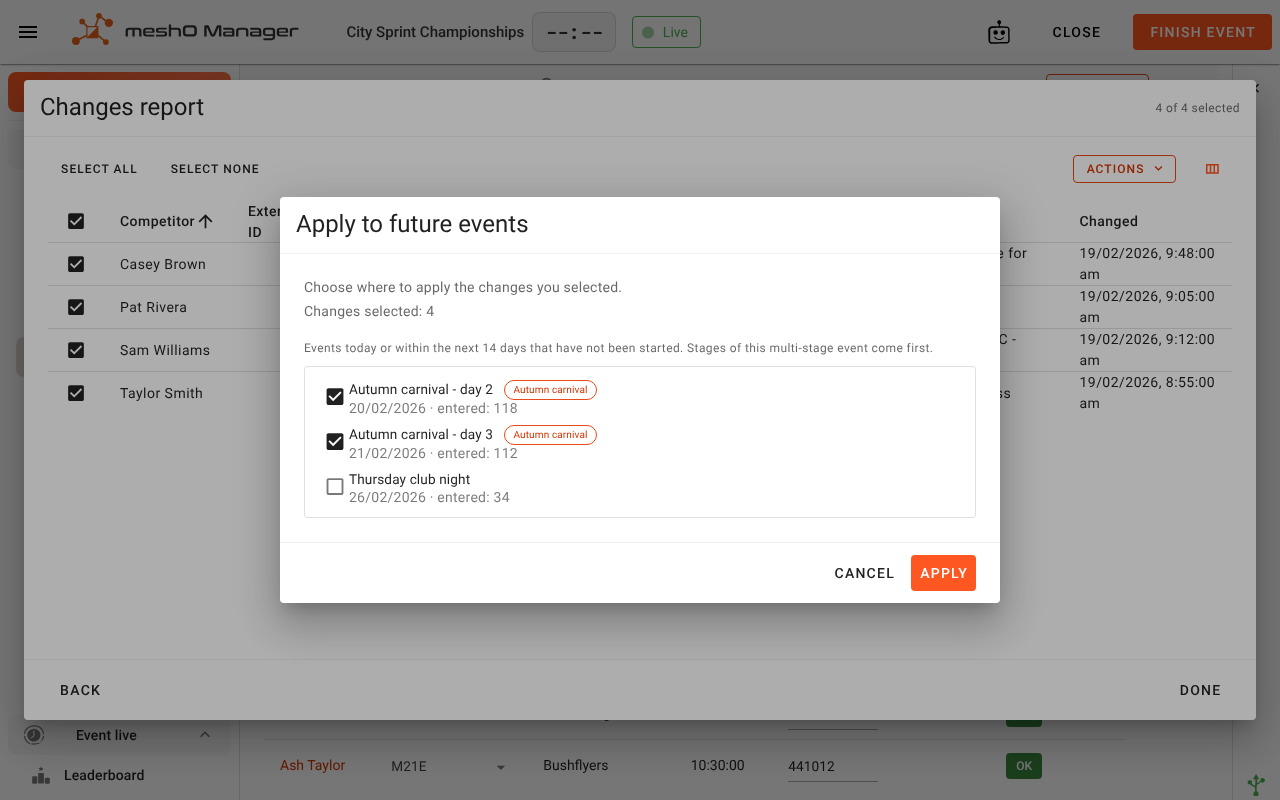
The list only offers events that are today or within the next 14 days and haven't been started. Today counts, because a morning and an afternoon race on the same day is ordinary. "Not started" keeps any event that has run, or is running, from having its results rewritten. If the event is a stage of a multi-stage event, the other stages come first and are already ticked. Nothing else is ticked for you.
Afterwards Manager lists every row for every event, including the ones it didn't write, with the reason:
| Result | Meaning |
|---|---|
| Applied | Written. |
| Already had it | The event already held the new value. Applying twice does no harm. |
| Overwrote a later change | Someone had changed this field in that event since. The change was written anyway, and the row shows the value it replaced. These are worth a word with the other desk. |
| Not entered | The person isn't entered in that event. Manager never enters people for you. |
| More than one match | Two people in that event share this person's name and club. Manager won't guess which one is meant; make the change by hand. |
| No class or club of that name | The event has no class or club with that name, so nothing was written. Manager doesn't create one. |
| Does not apply | Not something that can be applied to an event, such as an "Entered on the day" row. |
| Event cannot be changed | The event has started, has passed, or is more than 14 days away. |
| Could not be saved | The write failed. This is the one result that leaves you something to do: check the event and try again. |
People are matched by their registration number, then their IOF ID, then their name and club, never by card number, because the card number is often the thing that changed. Each change is recorded in the target event's own audit trail with the source Changes report.
Applying changes to the competitor registry
Actions → Apply to competitor registry… saves the ticked changes against the people themselves, so every future event starts with them. Only card numbers, clubs and name corrections are saved:
- A hire card is never saved (Hire card, not saved). It's the club's card, not the runner's, and saving it would make it theirs at every future event.
- A class or bib number belongs to one event, not to a person (Does not apply).
- Someone not in the registry, or matching more than one entry, is left alone (Not in the registry).
- A registry entry that has changed since is never overwritten (Changed since). An event keeps a record of what it used to hold; the registry doesn't, so an overwrite there couldn't be looked back at.
The registry has no audit trail, so the report you exported is the only record of what was pushed. Export it first if you'll want to know later.
Applying to events and applying to the registry are separate actions on purpose, so a change meant for tomorrow's race never reaches the registry by accident. The ticked rows stay ticked after either one, so doing both is two passes over the same selection.
Related
- Audit trail — where the report's changes come from
- Competitor registry
- Multi-stage events
- Competitors, clubs and teams
- End-of-event checklist