
Appearance
Audit trail
Audience: Event organisers and timing operators who need to know what changed in an event, when, and where it was changed from.
Every event keeps a record of every change made to it. This page explains what the record holds, how to read the Audit trail screen, and how to answer the questions people actually ask on the day.
What the audit trail records
The audit trail is a running list of every change to the event's data, in the order the changes happened. Each entry records:
- when the change was made;
- what changed: which competitor, class, course, control, team or card download, and whether it was added, updated or removed;
- the before and after values of every field that changed;
- the source: whether an operator typed it, the entry desk did, an import brought it in, a card download or radio punch caused it, or Manager worked it out itself;
- the computer it was made at, when a person made it.
It covers imports, manual edits, card downloads, radio punches, assignments, overrides, deletions and changes to the event's own details. Every deletion is recorded, whatever route it took, so something that disappeared can always be traced.
The audit trail is always on. There is no setting to turn it off, and it belongs to the event: it lives in the event's folder, travels with every backup, and comes back when the event is restored.
The Audit trail screen
Open the event and choose Audit trail under Event data in the side menu.
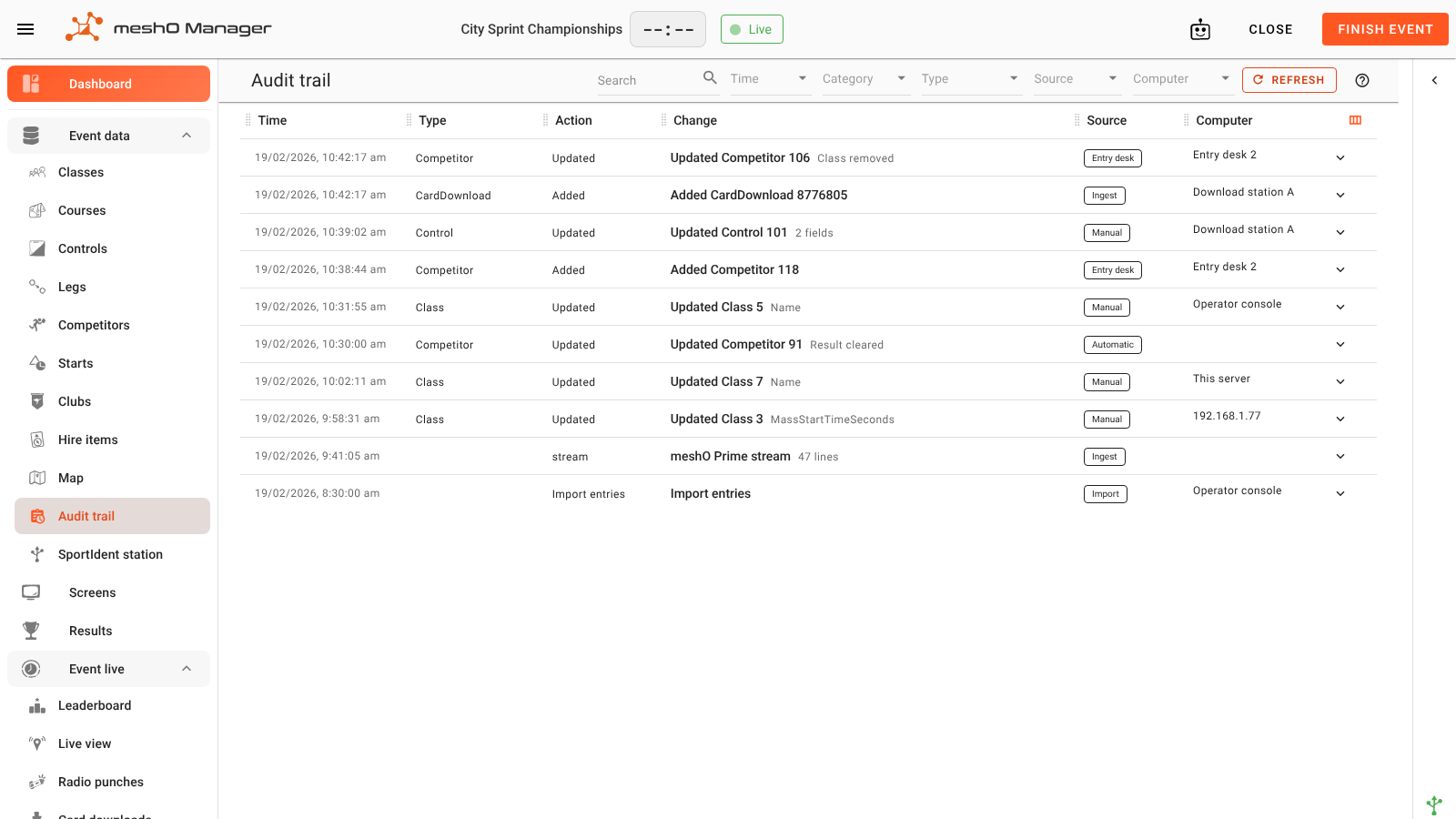
The newest changes are at the top. Each row shows:
| Column | What it shows |
|---|---|
| Time | When the change was made. |
| Type | What kind of thing changed: Competitor, Class, Control, CardDownload… |
| Action | Added, Updated or Removed, or the name of an import (Import entries, Import courses, Rescan downloads for Import from backup on Card downloads…). A few mark moments in the event's own life, such as Created, Restored, Info changed, Video recording deleted, and Taken over by a live standby / Taken over from the main computer when a live standby takes the event over. |
| Change | A one-line summary, such as "Updated Competitor 106 · Class removed". |
| Source | Where the change came from (see Sources). |
| Computer | Which computer it was made at (see Computers). |
Two more columns, Category and Entity ID, are hidden to begin with. The column button at the right of the header row shows or hides columns and changes their order. Your choice is remembered on this computer.
Click a row to see exactly what changed. Changes lists each field with its value Before and After:
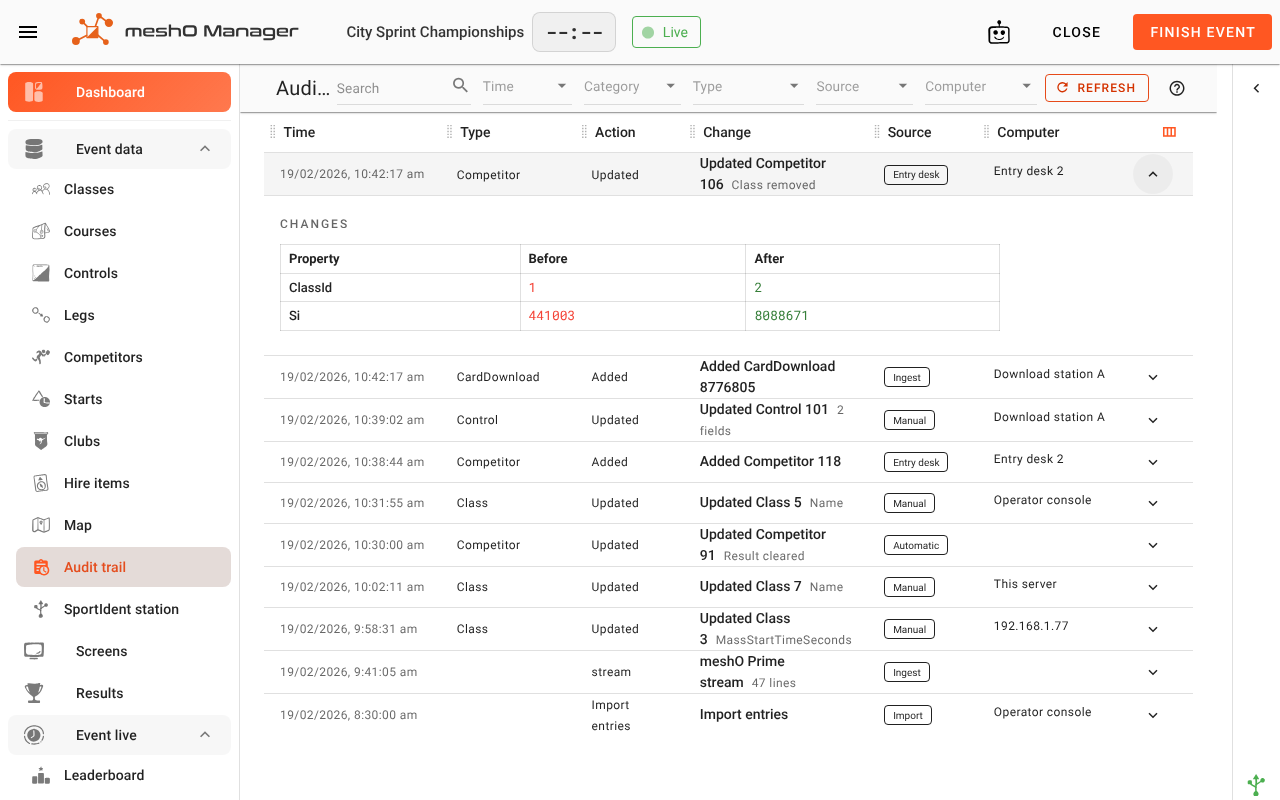
The field names here are Manager's own, so they're sometimes terser than the labels on screen. For example, Si is the card number, and ClassId is the class's number rather than its name.
To keep the list readable:
- An import is one row. All the competitors, classes or courses an import added are folded under its row, which shows how many changes it made. Open the row to see them.
- A run of meshO Prime radio traffic is one row, such as "meshO Prime stream · 47 lines". Prime's regular heartbeat messages are left out.
- Older entries load in pages. When there are more, a Load … more button appears at the bottom.
The list doesn't update by itself. Click Refresh to see changes made since you opened it.
Finding a change
Use the boxes along the top to narrow the list. They combine, so you can ask for, say, everything the entry desk did in the last hour.
| Box | What it does |
|---|---|
| Search | Finds entries containing a word or number anywhere in their values: a name, a card number, a bib. It searches values, not field names, so searching "Tim" finds Tim rather than every entry with a time in it. |
| Time | Only the last 1, 5, 10, 15, 30 or 45 minutes, or the last 1 or 2 hours. Useful mid-event: "what changed in the last ten minutes?" |
| Category | Entity (a competitor, class, course, and so on), Event (the event's own details), Import, or meshO Prime. |
| Type | One kind of thing: only Competitor changes, only CardDownload changes, and so on. |
| Source | One source, such as only Entry desk or only AI assistant. |
| Computer | One computer. |
Each box offers only the choices that actually appear in this event's trail. A source or computer that appears for the first time while the screen is open is offered after you click Refresh.
Sources
The Source column says where a change came from:
| Source | Meaning |
|---|---|
| Manual | Made by an operator at the manager screens. |
| Entry desk | Made at the registration desk (/rego). |
| Import | Brought in by an import: entries, start lists, classes, courses, rankings, IOF IDs, Eventor, or Import from backup on Card downloads. |
| Ingest | Arrived from the timing equipment: a card download, a radio punch, a meshO Prime message. |
| Derived | Worked out by Manager as a consequence of something else, such as a result recalculated after a card download or a team's total updated after a leg changed. |
| Automatic | Made by Manager because time passed: a competitor marked as started at their start time, or a result settled when the course closed. |
| AI assistant | Made by an AI assistant. Hover over the source to see which of the assistant's tools made the change. |
| Changes report | Applied from another event's changes report. |
| Bib allocation | Written by a bib allocation. |
| IOF ranking | Written from the IOF world ranking. |
| Start time move | Part of moving every start in the event at once. One click moves hundreds of starts; this source shows they were one decision, not hundreds of separate edits. |
Manual, Entry desk, AI assistant and the last four are all ordinary edits. The source only says how the edit was made. Derived and Automatic are things Manager did on its own: they follow from the other entries rather than being decisions anyone made.
Computers
An event is often run from several computers at once: the operator's console, a download laptop, one or two at the entry desk. The Computer column says which one each change was made at.
- A named computer shows its name, such as "Download station A".
- A computer nobody named shows its network address, such as
192.168.1.77. It's still listed separately from every other computer. - This server means the browser on the computer running meshO Manager itself.
- A blank means no computer made the change: a radio punch, an automatic change, or an entry recorded before computers were tracked. In the Computer filter, these are listed as No computer.
Naming a computer
The first time Manager is opened in a browser, it asks you to Name this computer:
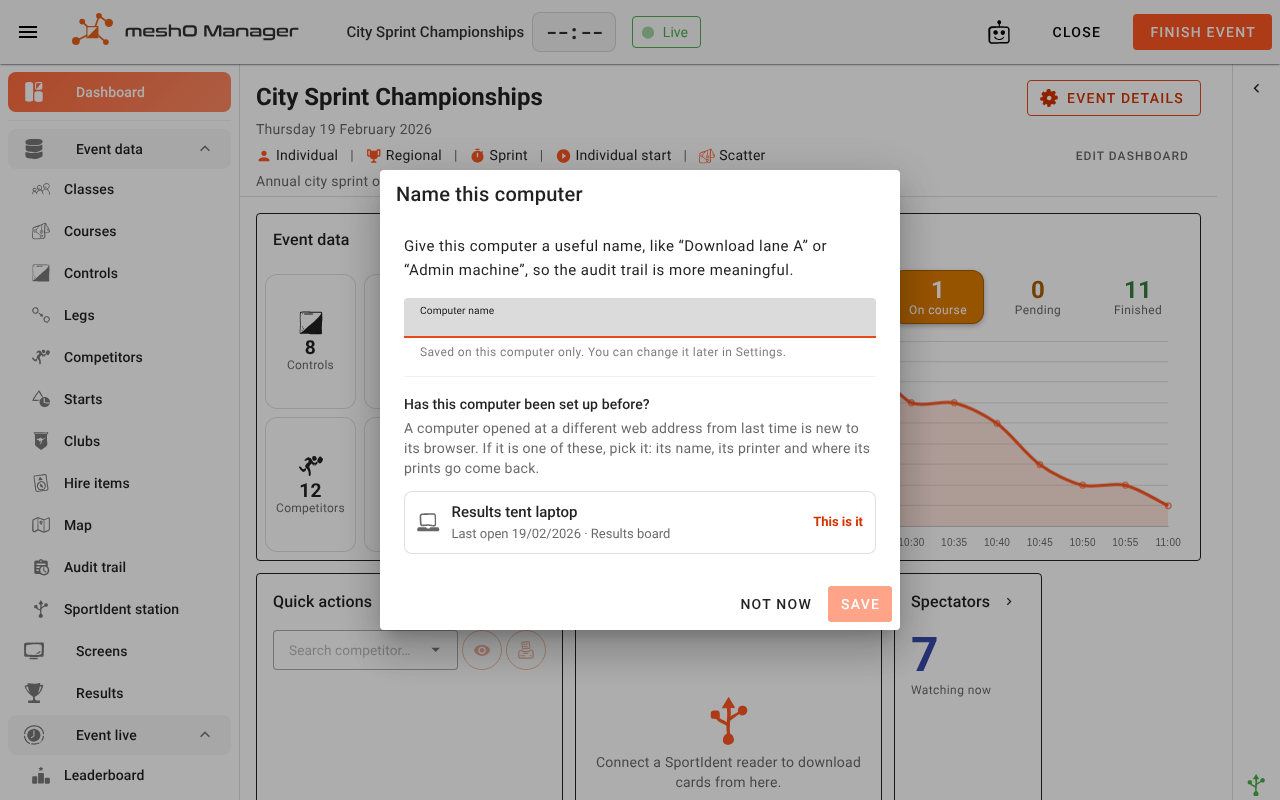
Give each one a name people will recognise later, such as "Download lane A" or "Entry desk 2". Click Not now to skip it; the computer is listed by its address until it has a name. Rename it at any time in Settings → This computer, or from Settings → Printing, which uses the same name.
Things to know about names:
- The name belongs to the browser, not the machine. It's stored in that browser. A second browser on the same laptop, or a browser whose site data has been cleared, counts as a separate, unnamed computer.
- Renaming doesn't rewrite history. Changes made under the old name keep it, so a renamed computer appears under both names in the Computer filter.
- A computer isn't a person. Manager doesn't know who was at the keyboard. A laptop three volunteers take turns on is one computer. Write a roster down if you need to know who was on which desk when.
- The browser on the server itself isn't asked for a name when it's opened at the server's own address (
localhost). Its changes are shown as This server.
One competitor's history
To see the history of one competitor, open them (Edit competitor) and go to the Audit trail tab. It lists only that competitor's changes, in plain words rather than field names.
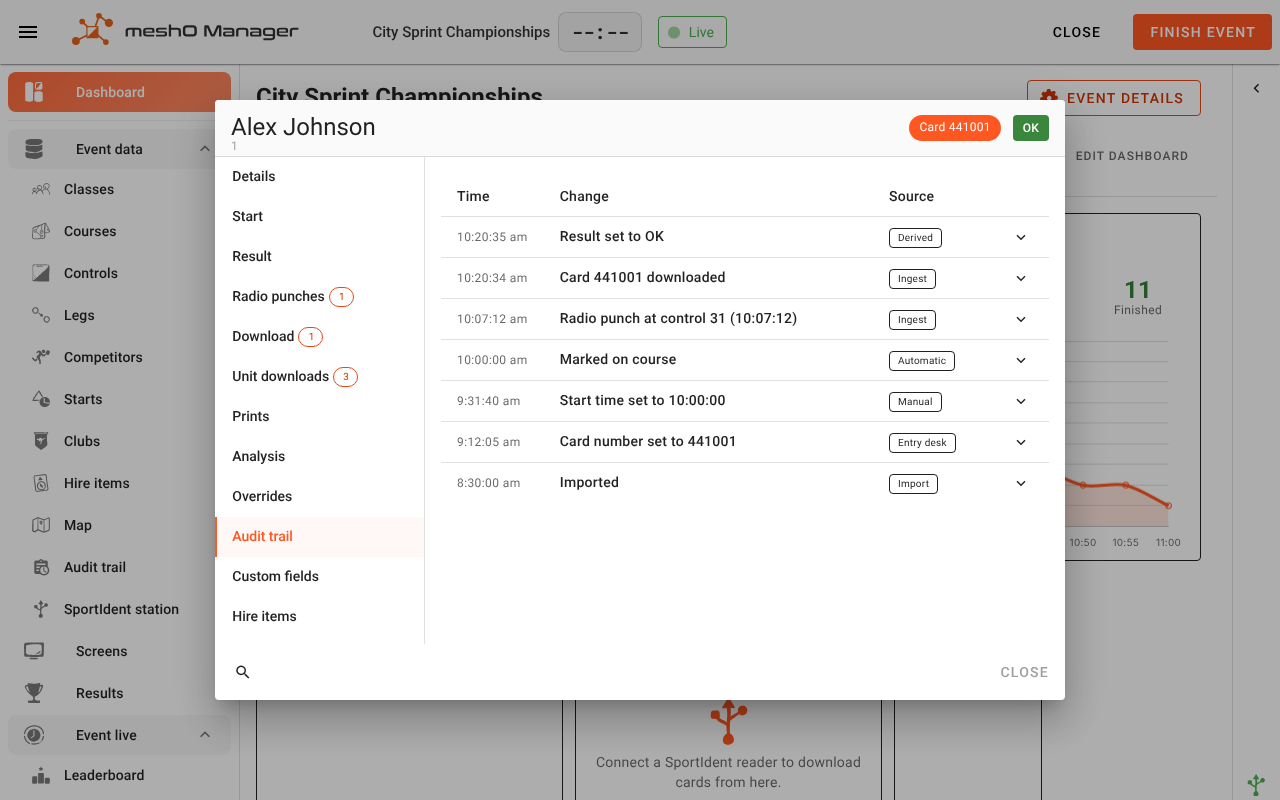
Other examples of what it says:
- "Card number set to 8088671"
- "Class changed to M21E"
- "Card 8776805 downloaded"
- "Radio punch at control 31 (10:42:17)"
- "Result set to MP"
- "Manual punch override changed"
Click an entry for the before and after values. This is the quickest way to answer "why does this runner have this result?" or "who changed their class?".
Questions the audit trail answers
| Question | How to answer it |
|---|---|
| What did the entry desk change today? | Source: Entry desk. |
| What's changed in the last ten minutes? | Time: Last 10 min. |
| Why is this competitor in a different class? | Open the competitor and look at their Audit trail tab. |
| A card download has disappeared. Where did it go? | Type: CardDownload, and search for the card number. A deleted download is recorded as Removed. Its file is still on disk, so Import from backup can bring it back. |
| What did the AI assistant do? | Source: AI assistant. |
| Which of today's changes should go to tomorrow's event? | The changes report reads the trail and lists the net changes to people. |
| What came in with that entries import? | Find the Import entries row and open it. |
| What was done on the download laptop? | Computer: the laptop's name, or its address if it has none. |
What the audit trail doesn't record
- Who made a change. Manager records the computer, not the person.
- Settings that aren't part of one event: Settings, printers and computers, the hire-card list, the club and competitor registries, and a multi-stage event's own setup.
- The bytes of an uploaded map. The change to the event's map settings is recorded, but not the image itself.
- Exports and printing. Exporting results or printing a splits slip changes nothing in the event, so nothing is recorded.
- Rejected input. A duplicate radio punch or a repeated card read that Manager ignored never became a change, so it isn't listed.
- Changes made while an event is being replayed.
- Changes made outside Manager, such as files edited by hand in the event folder.
- The event itself once deleted. The trail lives inside the event's folder and goes with it. Back up first if you might need the history later.
A duplicated event starts with a fresh, empty trail. It's a new event, so it doesn't inherit the history of the one it was copied from. A restored event keeps its trail, because it's the same event brought back.
If the trail can't be written or read
Recording a change never gets in the way of the change itself. If the trail can't be written, for example because the disk is refusing writes, the event carries on, and Manager raises an alert: "Changes to this event have stopped being recorded in its audit trail." The alert is withdrawn once recording resumes. If the whole event folder stops taking changes, Manager shows This event can't be saved instead. See When an event can't be saved.
If the trail can't be read, the Audit trail screen says so instead of showing an empty list: "The audit trail could not be read, so nothing can be shown here. This does not mean no changes were made." An empty list only ever means that nothing matches.
Related
- Backup and restore — the trail travels with every backup
- Card download — Import from backup brings back a removed download
- AI assistants (MCP) — what an assistant can change, and how its changes are marked
- Competitors, clubs and teams — the Edit competitor dialog
- Multi-operator setup — running an event from several computers