
Appearance
Live standby: a second computer ready to take over
Audience: Timing operators who want a spare computer at the venue that can carry on the event if the main computer fails.
A live standby is a second computer running meshO Manager on the same network as your main computer. It keeps a copy of the event that is updated as every change is made — every card download, radio punch, entry and edit. If the main computer fails (a dead disk, a flat battery, a laptop knocked off the table), you press Take over on the standby, point the stations at it, and carry on. Nothing that was recorded before the failure is lost apart from the last second or so. Elsewhere this is called a hot standby, failover or live replication: see Other names for this.
The standby never takes over by itself. A computer that has stopped answering is not always a computer that has stopped running — the network between the two may be what failed — so switching over is always your decision.
While it follows, the standby only copies. It does not publish results, print, or take radio punches, so having one changes nothing about how the event runs on the main computer.
Before the event: set up the pair
You need two computers running meshO Manager on the same network. They should run the same version. A different version that stores events the same way is allowed, and the standby tells you so; one that stores events differently is refused, and the standby says which version to install.
On the main computer
- Open Settings → Live standby.
- Turn on Allow a standby computer to follow events on this computer.
- Note This computer (its address) and the Pairing code. Anyone with the code can copy the event, so treat it like the manager PIN. New code makes a fresh one and disconnects every standby paired with the old one: that is how you un-pair a computer.
- Under Also copy to the standby, choose what else the standby takes from this computer:
- Settings and manager PIN — so the standby runs the event the way this computer does. The standby keeps its own server, logging, update and video settings.
- HTTPS certificate, so stations already trust the standby — it is only sent over HTTPS, and the standby uses it after meshO Manager is restarted there.
- Printers and computers — so a station picks its old entry from the list after a switch-over and gets its printing back.
- Club and competitor registries.
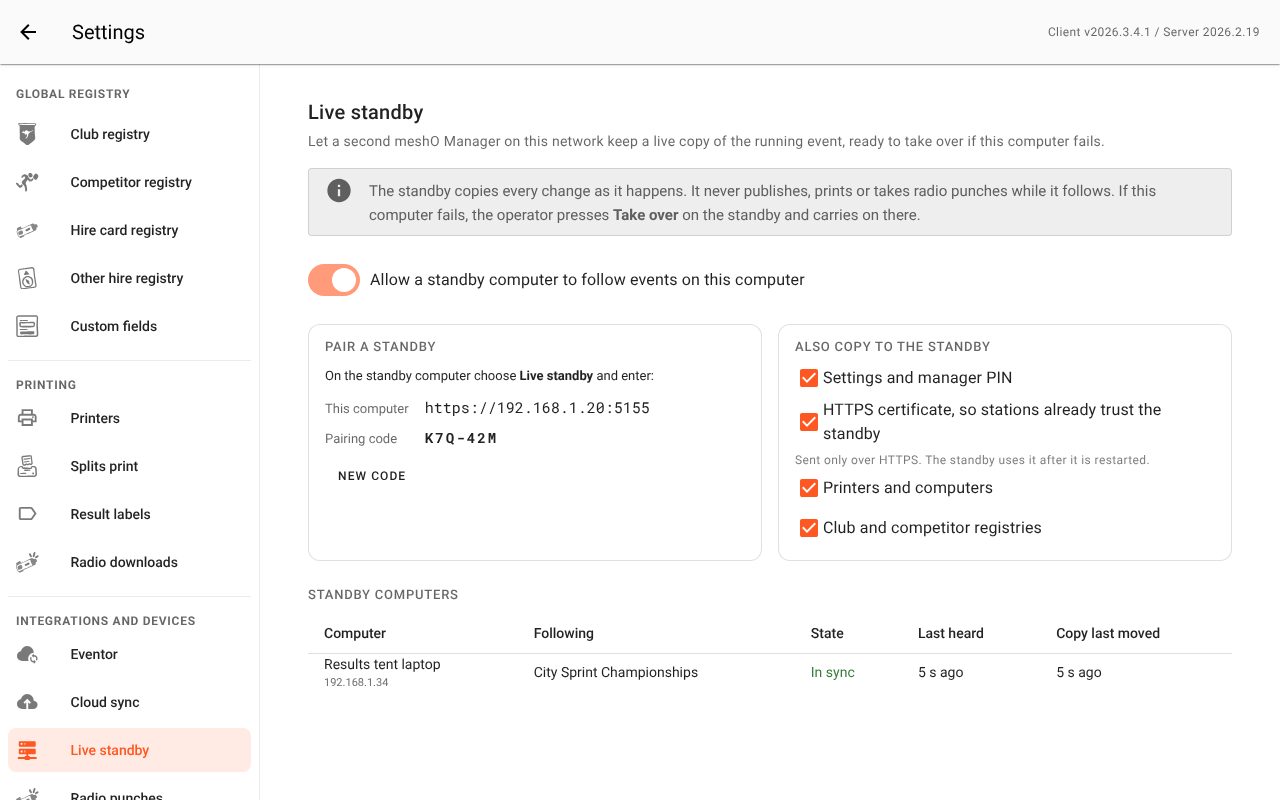
The Standby computers table at the bottom lists every standby following this computer: the event it follows, whether it is In sync, how many changes behind it is, or Lost, when it was last heard from, and when its copy last moved.
On the standby computer
- On the event list, choose Live standby.
- Type the main computer's address and the pairing code, then Connect. The dialog says which computer answered and whether it runs the same version.
- Pick the event under Event to follow and choose Start. The first copy takes a minute or so; after that every change arrives as it is made.
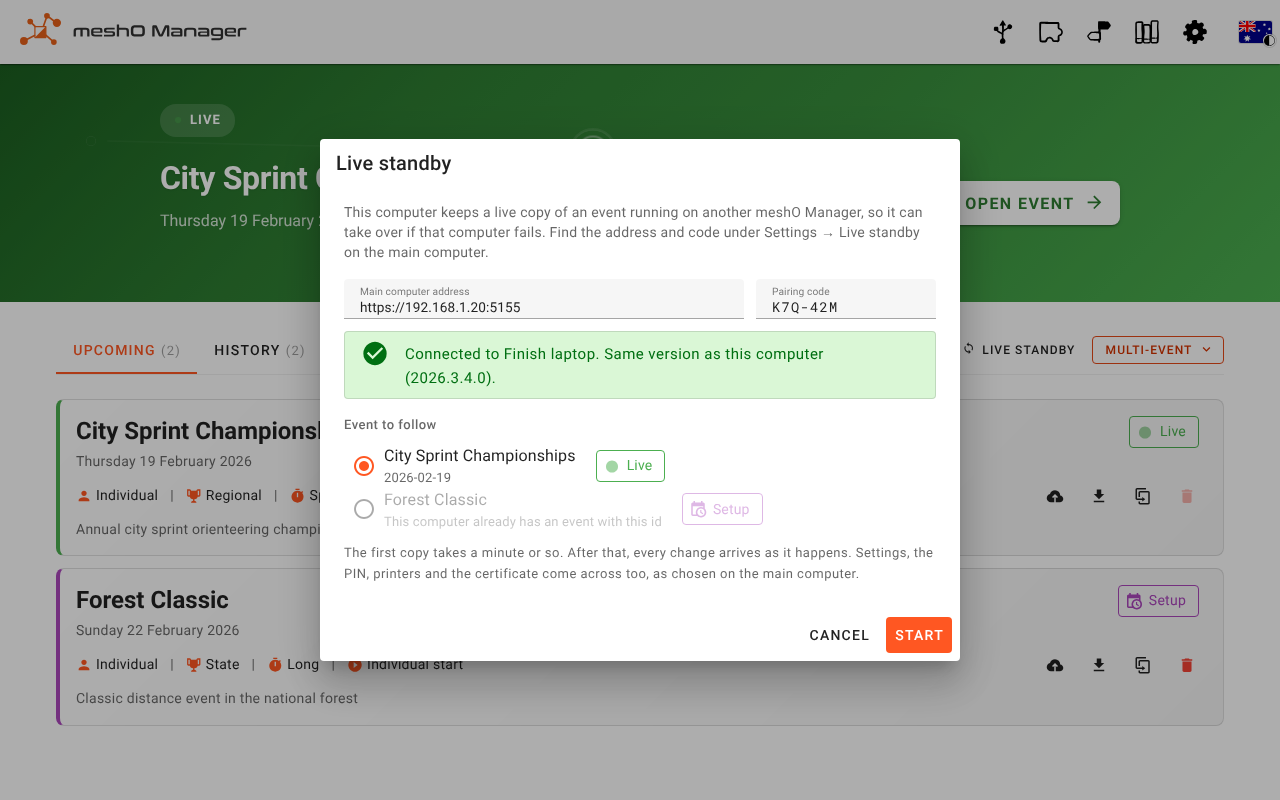
The standby cannot follow an event if it already has an event with the same id — event ids are made from the date, so two computers that each created an event on the same day can clash. The dialog greys such an event out. Use a computer that does not have its own copy of the event.
While it follows, the standby's copy is not an event on that computer: it is not listed with its other events, cannot be opened or edited, and is not backed up or published. It is a copy, waiting. A standby follows one event at a time.
Tip: Pair the standby before the first start, while the event is quiet, and leave it following all day. You can pair it later, mid-event, too; the first copy just takes a little longer.
During the event: what the screens tell you
On the main computer
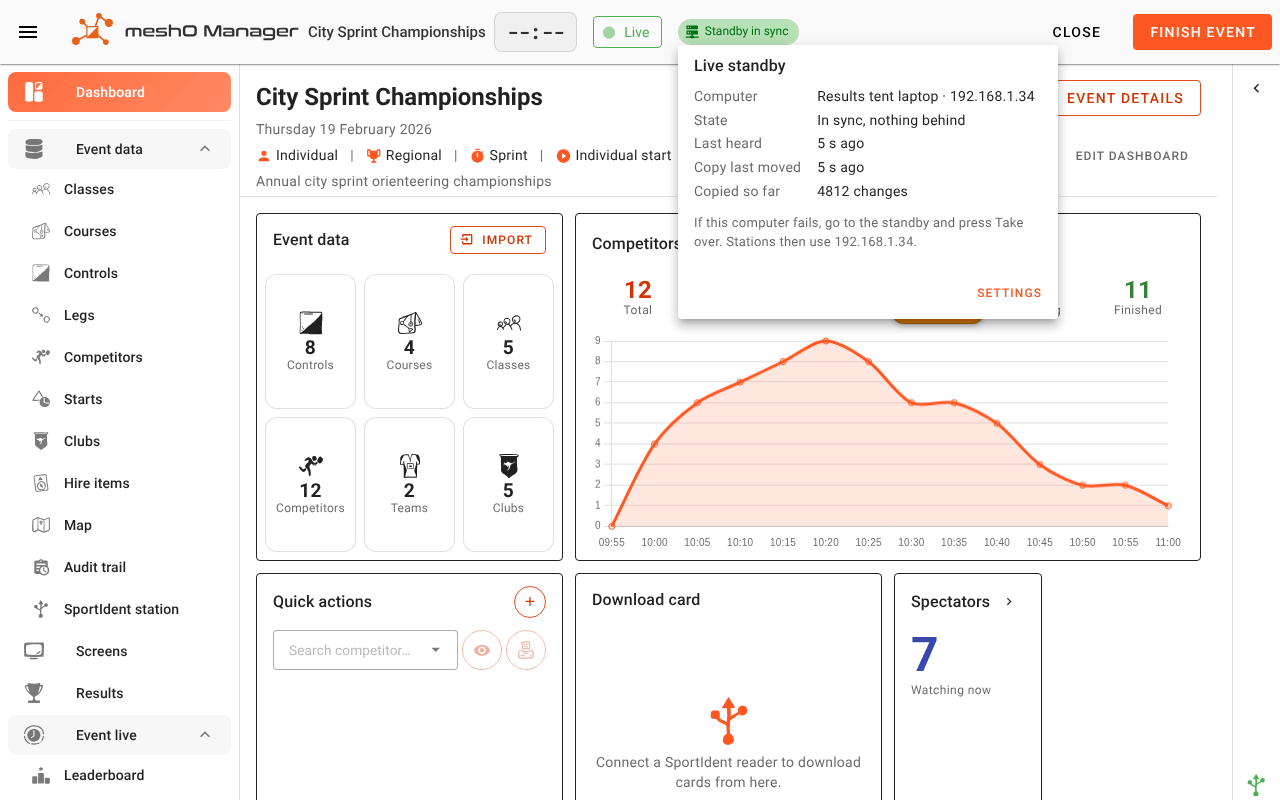
The event's top bar shows a chip beside Live:
- Standby in sync — the standby has every change.
- Standby N behind — changes are on their way to it.
- Standby lost — the standby has not been heard from for 45 seconds, or it is being heard but its copy has stopped moving.
- No standby — nothing is following this event.
Click the chip for the standby's name and address, when it was last heard from, when its copy last moved, how many changes it has copied, and the address stations would use if you had to take over.
When a standby of the live event is lost, Manager also raises an alert, because a chip is easy to miss: the live standby has stopped copying this event. If this computer fails now, there is no up-to-date copy to take over from. The event carries on here as normal. Check the standby computer and its network; once it is copying again it catches up by itself (or takes a fresh copy first, if it was away a long time), and the alert is withdrawn with a message saying it is copying again.
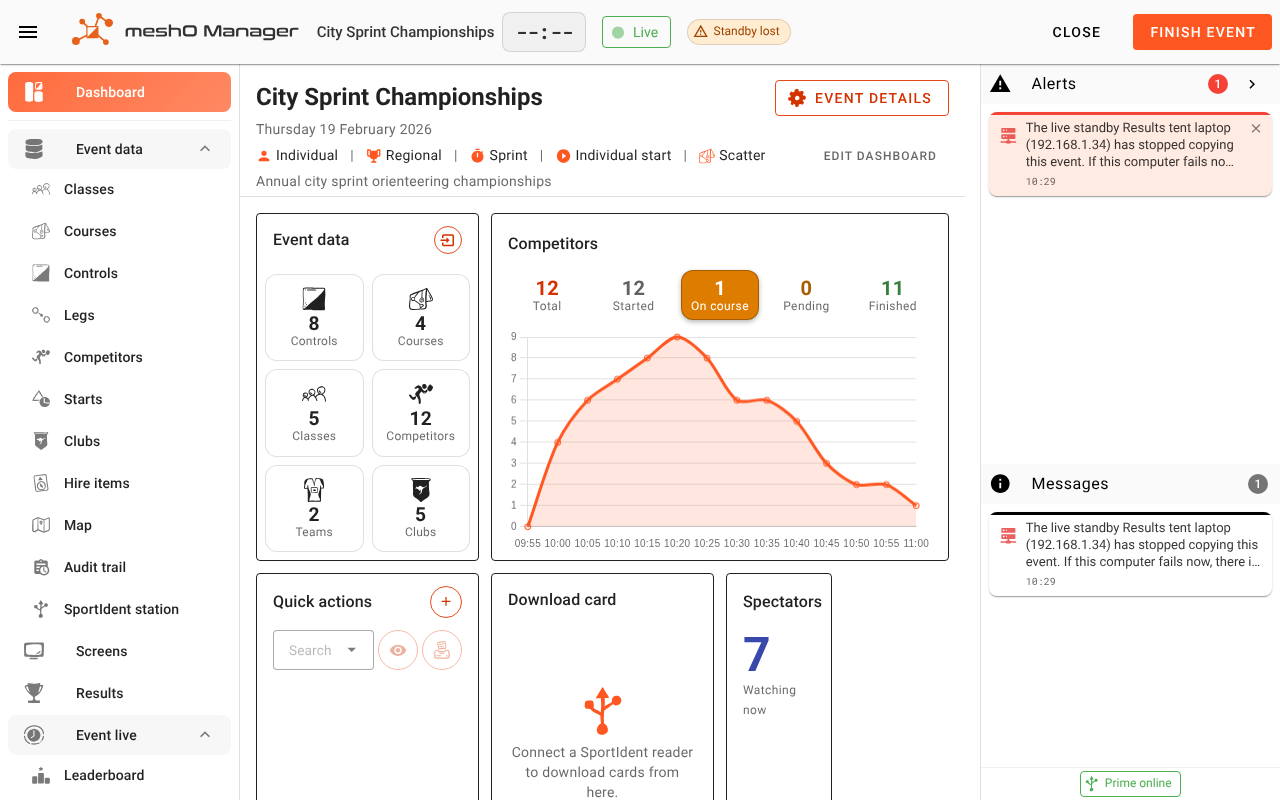
No alert is raised for a standby you stop on purpose, nor for an event that has finished.
On the standby computer
The event list shows a blue Following banner with the event's name, the main computer it is copying, whether it is In sync, when the main computer was last heard from, and how many changes have been copied.
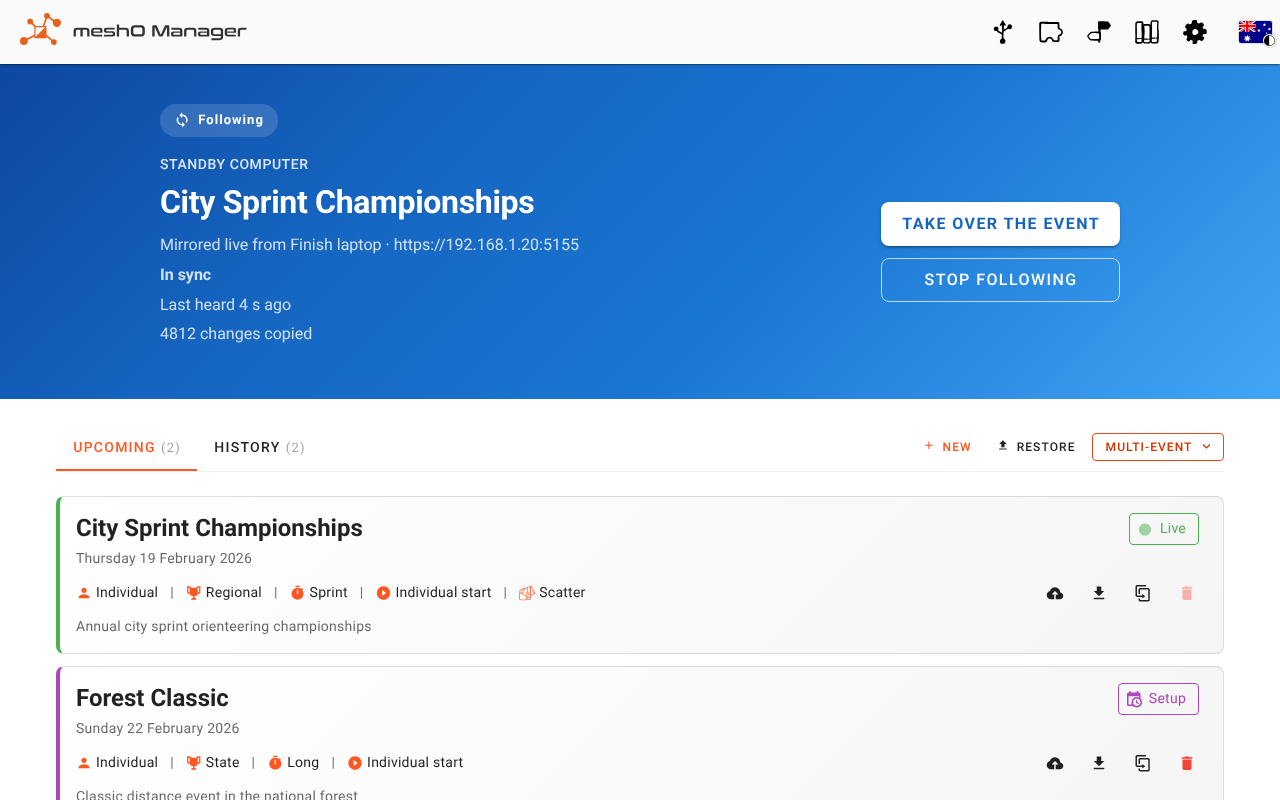
Catching up means changes or files are still on their way — after a burst of downloads, or while a large file such as the map or a radio capture arrives a piece at a time over a slow link. It says In sync again once everything is in.
If the main computer goes quiet, the banner turns orange and says Main computer not responding, how long it has been quiet, and the time of the last change the copy holds.
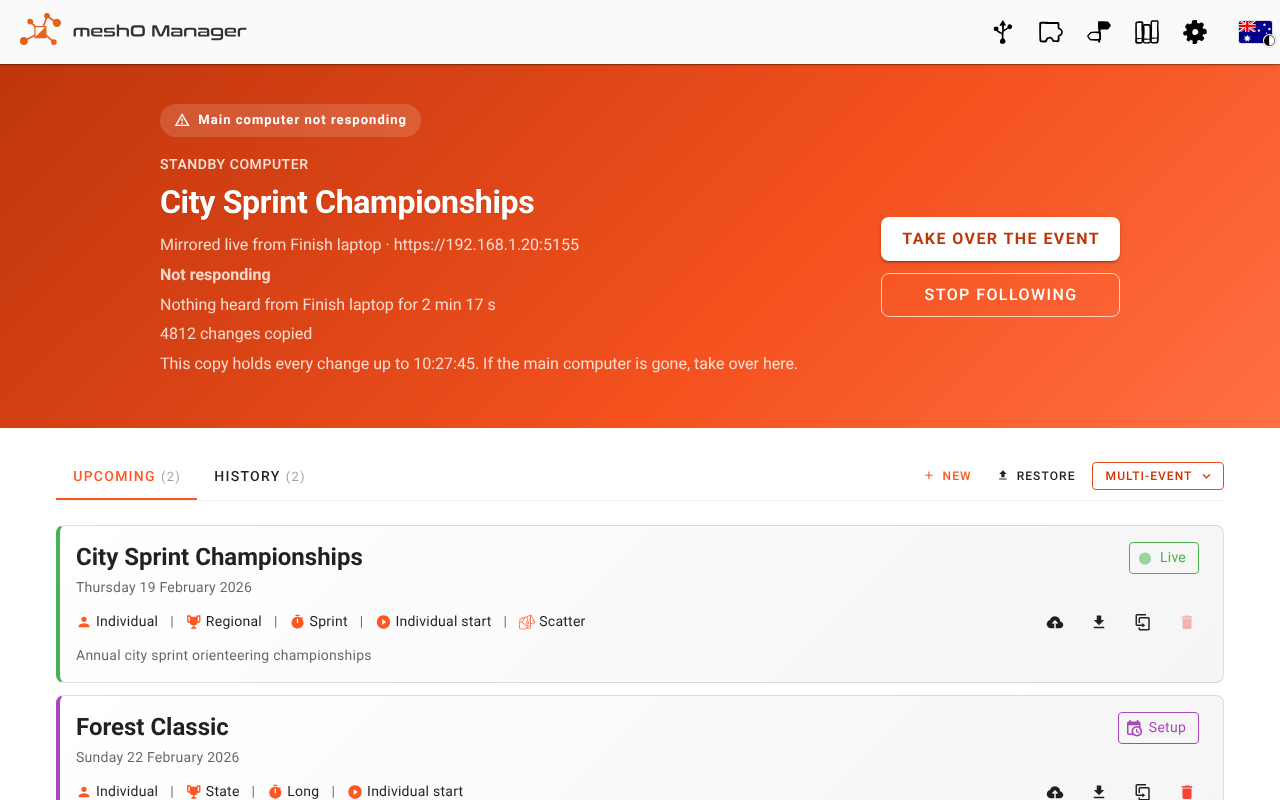
If the main computer's certificate was copied, the banner also asks you to restart meshO Manager on this computer before taking over, so the stations trust it.
When the main computer fails: take over
- On the standby, choose Take over the event.
- The dialog says when the main computer was last heard from and what the copy holds, and lists what you will need to do afterwards. If the main computer is in fact still running, it warns you: taking over stops the event there.
- Tick The main computer cannot carry on with this event and choose Take over and resume.
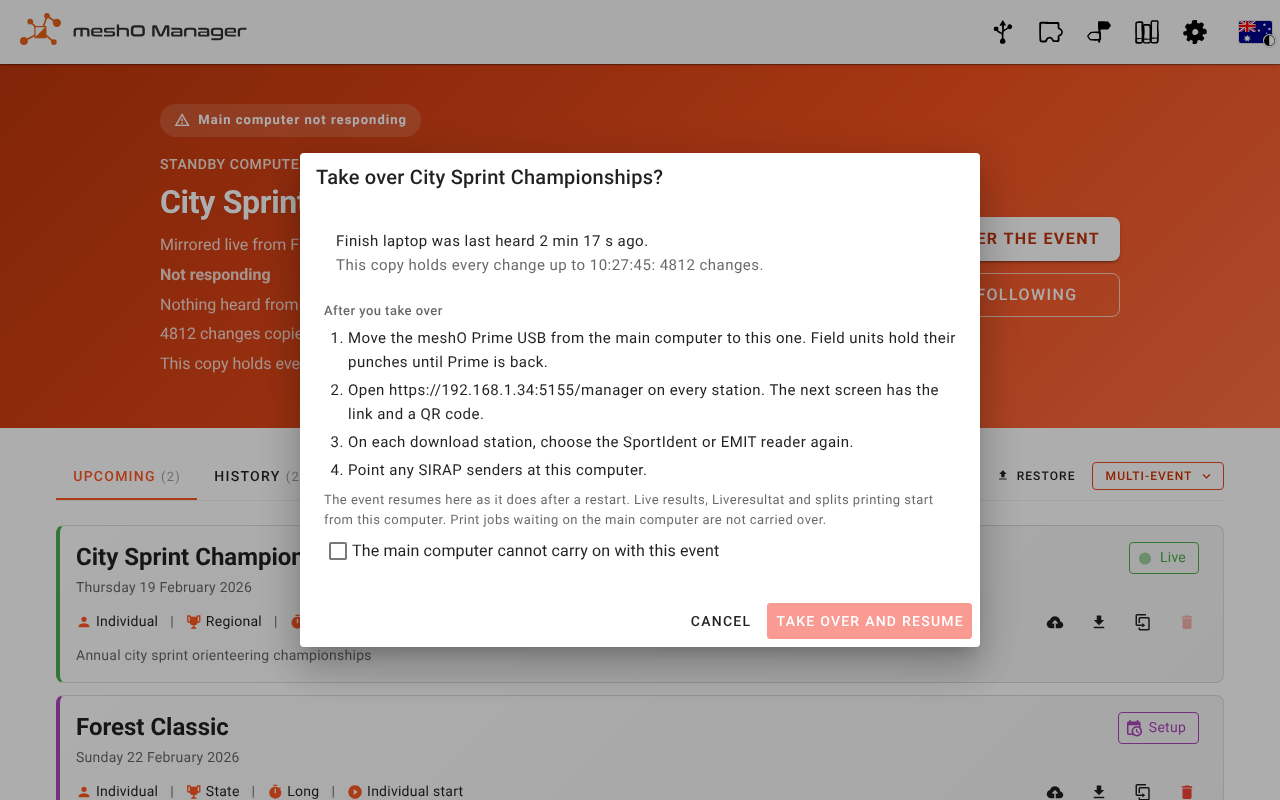
The standby tells the main computer to stop, if it can still reach it, brings in the changes it had not copied yet, and resumes the event the same way Manager resumes an event after a restart. Live results, Liveresultat and splits printing carry on from the standby. An event that was still being set up on the main computer is taken over as it is, and not started.
You cannot take over while another event is live on the standby: finish that first.
On the old main computer
If the main computer could not be reached, the standby keeps trying to tell it. When the old main computer comes back, its event pages show that the event now runs on the standby and refuse any change to it, so nothing is recorded twice. It is not offered for resume, and its card on the event list says Taken over by the standby.
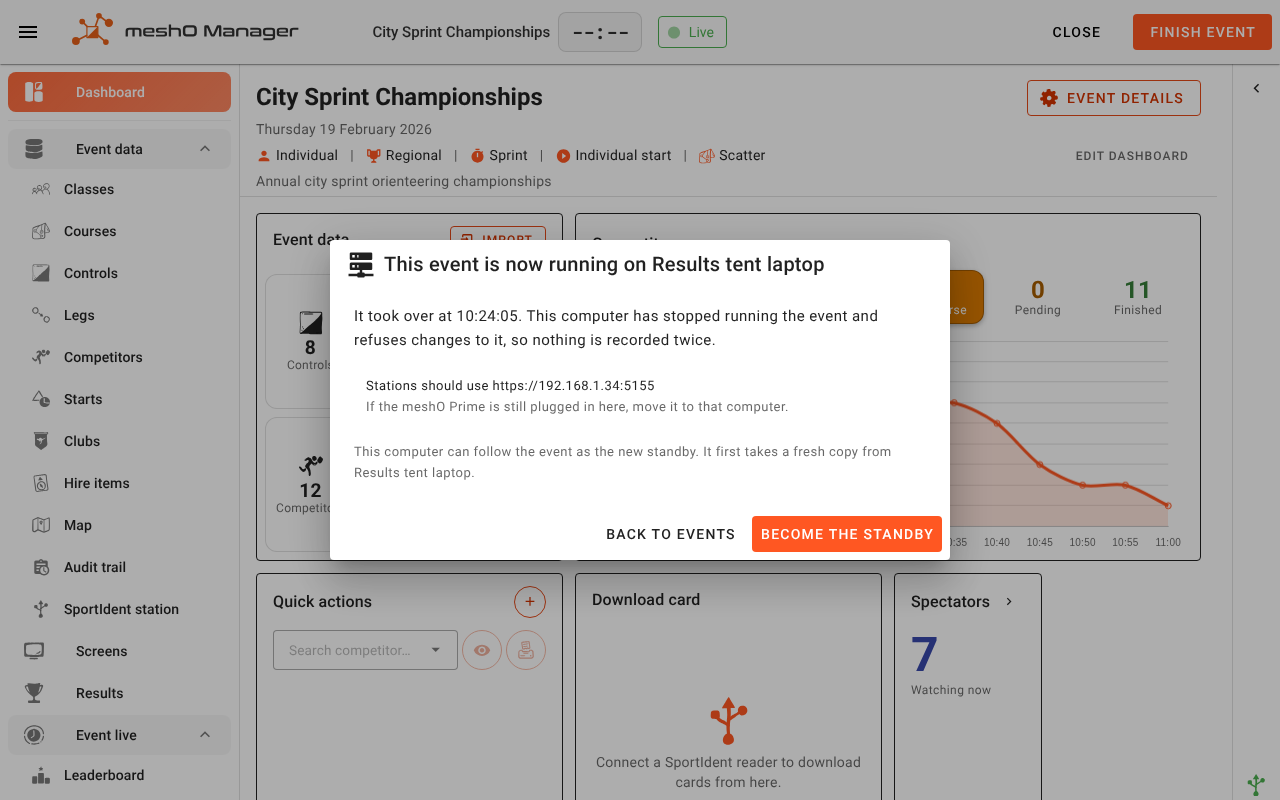
Choose Become the standby to make the old main computer follow the event from the new one. It takes a fresh copy first. There is no button to take the event back on the old computer; if you want to switch back, take over again from it once it is following.
What you move by hand
The event dashboard on the new main computer shows a Handover panel with what is left to do:
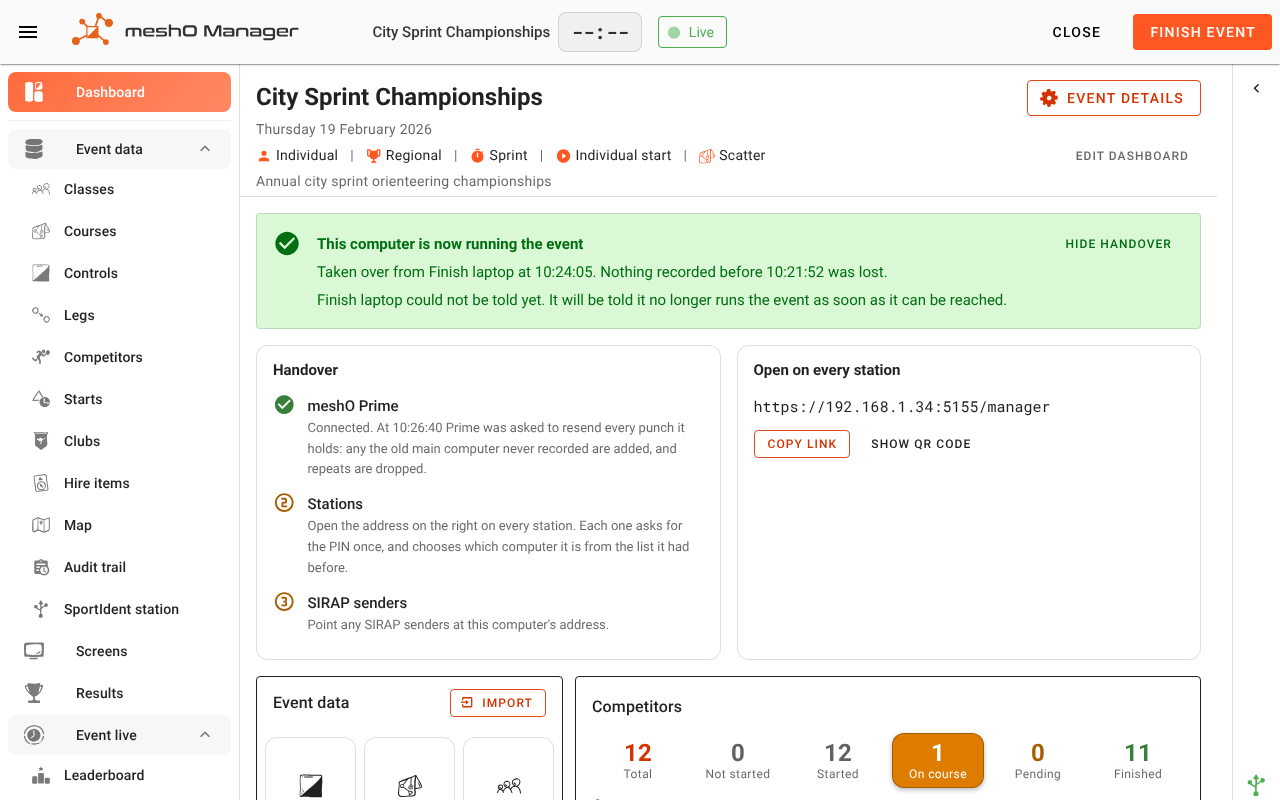
- meshO Prime — only if the event uses it; otherwise this step is not shown. Prime plugs into the main computer's USB, so move it to the standby (or plug in a second gateway — never use two at once with the same field units). Field units hold their punches until a gateway is back. As soon as Prime connects to the standby, Manager asks it to resend every punch it holds, which brings in any the old main computer never recorded. Punches the standby already has are recognised and dropped, so nothing appears twice.
- Stations. Open the standby's address on every station. The panel shows the link and a QR code. Each station asks for the PIN once and asks which computer it is — pick the same entry it had before.
- SportIdent and EMIT readers. These are attached to the browser, not the server: choose the reader again on each download station.
- SIRAP senders. Point them at the standby's address.
Choose Hide handover when you are done.
Tip: A router name that you can point at whichever computer is running the event saves re-opening every station: see Reaching the server: name or IP.
What is not carried over
- Print jobs that were waiting on the main computer, and splits held back for a mis-punch decision.
- A card download that was in flight at the moment the main computer failed. Read that card again.
- The last second or so of changes.
Stopping following
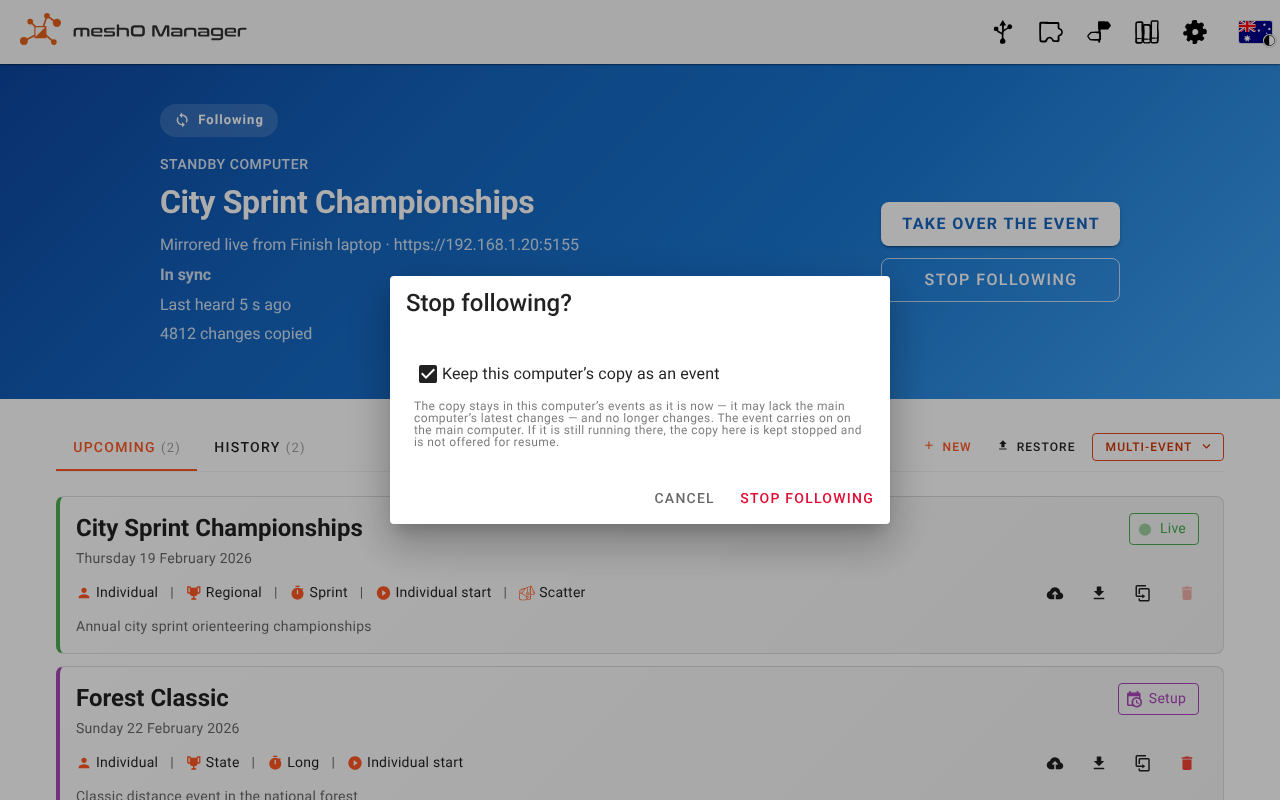
Choose Stop following on the standby's banner. By default the standby's copy is discarded and the event carries on on the main computer, which is told the standby left on purpose, so no alert is raised.
Tick Keep this computer's copy as an event to keep the copy instead. It becomes an ordinary event on the standby computer, as it stood when you stopped — it may lack the main computer's very latest changes — and it no longer changes. If the event is still running on the main computer, the kept copy is stopped and is not offered for resume, so you never end up with two computers running one event by accident.
If something goes wrong
- "That pairing code is not the main computer's" — check it under Settings → Live standby on the main computer. After ten wrong codes the main computer makes that address wait a few minutes.
- "Live standby is turned off on the main computer" — turn on Allow a standby computer… there.
- "The main computer's certificate is not the one this computer paired with" — the main computer's address changed and it made a new certificate. Stop following and pair again.
- The main computer was restarted — the standby notices and takes a fresh copy by itself.
- The standby shows as lost on a slow or patchy network — the standby copies in smaller pieces when the link is poor, and catches up when it improves. If it stays lost, check that the standby computer has not gone to sleep.
Other names for this
If you searched for one of these, this page is what you want (or, for the last two rows, what you don't).
| If you searched for | In meshO Manager |
|---|---|
| Hot standby, warm standby, standby server | The standby computer. It is a hot standby: its copy is up to date to the last second or so. |
| Backup computer, backup server, backup timing computer, second results computer, spare laptop, redundant computer | The standby computer. |
| Primary and secondary, master and slave, primary and replica | The main computer and the standby. |
| Failover, automatic failover, manual failover, switch-over | Take over the event. Failover is always manual: the standby never takes over by itself. |
| Replication, database replication, live replication, mirroring, live mirror | How the standby's copy is kept up to date: every change the main computer writes is copied to it as it is made. |
| Live sync, live syncing, data sync, real-time sync | The same: the standby copies every change as it is made. |
| Real-time backup, continuous backup | The standby's copy, which is ready to run rather than a file to restore. For backup files, see Backup and restore. |
| High availability, redundancy, disaster recovery, event recovery | A standby, and taking over when the main computer fails. |
| What if the laptop dies, crashes or loses power during an event | Take over on the standby. |
| A backup or second computer in MeOS, SportSoftware (OE12) or other timing software | In meshO Manager, this is the live standby. |
| Cloud backup, cloud sync | Not this. The standby is a computer at the venue, on the event network. |
| Several computers on one event, networked stations | Not this. Download, rego and arena stations all use one server through their browsers; see Reaching the server: name or IP. |
Related
- Reaching the server: name or IP
- HTTPS and certificates
- Backup and restore — the other half of protecting an event
- Connecting meshO Prime and radios, if you use meshO Prime
- Resolving issues on the day