
Appearance
AI assistants (MCP)
Audience: Event organisers and timing operators who want to ask an AI assistant questions about a live event.
meshO Manager can let an AI assistant — Claude, or any other app that speaks the Model Context Protocol (MCP) — read your event and answer questions about it in plain language:
Who is still out on course in M21E?What are the top three in W21, and is that final yet?Anything come in from control 42 in the last ten minutes?Why is Carl Mo showing a mispunch — what did he actually punch?
If you would rather not set up an assistant of your own, meshO Manager has a built-in assistant that needs no setup, on the same settings page.
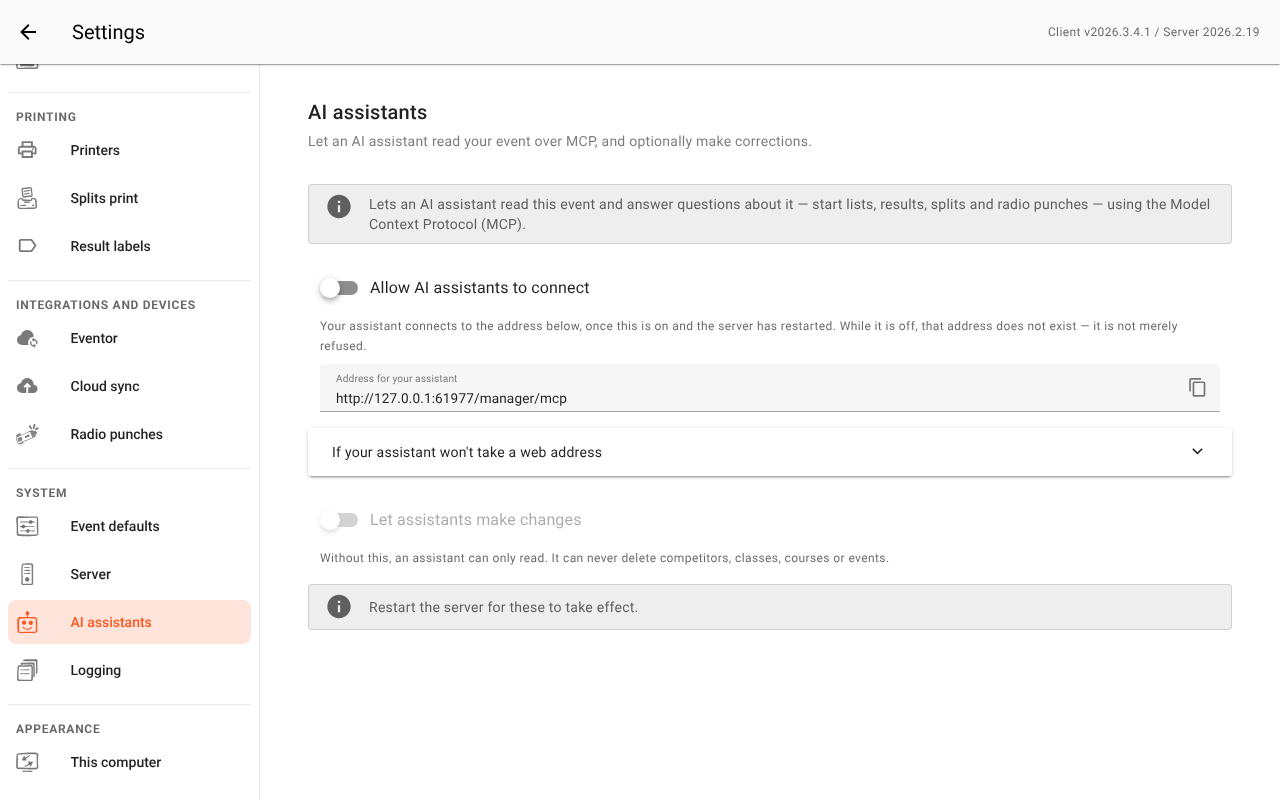
This is switched off by default. Nothing listens, and no assistant can see anything, until you deliberately turn it on in Settings → AI assistants.
What an assistant can see
Once connected, an assistant can read:
| It can read | For example |
|---|---|
| Your events and their status | "Which events are on this computer?" |
| Classes, courses, controls and clubs | "Which controls are radio controls?" |
| How each course is scored, and what completing it takes | "How many controls does the Scatter class need?" |
| The start list | "Who is entered in W21, and when do they start?" |
| Results, ranked per class | "Top three in M21E?" |
| One competitor's full detail and splits | "Show me Anna Berg's splits" |
| Radio punches as they arrive | "Who has passed control 42?" |
| Whether a control's clock is out | "Is anything wrong with the timing at the finish?" |
| Status messages from the dashboard | "Any warnings on this event?" |
| Manager's own health, and each radio unit | "Is Prime connected?" |
| Where runners lost time, per leg | "Where did Anna lose time?" |
| Leg distances for a course | "How long is the leg to control 42?" |
| The results as an IOF XML export | "Export the results for the federation" |
| The results, start list or entry list as Orienteering JSON | "Export the start list as JSON so I can send it on" |
| Controls marked as visited for one runner by hand | "Has anyone overridden a punch for Carl?" |
| Carnivals and knock-outs, and the standings across their stages | "Who leads the 3-Days after day 2?" |
| This event's change history | "Who changed Anna's status, and when?" |
That last one is worth a moment. The change history is the event's audit trail: every edit, where it came from, and the before and after values. It is the most revealing thing on the list — an assistant reading it can see the whole editing history of the event, not just its current state. The one exception is a competitor's birth year and sex: an assistant is told that they changed, but never what they were or became.
The scoring entry matters most at a scatter event, where a course is "any 6 of the controls out there" rather than a sequence. Every scatter course covers the same controls, so what tells one class from another is the number it asks for — and a mis-punch means a runner came back with too few, not that they missed a particular control. An assistant is told both, so it explains a mis-punch there as "visited 4 of the 6 required" rather than naming a control nobody was sent to.
Multi-stage competitions sit above the events rather than inside one, so an assistant sees both: a carnival and its overall standings, and the ordinary events that are its stages. Two things it is told, because both are easy to get wrong from the numbers alone — that a total is only a time when the carnival is scored on total time (under a points method the same figure is a score, and reading it as a time would be nonsense), and that a knock-out has no overall total at all, because adding up rounds run on different courses would put a fast B final ahead of the A final.
The clock entry is there because a control station that is running an hour fast produces times that look completely normal. Where you have a meshO Control radio at a control, the Manager works out how far its clock is out, and an assistant is told the same thing — including how much of that error you have already corrected, so it reads a control you have fixed as fixed. Controls with no radio at them report nothing about their clock either way.
It does not get your settings, your access PIN, other events' data beyond the list above, or anything outside the event data it is asked about.
Your event data stays on your computer in the sense that MCP itself never uploads it (Cloud Sync, if you have turned it on, is a separate feature that does publish finished events). But the assistant is usually a cloud service — when it answers a question, the event data it read is sent to that service to produce the answer, exactly as if you had pasted it into a chat window. Treat it the way you'd treat sharing a start list.
Turn it on
- Open Settings → AI assistants (under System in the left-hand list), and scroll to Connect your own assistant (MCP), below the built-in assistant.
- Switch on Allow AI assistants to connect.
- Click Save.
- Restart the server. On the server computer you can do this from the tray / menu bar icon: Restart Server.
The restart is required, and the page says so. Manager builds the assistant's address and the list of things it may do once, while starting — so a change only takes effect the next time it starts. That is deliberate: it means the rules can't shift underneath an assistant that's already connected mid-event.
The page shows the exact address to give your assistant, built from the address you're viewing Manager on — something like http://localhost:5154/manager/mcp.
Connect your assistant
Point your MCP client at the address shown on the settings page. In most apps this is a small configuration file:
json
{
  "mcpServers": {
    "mesho-manager": {
      "url": "http://localhost:5154/manager/mcp"
    }
  }
}
If the assistant runs on a different computer to the server, use the server's LAN address instead of localhost — the same address volunteers use (see Server addresses).
Restart the assistant app after changing its configuration, then ask it something about your event. It works out which tools to use on its own; you don't have to name them.
If your assistant won't accept the address
Some assistants only accept an https:// address, or can only start a local program rather than connect to one. The Claude desktop app is one of them: its Settings → Connectors → Add custom connector box will not take a plain http:// address for a server on your own machine, so there is nothing useful to type there. It has to be added by hand to the app's own configuration file instead, as a program to launch rather than an address to dial.
There is a small connector for exactly this case. It runs on your computer, your assistant starts it, and it passes everything through to Manager — so the switches on this settings page still decide what the assistant can see and do.
It ships with the meshO Manager source code rather than with the installed app, so you need to fetch and build it once. This takes Node.js 20.19 or newer (or 22.12 or newer on the 22 line) and git, and a terminal:
bash
git clone https://github.com/mesho-live/manager.git
cd manager/tools/mesho-manager-mcp
npm ci && npm run build
That leaves the connector at manager/tools/mesho-manager-mcp/dist/index.js. Note the full path — you need it below. (If a technical volunteer is setting Manager up for you, this is a reasonable thing to ask them to do.)
Then add the entry — in Claude Desktop, Settings → Developer → Edit Config opens the file (claude_desktop_config.json):
json
{
  "mcpServers": {
    "mesho-manager": {
      "command": "node",
      "args": ["/absolute/path/to/manager/tools/mesho-manager-mcp/dist/index.js"],
      "env": {
        "MESHO_MANAGER_URL": "http://localhost:5154"
      }
    }
  }
}
If you use an access PIN, add it here too:
json
      "env": {
        "MESHO_MANAGER_URL": "http://localhost:5154",
        "MESHO_MANAGER_PIN": "1234"
      }
Quit and reopen the app afterwards — it reads that file only at start-up.
You do not need any of this if your assistant accepted the address above. Claude Code, for example, takes it directly:
bash
claude mcp add --transport http mesho-manager http://localhost:5154/manager/mcpIf you use an access PIN
If you have set an access PIN (Settings → Access protection), MCP requires it too — an assistant cannot read your event without authenticating. MCP is protected on exactly the same terms as the rest of Manager's API, no more and no less.
If you have not set a PIN, MCP is open to anything that can reach the port, just as the rest of the API is. On a shared or public network, set a PIN before turning MCP on — especially with writes enabled.
Most assistants have nowhere to type a Manager PIN when you give them a plain address. The connector described above is the way round that: it logs in for them, so set MESHO_MANAGER_PIN in its env block and everything else works as normal. If the PIN is wrong you will see "meshO Manager rejected the access PIN (MESHO_MANAGER_PIN)" rather than a silent failure.
Letting an assistant make changes
By default an assistant can only read. It cannot change anything, and the tools that would change something are not even offered to it — which is why Let your own assistant make changes stays greyed out until the first switch is on. The switch is for an assistant you connect yourself: the built-in assistant behind the Ask button only ever reads, whatever this switch says.
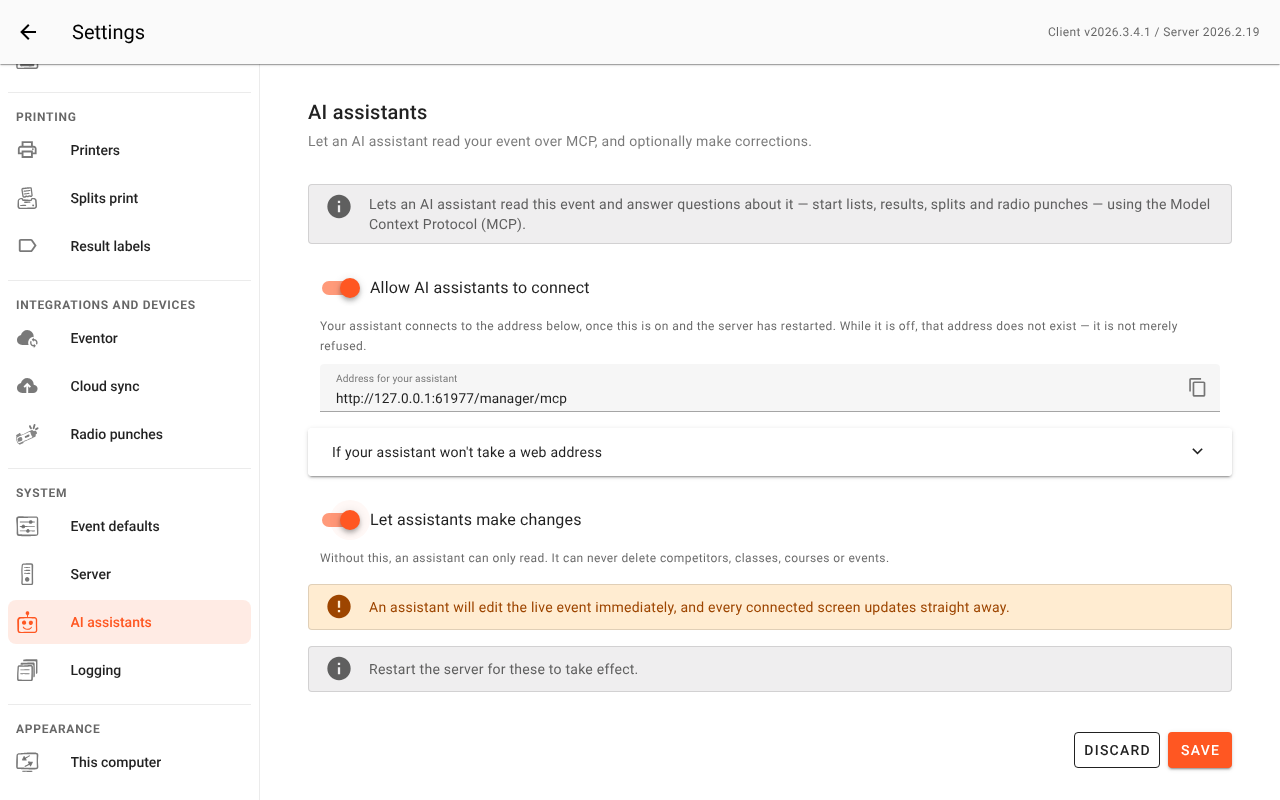
With both switched on (and after a restart), an assistant can additionally:
- Add and edit competitors — name, card number, class, club, bib, ranking, notes, start time, status
- Add and edit relay teams, including who runs which leg
- Add and edit classes, and choose which courses they run
- Add and edit courses — the control sequence, climb, length override, and how the course is scored, including a scatter course's required control count
- Add and edit controls, including marking one faulty mid-event
- Mark a control as visited for one competitor whose punch didn't register (a card not held in long enough, a unit that failed for them alone), with a note saying why, and take that back again. This is different from marking the control faulty, which affects everyone
- Add and edit clubs in the event's club list
- Bulk-set status for whole classes (the end-of-event "mark everyone who never started as DNS")
- Dismiss a dashboard status message
- Move every individual allocated start time in an event by the same amount — the "the courses aren't ready, push everything back fifteen minutes" job. Mass starts are left alone. It is refused once the event is under way and a start has passed; see Moving every start time
- Generate chasing starts into a later stage of a carnival, from the standings so far
- Advance a knock-out round's field into the round's event
- Correct a standing — link two stages' entries as one person, split them apart again, or drop one stage out of one competitor's total
Between them, that's enough for an assistant to build an event's entries and reference data from scratch, or to fix them during one.
It cannot delete anything — no competitor, class, course, control, club, team or event. (Taking back a control it marked as visited is the one thing it can remove.) Deleting is an operator decision at the console, where you can see what else refers to the thing you're removing, and it is not offered to an assistant at all. Practically, that means a mistaken addition is yours to remove: an assistant can create a duplicate class but cannot tidy one away.
A few things are also left to you deliberately, because they aren't safe to do blind:
- Forked courses (butterfly and relay variations) can't be created or reshaped — import them from a course file, or fold separate courses into one at the console with Combine into variations….
- Which download a runner is scored against, changing a punch's time and excluding a punch stay at the console, where the punch list is in front of you.
- Relay bibs aren't editable on the runner: they come from the team's bib and leg number, so change the team.
- Creating a carnival or a knock-out, attaching an event to it as a stage, and changing how it is scored all stay at the console. Each of them silently re-scores every stage already run.
Warning: A live event happens once. An assistant making changes is editing the real event immediately, and every connected screen updates straight away. Leave writes off unless you specifically want this, and prefer turning them on after the event when you're tidying up results.
Changes an assistant makes are ordinary Manager edits: they appear on every screen, and they're recorded in the event's audit trail just like an edit you made yourself, with the source AI assistant, so you can always see what happened (see Sources).
An event that a live standby has taken over refuses every change on the computer it left, from an assistant as from anyone else. Point the assistant at the computer now running the event.
Turn it off
Switch off Allow AI assistants to connect, click Save, and restart the server. The address stops existing entirely — not merely refusing requests.
This switch covers every MCP route into your event, not just the address above — the connector included, since it only passes requests on to that same address, so once the address is gone it has nothing to talk to either. It does not cover Manager's ordinary web API, which is always on: an assistant with a general-purpose web-fetch tool can read that whether or not MCP is switched on. An access PIN is what closes that door.
Assistants that can't use a web address
A few MCP clients can only launch a program rather than connect to an address — the Claude desktop app among them. meshO ships a small connector for those, set up by hand in the assistant's own configuration file (see If your assistant won't accept the address above for the exact entry).
It's worth knowing it exists for one reason: it isn't a way around these switches. It simply passes the assistant's questions on to the address above, so it can only read what that address serves, and can only make changes when you've allowed them. There is no second place to check.
Good practice
- Leave it off unless you're using it. It takes seconds to turn on when you need it.
- Reads first. Run without writes until you're confident, then enable writes only if you actually need the assistant to fix things.
- Set an event up before it's live. Building classes, courses and entries is much better suited to the day before than to the middle of a race, and mistakes cost nothing then.
- Check results claims. Manager tells the assistant when a class still has runners out, and a good assistant will repeat that — but always confirm from the results screen before publishing anything.
- Relay times. In a relay, an assistant reports each runner's leg time, not the team's cumulative time. If a number looks unexpectedly small for a relay, that's why.
Troubleshooting
| Problem | What to check |
|---|---|
| The assistant can't connect | Did you restart the server after saving? The switch alone doesn't open the address. |
| The app refuses the address when adding a connector | It only takes https://. Use the connector instead — see If your assistant won't accept the address. |
| "Not found", or a Manager page appears instead | Same thing — the setting is saved but the server hasn't restarted into it yet. |
| It connects but says there are no events | It's talking to a Manager with no events on it — check you used the right computer's address. |
| It can read but not change anything | That's the default. Switch on Let your own assistant make changes, save, and restart. |
| It's refused with an authorisation error | You have an access PIN set. See If you use an access PIN above. |
| The AI assistants page isn't in Settings | Your Manager predates this feature — update to a newer version. |
| You turned it off but an assistant still answers | Check you restarted the server after saving — until then the address is still open. If you have, the assistant is most likely answering from what it read earlier in the same conversation rather than asking again; start a new conversation to confirm. |
Related
- Settings
- Multi-operator setup
- Status and race time rules — the rules an assistant is reporting when it explains a competitor's status
- Troubleshooting
- Backup and restore — worth having a backup before letting anything make bulk changes