
Appearance
Teams that run together
Audience: Organisers taking entries, and operators at the registration desk and the download desk.
Some entries are several people going round one course together, for one result between them: a family on one card, a pair at a school lesson, a rogaine team, a group of scouts. meshO enters them as a team: one competitor that has members.
A team is entered like anybody else. It has one class, one club, one card, one bib, one start and one result. Its card is read like anybody's, and it is placed in its class like anybody. What a team adds is the people in it: each member has their own name, and can have their own IDs, birth year and sex. A team counts as one entry everywhere: in the class's field size, on the dashboard, in a place, and in every export.
Note: This isn't a relay team. In a relay, each runner runs their own leg and has their own result; see Relay events. A team that runs together goes round as one, so it can only enter an individual class.
The whole job
- Add the team. On Entries → Teams, click Add team… (or choose Actions → Add team… on the Competitors page), type the members' names and give the team its class and card. Or open someone who is already entered and click Convert to team.
- Read its card at the finish like anyone's. The team gets one result, under its name.
- Check the results. The team is placed in its class, with its members listed under its name.
That covers almost every team. The rest of this page shows each screen, and what to do when a team changes.
The Teams page
Entries → Teams lists every team in the event, with its members, class, club, card, start, status and result:
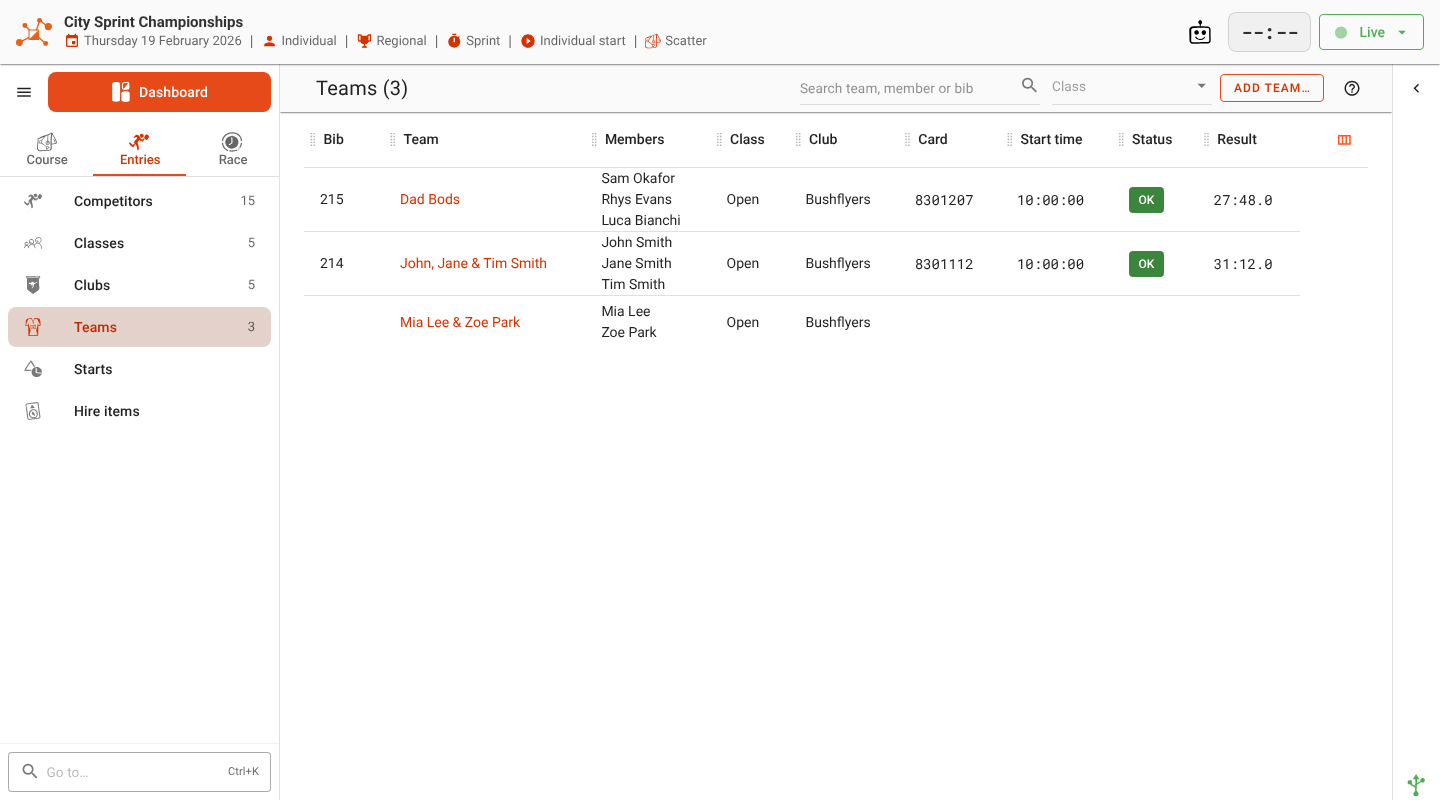
Search finds a team by its name, its bib, or any member's name. Searching for "Zoe Park" finds the team she is in. Click a team's name to open the team. As on the other lists, drag a heading by its grip to reorder the columns, and turn columns on or off with the columns button at the right-hand end of the header row.
Teams are on the Competitors page too, ticked in its Team column, because a team is a competitor. The column appears once the event has a team; the columns button turns it on or off. The search there, at the registration desk and at the download desk also finds a team by a member's name.
What to do: nothing. This page is for finding and adding teams.
Note: In a relay event, Entries → Relay teams lists the relay teams instead. See Relay events.
Adding a team
Click Add team… on the Teams page, or choose Actions → Add team… on the Competitors page.
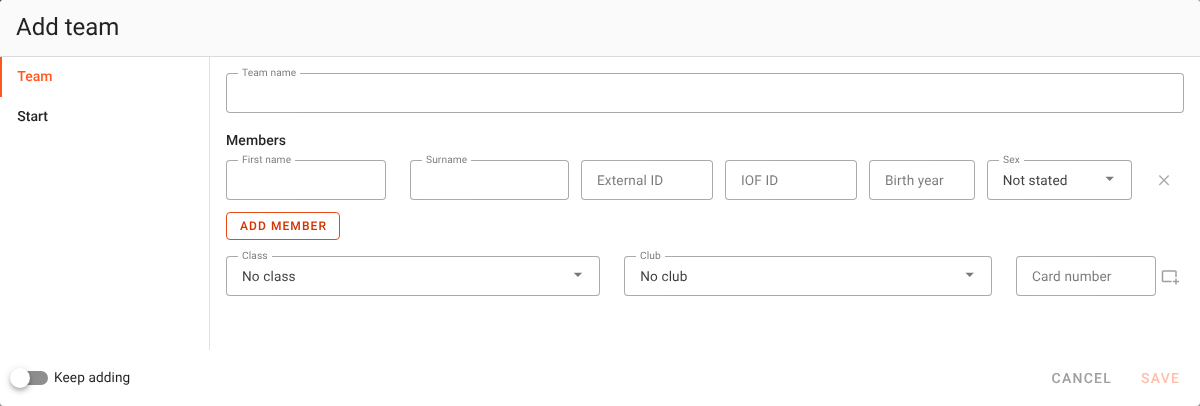
- Team name is optional. Leave it blank and the team is named after its members (see How a team is named); the box shows that name in grey as you type the members.
- Fill in Member 1. Typing a first name or surname searches the Competitor registry. Pick a person there and their IDs, birth year and sex are filled in too, and the team's Card number and Club are filled in from theirs if the team has none yet. Every box stays editable, and somebody who isn't in the registry is typed in as they are.
- Click Add member for each person after the first. Each member is one line; the × at its end removes them.
- Give the team its Class, Club and Card number, as for anyone.
- If it has an allocated start time, set it on the Start tab.
What to do if it won't save: a team needs a team name, or at least one member with a name. Otherwise nothing on a start list could tell it from another team.
A team can't enter a relay class. The class list leaves them out.
How a team is named
A team with a Team name is called by it: Dad Bods. Without one, meshO names it after its members, in the order they're listed:
| Members | Name |
|---|---|
| John Smith, Jane Smith | John & Jane Smith |
| John, Jane, Tim and Ava Smith | John, Jane, Tim & Ava Smith |
| Mia Lee, Zoe Park | Mia Lee & Zoe Park |
| Mia Lee, Zoe Park, Sam Okafor | Mia Lee, Zoe Park & Sam Okafor |
| Mia Lee, Zoe Park, Sam Okafor and Ava Reid | Mia, Zoe, Sam & Ava |
| Five Smiths | John, Jane, Tim, Ava & Max Smith |
A family is put together under the family name. Four or more people from different families are named by their first names alone, so the name fits on a results screen. The name follows the members: change one, and the name changes with them.
The team's name is what appears everywhere a competitor's name does: the results, the screens, commentary, the splits print and every export. The results, the Teams page and the exports also list the members in full.
What to do: if the name meshO gives isn't the one the team uses, type their own in Team name.
Turning an entry into a team
Somebody entered on their own turns up with a friend, or a parent decides to go round with their child. Open the entry and click Convert to team:
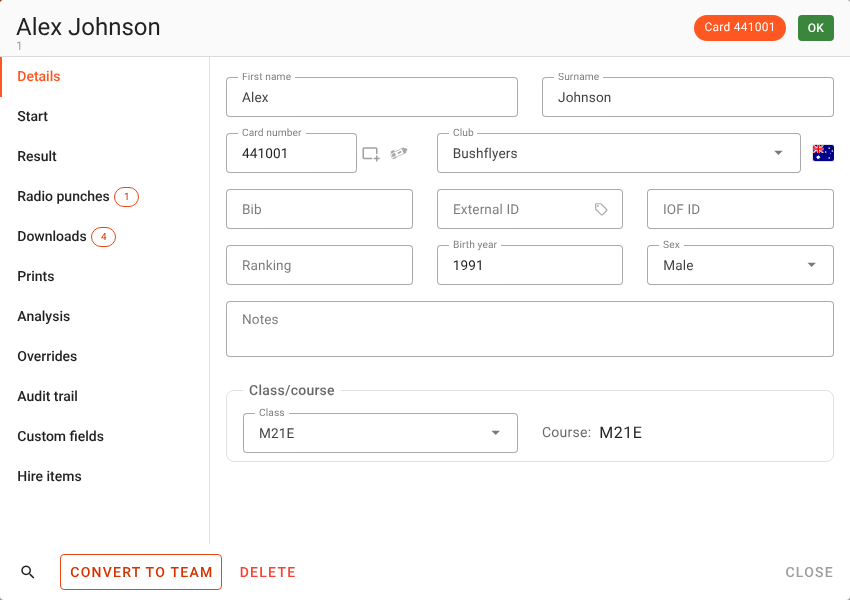
The entry becomes a team, and the person becomes its first member. Everything else stays on the entry: its card, class, club, bib, start, and any result it already has. Add the other people on the Team tab.
What to do: nothing more. The team keeps its place in the results, under its new name.
Editing the members
The Team tab of Edit competitor has the Team name at the top, the same as on Details, and lists the members below it. Each one is a person, filled in as a competitor's name is:
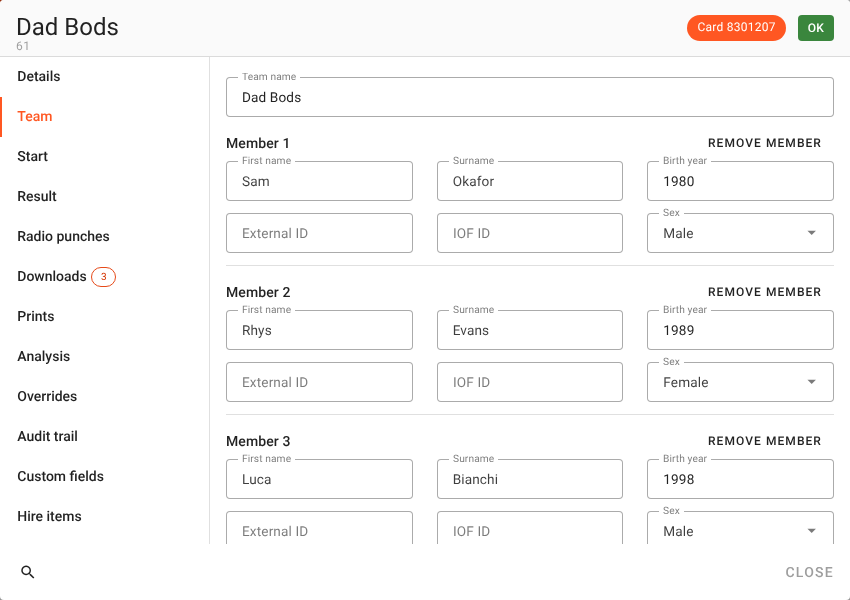
Add member at the foot adds another person. Remove member takes one out; a team keeps at least one member. Changes save as you go, as everywhere in Edit competitor.
The Details tab carries the Team name where a person's name would be, and everything else as for anyone: card, club, bib, class. Left blank, the team is named after its members, shown in grey in the box.
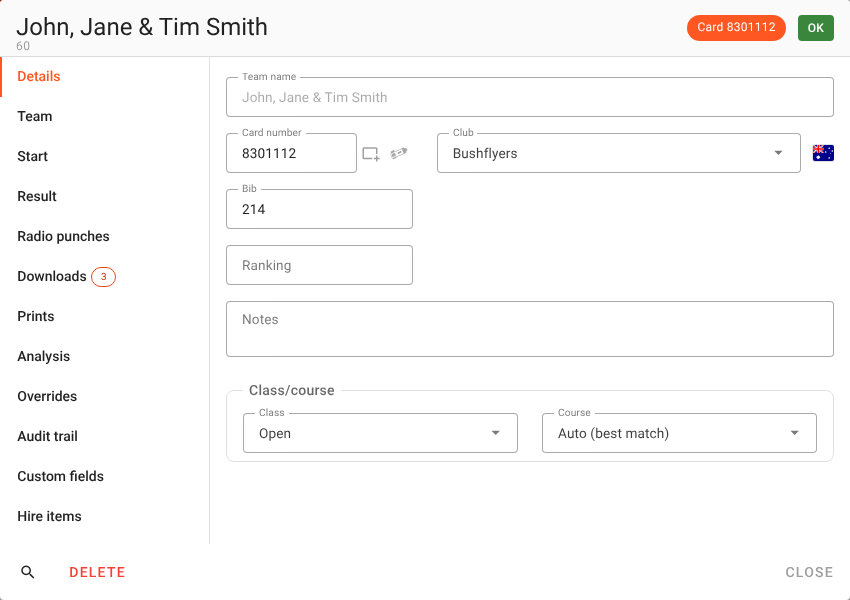
Note: The members carry no card. The team runs on one card, and it is the team's. If each person carried their own card and should get a result of their own, enter them separately instead. If they ran together on one card anyway, see Lost cards and shared cards.
Turning a team into individuals
On the Team tab of Edit competitor, click Convert to individuals, below the members. With one member, that person becomes the entry. With more, meshO asks who keeps the entry:
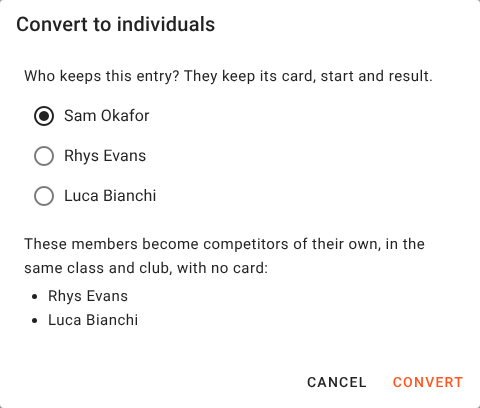
The person you choose keeps the entry: its card, bib, start and result. Every other member becomes a competitor of their own, in the same class and club, with their own IDs, birth year and sex, but no card, bib or start. Two entries on one card would both be scored on its punches, so only one of them can keep it.
What to do: give each new competitor their own card (and a start time, if your starts are allocated) before they run. Nobody is merged: two entries are never made into one.
Add team has no Convert to individuals: to enter the people on their own instead, click Cancel and add each one with Add competitor….
The results
A team is placed in its class with everybody else in it, and its members are listed under its name:
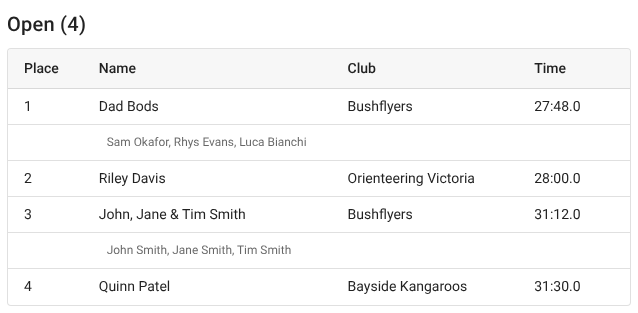
A members line appears on the spectator site, the kiosk, the results PDF and the printed results. Usually a team goes in a class of its own, such as a Family or Groups class, so it is placed against other teams rather than against people running alone. Nothing requires that, though.
Files and other systems
A team survives every round trip. Export it and import the file back, and the same team comes back with the same members.
| Where | How a team is written |
|---|---|
| IOF XML (entry list, start list, results) | A TeamEntry, TeamStart or TeamResult whose members all run leg 1, in LegOrder 1, 2, 3…. This is how the standard writes people running a leg together. Importing such a team from another system's file gives a team that runs together. A relay team with only its first runner entered stays a relay team. |
| Orienteering JSON | The entry, with the team's teamName and members beside it. See Orienteering JSON. |
| CSV | One row per member, each with the team's card, class and club, plus a Team bib and a Team name column. On import, rows with the same team bib (or, with no bib, the same team name) in a class become one team. Rows of one team that name different cards are refused, and the import's warnings name the rows. A team runs on one card, and the file doesn't say which. |
| Eventor results upload | One result, named for the team (Dad Bods, or John & Jane Smith), with no person ID. Eventor has no result for a team in an individual class, and filing the team's result under one member would credit that person alone. |
| ANNE results upload | A TeamResult, as in the IOF XML file. |
What to do when a CSV import warns about a team: open the file, give every row of that team the same card (or leave all but one blank) and import it again.
A re-imported CSV finds each team again by its card, or, with no card, by its name, as it finds a person. A re-import updates the team rather than adding a second one. A member keeps their IDs, birth year and sex through a re-import, even though the CSV has no column for the last two.
What a team can't do yet
- Be carried to the next stage of a multi-stage event. When entries are copied from one stage to the next, teams are left behind, and the copy says how many. Enter them on the new stage again. See Multi-stage events.
- Have a bib in an IOF XML entry list. The format has nowhere for one, for a team or for a person; see What the IOF XML file leaves out.