
Appearance
Bib numbers
Audience: Organisers numbering bibs for one event or a whole carnival.
How to give every competitor a bib number, in blocks by class if you want them, the same number across every day they run, and how to bring in numbers decided somewhere else.
What it does
Allocate bib numbers works out a number for every competitor across the events you choose, shows you the whole list, and writes it to them when you say so. Someone entered on several days of a carnival gets one number for all of them.
- Nothing is written until you click it. You can change the rules and look again as often as you like.
- No number is ever given to two people. If a block's numbers are already taken, it moves along and says so.
- Relay classes are left alone. A relay runner's bib comes from their team (such as
42.1), so they never get a number from here. To number a relay class's teams, use Assign bibs… on the Relay teams page — see Team bibs. - The rules are saved, not the numbers. Come back later and the allocation is worked out again from the rules and whoever is entered by then, so a late entry isn't missed.
Open it from Competitors → Actions → Allocate bib numbers…, or from the Events list under Multi-event → Allocate bib numbers….
Step 1: the events
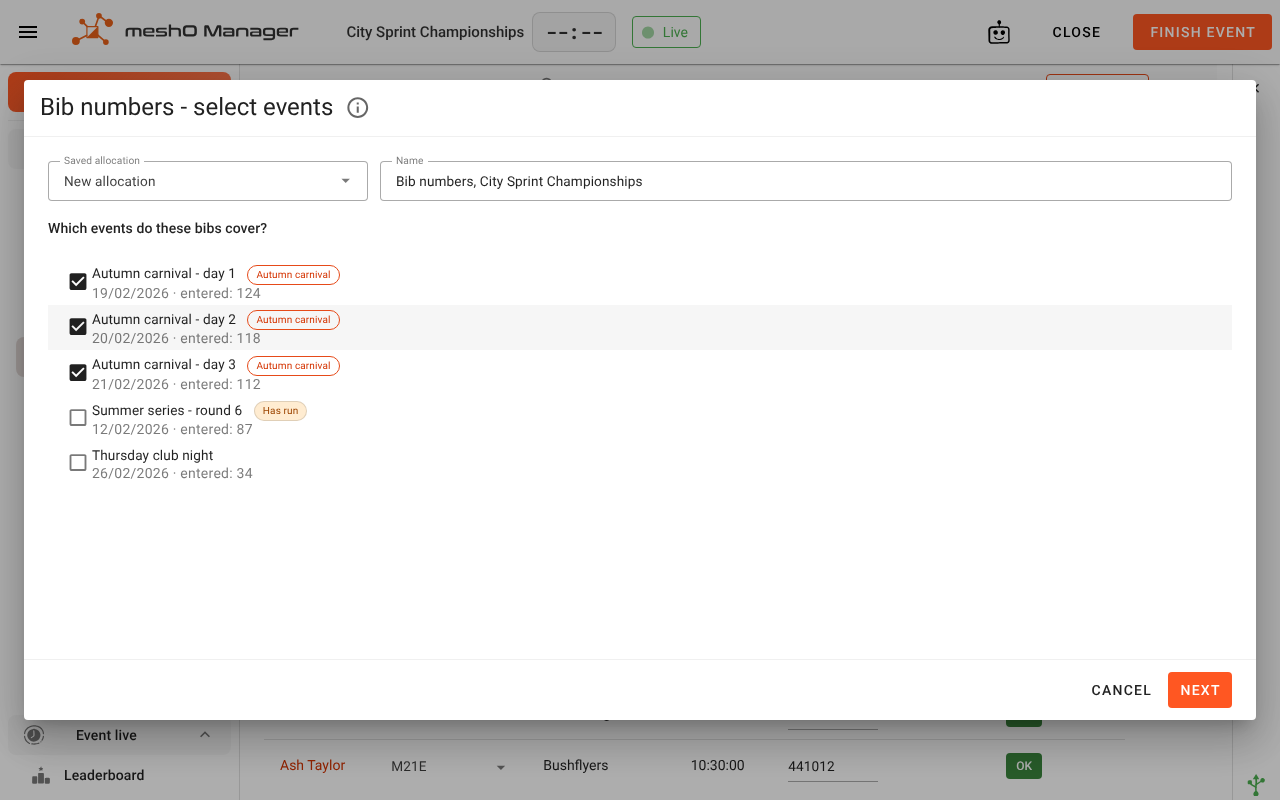
- Saved allocation: New allocation, or one you saved before.
- Name it, so you can find it again.
- Tick every event these bibs cover: the days of a carnival, separate races that share numbers, or just this one. The event you opened it from, and the other days of its carnival, are ticked already.
- Click Next.
Events dated before today aren't listed, apart from this one and its carnival's other days. One that Has run is marked: you can still number it, since a bib can't change a result, but its start lists and results will show the new numbers.
Step 2: the rules
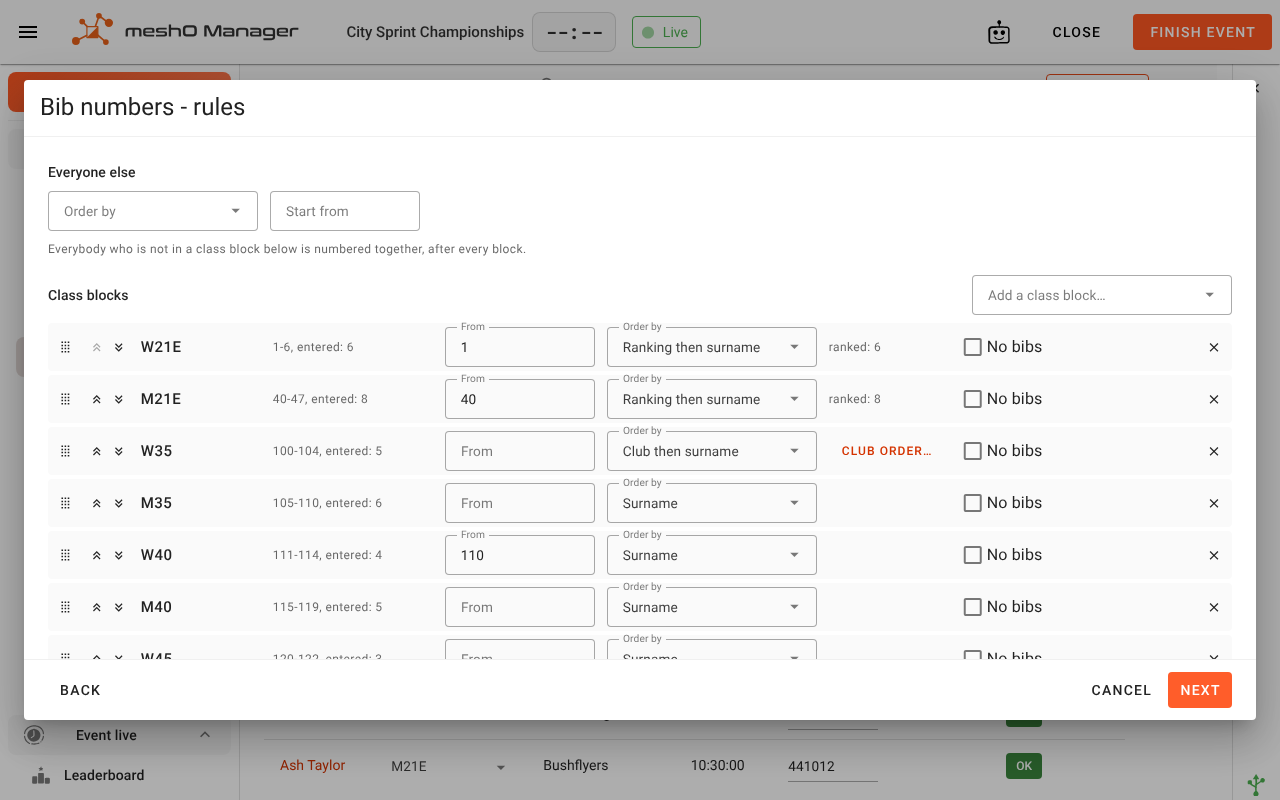
Everyone else
To begin with there are no blocks, and everybody is numbered together: choose how they're ordered (Order by) and where the numbers Start from. For many events that's all you need.
Class blocks
To give a class its own run of numbers, such as elites from 1, add a block with Add a class block…. For each block:
- From — the first number. Leave it empty to follow on from the block above.
- Order by — Surname, Ranking then surname (the count beside it shows how many in the class have a ranking), or Club then surname, which hands numbers out club by club in the order you set with Club order….
- No bibs — gives this class no numbers, and keeps the numbers its people are already wearing out of everyone else's way. Use it for a class whose bibs are already printed.
- Drag a block, or use the arrows, to change the order; remove it with ×.
Each block shows the numbers it will use and how many people are in it. Everyone not in a block is numbered after all the blocks.
Someone in two classes (W21E on Saturday, W21A on Sunday) is numbered in whichever of their classes comes first in your block list, so dragging a block up decides that. A block can then read in a block above: 12: its entrants were numbered higher up, not missing.
Click Next.
Step 3: the allocation
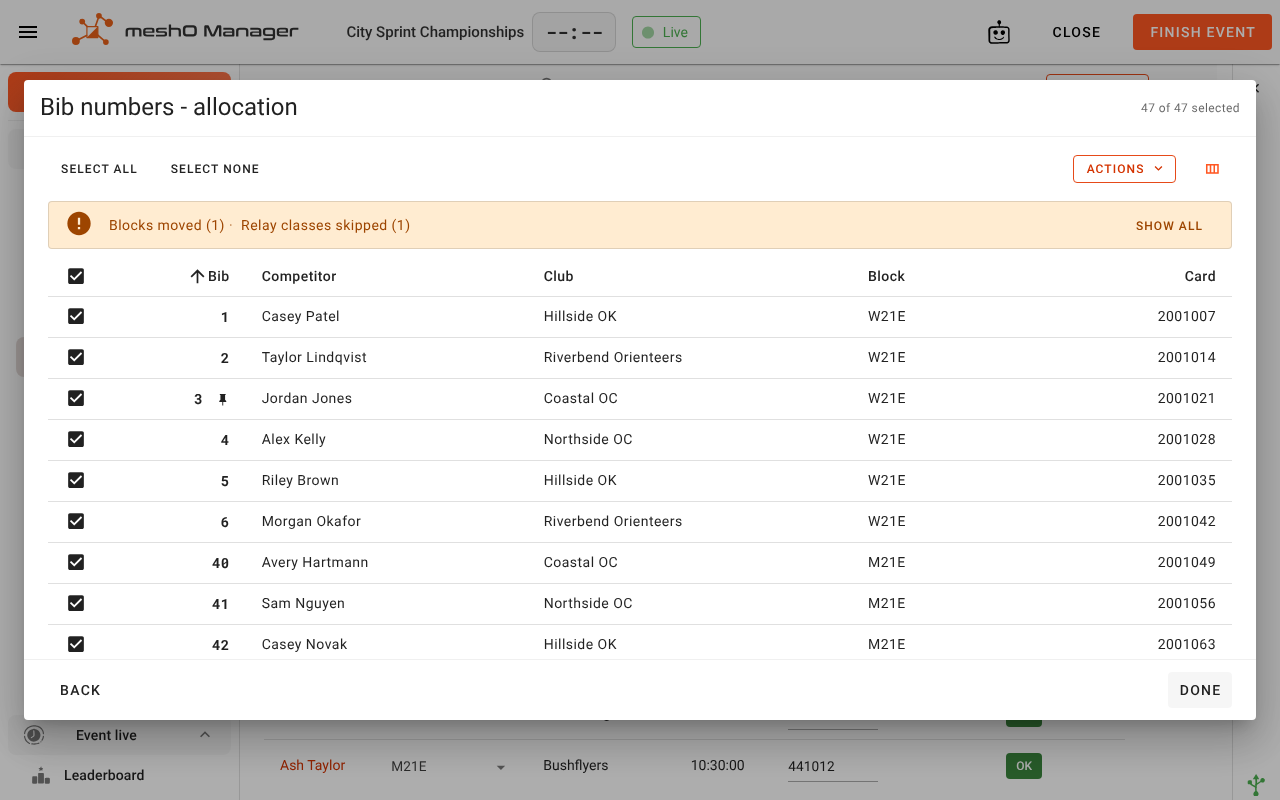
One row per person, with their bib, club, block and card. For a single event, its class, course and start time are shown too; for several, those columns are under the column button, along with Ranking, Person ID, Matched by (how the person was recognised across events) and Status. The strip above the table counts anything worth knowing, such as a block that had to move, a relay class skipped, or a class you excluded with No bibs. Click Show all for the details.
Every row starts ticked, and the count of ticked rows is in the dialog's title bar. Select all and Select none are above the table: untick anyone you want to leave alone, because the write and the exports under Actions cover only the ticked rows.
- Change one person's number by clicking their Bib cell and typing. That pins it: the rules work around it next time. Clear the cell to unpin it.
- People matched across events: Manager decides who is the same person by their IOF ID, then their registration number, then their card (never a hire card), then their name and club. Two people it can't tell apart, such as two with the same name and club, are never merged; they're counted under Duplicates in the strip above the table, for you to check.
Writing the numbers
Actions → Write these bibs to the competitors… shows how many people and events it will write to — warning you if one of the events has already run — then writes. Anyone it couldn't write is listed, to number by hand.
Actions → Save these rules keeps the allocation to come back to. Closing without saving, or without writing, asks first and says which of the two you haven't done.
Exports
Actions also has:
- Export PDF — the table as shown, for the bib table on the day.
- Export CSV, one row per person — for the printer, or a spreadsheet.
- Export CSV, one row per event — each person's number, class and start time per event.
- Export JSON.
Both CSVs always include each event's class, course and start time, whichever columns are showing, so the sheet you hand the bib printer doesn't depend on how your table was set up.
Coming back to a saved allocation
Choose it under Saved allocation. Two buttons then replace Next:
- View bibs shows the numbers the competitors are wearing now, including any changed by hand since, for exporting. Nothing can be written or pinned from this view. Somebody wearing different numbers at different events is counted in the strip above the table.
- Reallocate goes to the rules and works the numbers out again.
Deleting a saved allocation removes the rules only. Numbers already written stay on the competitors.
Importing numbers from a file
When the numbers were decided somewhere else, such as last year's spreadsheet or a printed sheet, use Events list → Multi-event → Import bib numbers…:
- Tick the events the numbers are for.
- Choose the CSV file and map its columns: the bib, and at least one way to find the person (person ID, IOF ID, competitor ID, card or name). A column naming the event makes a row apply to that event only.
- Check what will be written: how many bibs, from how many rows, and any rows that reached nobody.
- Click Write these bibs.
A file only ever gives numbers. A blank bib, or a person the file doesn't mention, is left as it is, so a sheet for one class doesn't clear everyone else's. Numbers are written exactly as the file has them (007 stays 007). Unlike an allocation, a file can give two people one number; if it does, Manager tells you who, so you can fix the file.
Related
- Competitors, clubs and teams
- Multi-stage events
- Relay events
- Drawing start times — the start list, which can show each competitor's bib
- Importing event data
- Audit trail — bibs written here are recorded with the source Bib allocation