
Appearance
The event workflow
Audience: Event organisers and timing operators who want the same jobs done at the start and the end of every event, without a checklist to remember.
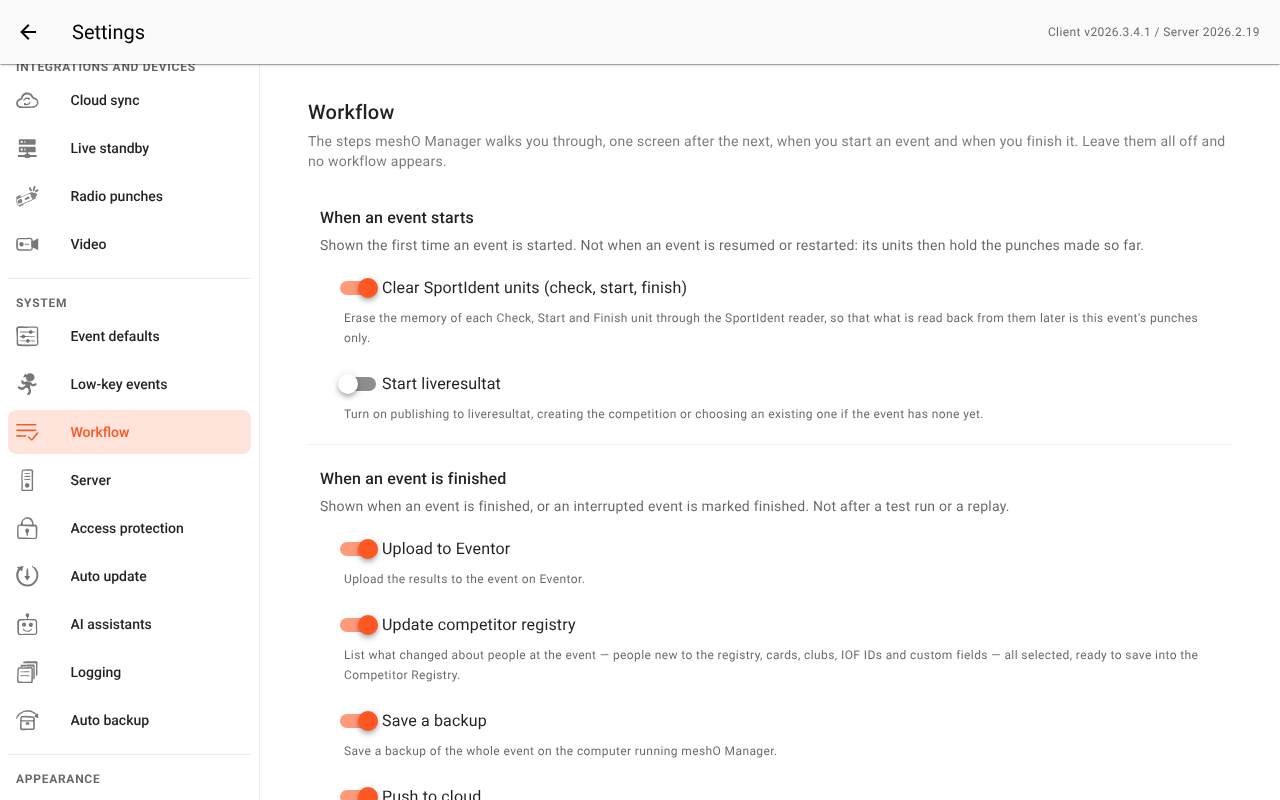
The event workflow is a short walk through the jobs you choose, one screen after the next, shown when you start an event and when you finish it: clear the SportIdent units, start liveresultat, upload to Eventor, update the competitor registry, save a backup, push to the cloud. Each screen offers its job; you do it there, or skip it with Next.
Nothing appears until you switch steps on. All are off to begin with.
The whole job
- Choose the steps once, in Settings → Workflow. They apply to every event on this server.
- Start or finish the event as usual. When the server has started or finished it, the workflow opens with the first step switched on.
- Work through the screens. Do each job from its screen, or click Next to skip it. Done on the last screen, or Close at any point, ends the walk.
That's it. The rest of this page says when each walk is shown and what each screen does.
When it is shown
| Walk | Shown when | Not shown when |
|---|---|---|
| Event started | You start an event for the first time. | You resume or restart an event that has already run: its units hold the punches made so far, and clearing them would erase that backup. A test run or a replay. |
| Event finished | You finish an event, or use Mark finished on an interrupted one. | You stop a test run or a replay. |
A walk with no step switched on is never shown. The walk opens only once the server has started or finished the event, so a start that was refused never asks you to clear units.
Running a walk again by hand
Skipped a step, missed a unit, or corrected a result after uploading? Open the event's status menu at the top right of its pages and choose Run start workflow… or Run finish workflow…. Each is offered only when it has a step switched on:
- Run start workflow… — while the event is being set up or is live.
- Run finish workflow… — while the event is live (an interim upload or backup), once it's finished, or when it was interrupted.
Neither is offered during a replay: a replay re-runs a day whose units, uploads and backups are already settled.
When the event starts
Clear the SportIdent units
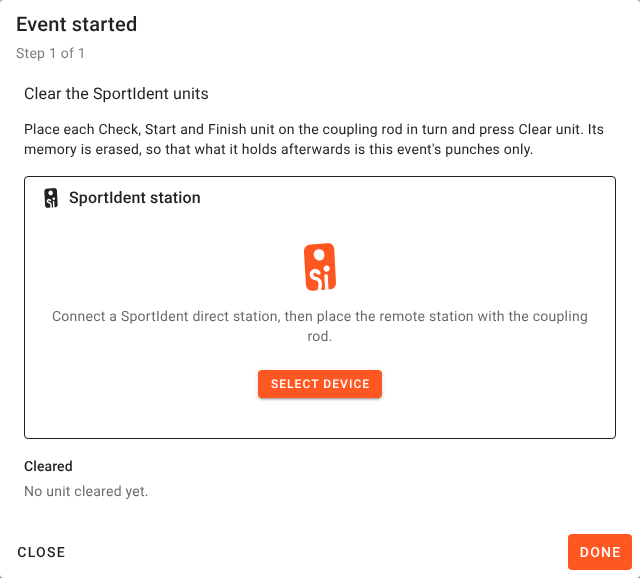
Erases the memory of each Check, Start and Finish unit, so what you read back from them later is this event's punches only. It's the same erase as Clear memory on Station memory.
- Connect the SportIdent reader on this screen, if it isn't already.
- Put a unit on the coupling rod and click Clear unit.
- Repeat for every Check, Start and Finish unit. Each one cleared is listed under Cleared.
What to do when:
- "The unit on the coupling rod is not a Check, Start or Finish unit" — nothing was erased. A control unit's memory is the backup of who visited it, so this screen never clears one. Clear a control from Station memory if you really mean to.
- "Still holds N records — clear it again" — the erase didn't take. Leave the unit on the rod and click Clear unit again.
- A unit listed twice? It isn't: clearing a unit again replaces its line.
Start liveresultat
Turns on publishing to liveresultat for the event.
- The event has no competition yet: click Create new… or Link existing…, the same two ways in as the event's Live results tab. The screen moves on by itself once the event is linked.
- Start publishing turns publishing on.
- Make it public lets spectators see the competition on liveresultat.
When the event is finished
The steps come in this order on purpose: the uploads and the registry first, the backup and the cloud push last, so both copies of the event carry whatever the earlier steps changed.
Upload to Eventor
This step is only offered while Eventor is switched on in Settings → Eventor. With Eventor off, its switch is hidden on the Workflow page and the step is left out of the walk; switch Eventor back on and the step returns as you left it.
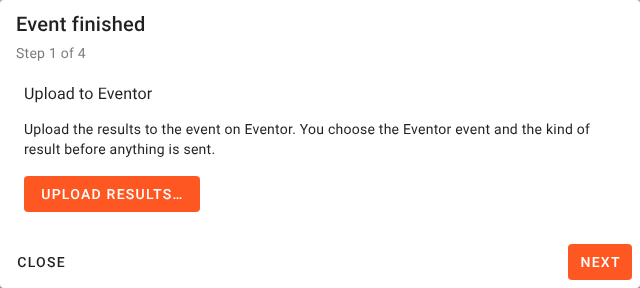
Click Upload results…. You choose the Eventor event and the kind of result before anything is sent, exactly as from Results → Publish → Upload to Eventor. See Uploading to Eventor.
An event with both relay and individual classes shows Upload individual results… and Upload relay results…: Eventor takes each kind in a file of its own, so upload one after the other.
Update the competitor registry
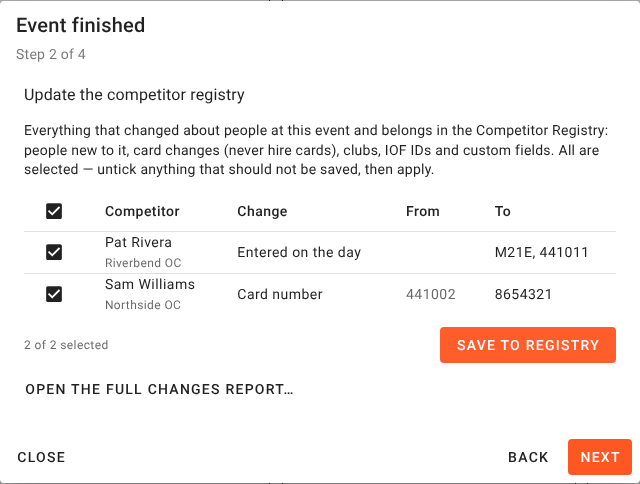
Lists everything that changed about people at the event and belongs in the competitor registry: people new to it, card changes, clubs, IOF IDs and custom fields. Everything is ticked.
- Untick anything that shouldn't be saved.
- Click Save to registry. Anything that wasn't saved is listed under Not saved, with the reason.
The same rules apply as in the changes report: a hire card is never saved, and a registry entry that has changed since is never overwritten. For the full report, with its exports and the option to push changes into future events, click Open the full changes report….
Save a backup
Click Save backup to save a zip of the whole event on the computer running meshO Manager. The screen names the file it saved. To download a copy to this computer instead, use Back up on the event's card. See Backup and restore.
Push to the cloud
Click Push now to send the event to the meshO cloud, where spectators can see its results. Once it's there, Open the spectator page takes you to it.
- "Cloud sync is not set up on this computer" — set it up in Settings → Cloud sync first.
- With automatic cloud sync on, a finished event is queued for the cloud anyway. Pushing here sends it now, while you're watching, rather than in the background.