
Appearance
Event info screens
Audience: Organisers and timing operators putting view-only screens up around the arena, and the start-lane or download-tent volunteers who read them.
The info screens are full-screen displays you prop up where people need to see something: a clock at the start lanes, upcoming starters box by box, who has just come past a radio control, who still has to download their card, and a camera pointed at somewhere worth watching. You open one on a tablet, a laptop driving a TV, or a phone, choose what it shows, and walk away.
They are deliberately narrow:
- Nothing on them changes the event. They only read. There is no editing, no card download, no way to alter a result from one. (The Camera screen is the one that sends something to Manager — its own pictures — and it asks for your access PIN whenever Manager has one. The only other time a screen asks is described under Held-back results.)
- Nobody has to stand at them. The device stays awake on its own and the screen keeps working unattended for the rest of the day.
- They follow whichever event is live. There is no event picker, so the same link works at your next event. A screen switched on before the event starts waits and picks the event up on its own. (The one time the menu asks is when two events are live at once.)
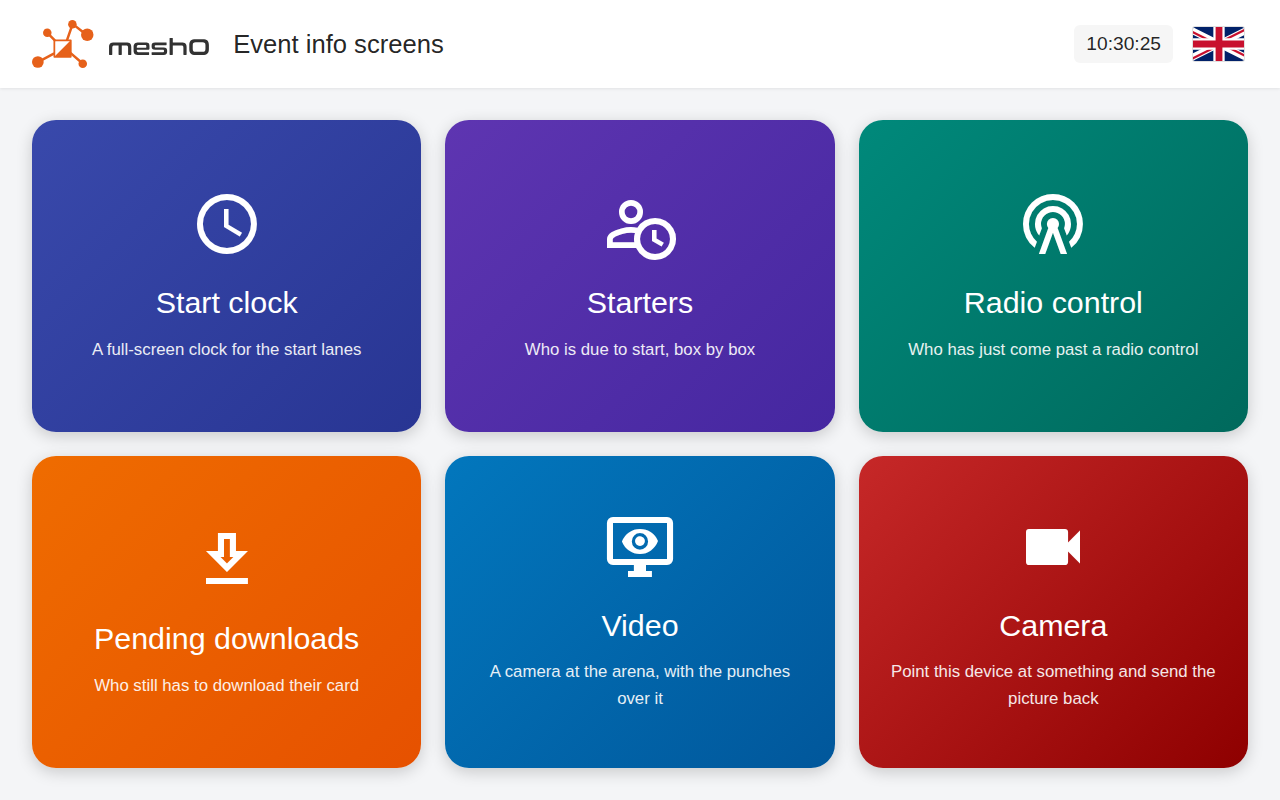
| Screen | What it answers |
|---|---|
| Start clock | The time — or the start time of the box standing in front of it — with up to three boxes of upcoming starters underneath if you want them |
| Starters | Upcoming starters, one column (or row) per pre-start box |
| Radio control | Who has just come past a chosen radio control |
| Pending downloads | Who finished but has not had their card read |
| Video | A camera at the arena — live now, or something recorded earlier |
| Camera | Sends this device's camera to Manager |
Opening a screen
Each device opens the same address — the server address followed by /info:
http://<server-address>/infoThe easiest way to get it is Settings → Server → Access links, where it is listed as Info screens. Copy that link to the device, or click Show QR code and scan it with the device's camera. Which of the two links to use — the name one or the IP one — depends on the device; see Reaching the server: name or IP. Phones, tablets and TVs normally work with the name link.
Then, on the device:
- Open the link. The menu above appears.
- Tap the tile for what this screen is going to show. That opens the screen's settings — what the clock shows, which controls a feed watches, how large the names are drawn.
- Set it up — a preview at the top shows what you are building — then press Show at the bottom. That press also takes the browser's address bar off, so the screen fills the display.
- Prop the device up and leave it.
Tip: The link carries no event id, so it does not go stale. A tablet set up at the start lane this weekend will pick up your next event without anyone touching it.
Note: Taking the address bar off only works when you press the button — a browser will not let a page go full-screen on its own, so it can never happen on a reload. If a screen restarts and comes back with browser chrome around it, go back to its settings (below) and press the button again. Some devices refuse full-screen altogether (an iPhone has no way to do it at all); the screen still works, it just keeps its address bar.
Changing settings, and getting back out
Every screen is reached through its own settings page, and that page is where you go back to.
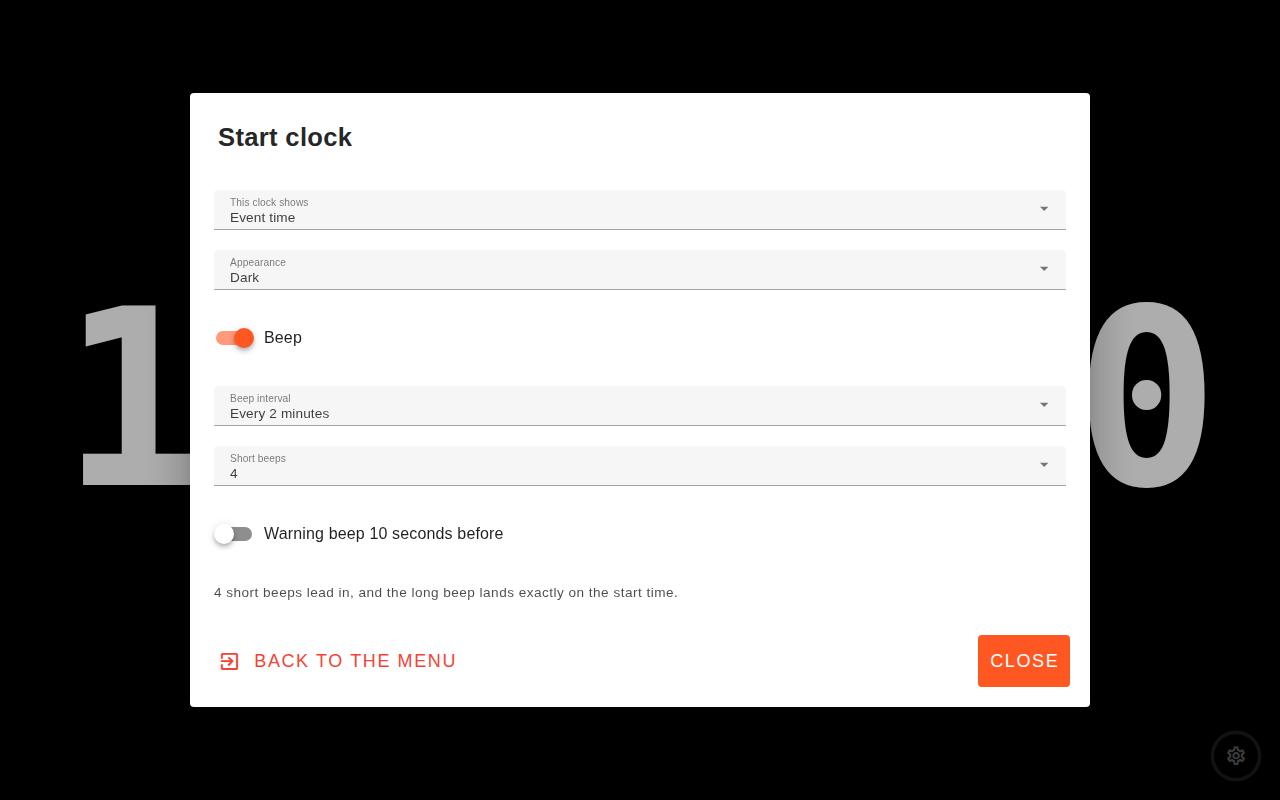
Everything on it is a big button — no dropdowns and no switches, because these are set up with a fingertip on a tablet standing on a table, often by someone who has not seen the app before. Whatever you tap takes effect straight away; there is nothing to save.
The panel at the top is the screen itself, drawn small. It is the real thing rather than a picture of one, so it follows every choice as you make it: switch a clock to Dark, set it to a −3 box, make a list Huge, tick a second radio control, and the preview shows exactly what the device will be showing when you walk away from it.
Two buttons sit across the foot:
- Back leaves this screen alone and goes back to the six tiles, so you can pick a different one.
- Show puts the display up and takes the browser's chrome off. On the camera screen it reads Start, because that is what the press does there.
Once a screen is up, there is a small cog in the bottom-right corner. Press and hold it for two seconds — a ring fills round it — and you are back on the settings page. A hint saying so appears for the first few seconds, then fades.
That hold is the only way off a screen that is up: a stray tap, a swipe, or the browser's Back button will not do it. That is on purpose — these screens stand where the public can reach them. The settings page itself needs no such protection, which is why leaving it is one press.
Warning: The hold stops an accident, not a person. Anyone who works out the gesture can leave the screen. If you need a display that genuinely cannot be got out of, lock the device itself — Android's screen pinning, or Guided Access on an iPad.
Settings are remembered per device
Each screen's settings are stored in that device's browser, not in the event. A tablet that reloads — or whose battery dies and is plugged back in — comes back showing the same thing it was showing before, without anyone walking over with a laptop. It also means two tablets can show different things, and that setting one up does not change the other.
Warning: If the settings page shows This device cannot save settings, that browser is refusing to store them (a private-browsing window, or a locked-down kiosk profile). Your choices hold until the page reloads and are then lost — and the defaults are not neutral: a silent pre-start clock comes back as an event-time clock with the beeps on, which sounds a start signal several minutes early. Use a normal browser window on that device, or check the screen after every restart.
Start clock
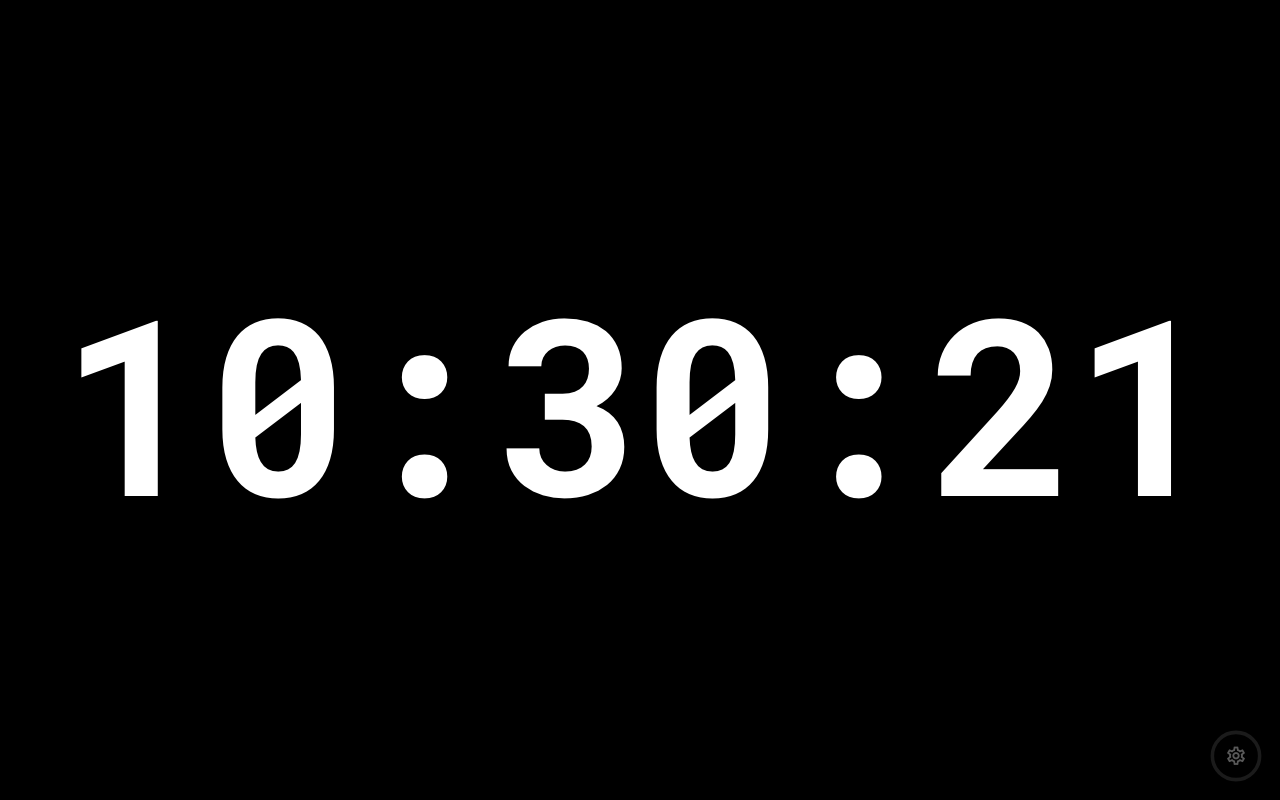
A full-screen clock, sized to be read across a start field. The digits change exactly on the second, because someone is going to step over the line as they do.
Start interval comes first: the interval your start list was drawn on. A pre-start clock counts its box in it, and it decides which pre-start boxes are on offer below. It is separate from Beep interval, even though at most events the two are the same number.
This clock shows picks between two things:
- Event time — the actual time. This is the clock at the line.
- Pre-start −1 … −9 — the clock for a call-up box. Only the boxes your lane has are offered: all of them on a one-minute or 30-second start, −2, −4, −6 and −8 on a two-minute start, and −3, −6 and −9 on a three-minute one. A −3 clock on a two-minute start would stand between two boxes. If you change the start interval under a pre-start clock that no longer fits it, the clock moves to the nearest box towards the line. It shows the time the runners standing in front of it will start, with a large −3 badge naming the box and the real event time kept small in the top-left. A start official reading a −3 clock still needs to know what time it actually is, and a runner who reads a −2 clock as a −4 one walks into the wrong box — hence the size of the badge.
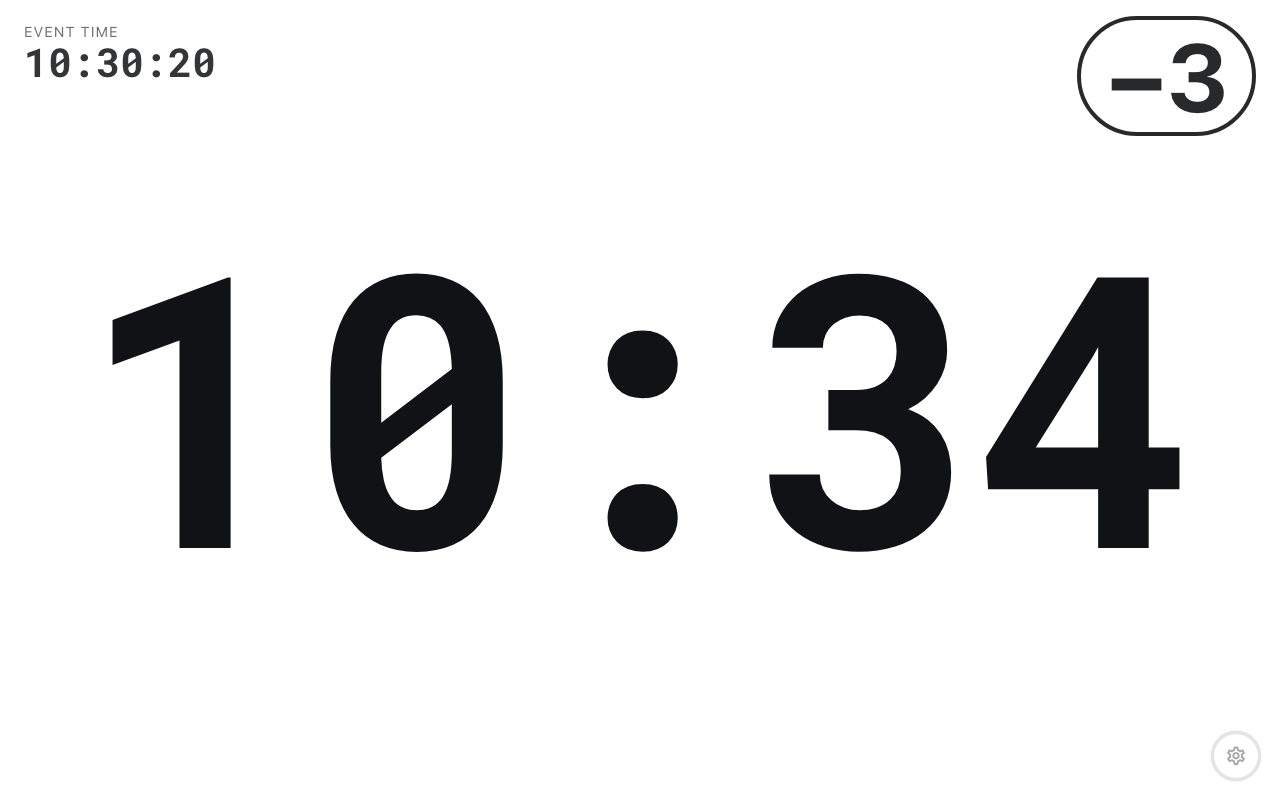
Note: A pre-start clock shows hours and minutes only (with seconds on a 30-second start, whose start list has them). It is not telling you the time — it is showing the number printed on the start list of the runners in front of it. A runner starting at 10:00 steps into the −3 box at 9:57, the −2 box at 9:58 and the −1 box at 9:59, and starts at 10:00 — so each of those clocks reads 10:00 while they are standing at it. It changes on the move-up — every minute on a one-minute start, every two on a two-minute one — so everyone standing in the box reads the same start time until the boxes move up.
Appearance is Dark or Light — pick it for where the screen physically stands (bright sun, a dim tent), not for what the device's own theme is set to.
Starters under the clock
A lane with only one screen can have the clock and the start list on it together. Under Starters under the clock, tick up to three boxes — −1 min, −2 min and so on, exactly as on the Starters screen — and they are drawn beneath the clock, with the clock shrinking to the height its digits need. Once three are ticked the others grey out; untick one to choose a different box. Tick none and the clock fills the screen on its own, as before.
The boxes are counted in the clock's Start interval (above), and have two settings of their own, which come on once a box is ticked:
- Layout — Horizontal puts the boxes side by side under the clock; Vertical stacks them as rows, for a TV standing on its end.
- Size — the largest the names in the boxes are drawn. A crowded box draws its names smaller, so everyone in it fits, exactly as on the Starters screen.
On a pre-start clock with boxes underneath, the −3 badge and the event time move from the corners to beside the clock, so nothing is drawn over the digits.
Note: The boxes follow the device's theme, not the clock's Appearance — a dark clock on a device set to light has a light panel of boxes under it. The preview on the settings page shows you which you will get.
A pre-start clock and the boxes count the lane the same way, so ticking the box as far back as the clock — −3 min on a Pre-start −3 clock, whatever the start interval — shows exactly the runners standing in front of it, under the same start time the clock is showing.
Beeps
| This clock shows | Beep pattern | Default |
|---|---|---|
| Event time | A short beep on each of the seconds before the interval, and the long beep exactly on it. The long beep is the start signal. | On |
| Pre-start −N | Two very short blips on the interval, to move the boxes up. | Off |
The pattern follows the mode — it is not a separate setting. A pre-start clock deliberately does not count down, because nobody starts at it and a lead-in there is a false start signal every couple of minutes all morning. The double blip matters for the same reason: a single beep beside a start lane is the sound everyone within earshot is listening for, so a box that is only shuffling forward must not make one.
Beep interval offers every 30 seconds, every minute, every 2 minutes, or every 3 minutes. Two minutes is the default.
Short beeps is how long the countdown is on the clock at the line: 2, 3 or 4 short beeps, one per second, ending on the long one. Four is the default — a runner who hears the first of four has a whole second to look up before the three that mean now — and two is there for a lane running 30-second intervals, or one standing within earshot of another, where four is simply noise.
Warning beep 10 seconds before adds one beep ten seconds ahead of each start, for a lane with a long call-up. It is off unless you ask for it, and it is deliberately a lower, slower sound than the countdown beeps: nobody should be able to hear it as the countdown having started and step off early.
Note: Both of those settings are only offered when the clock is showing Event time. A pre-start clock is not counting down to anything, so there is no lead-in to lengthen and no start to warn of. Your choices are remembered while it is set that way, and come back if you set it to event time again.
Warning: Check the beeps before the first start. A browser will not make a sound until the page has been touched, so a clock that has just reloaded shows Tap the screen once to let this device play the beep across the bottom — and until somebody does, it keeps perfect time in silence. If it instead says the device cannot play the beep at all, that device has no usable sound output; the clock still runs.
Starters
Upcoming starters, one column per pre-start box — or one row per box, on a screen standing on its end. Two people read it: a competitor checking whether they are up next, and the start team checking the right people are standing in the right box.
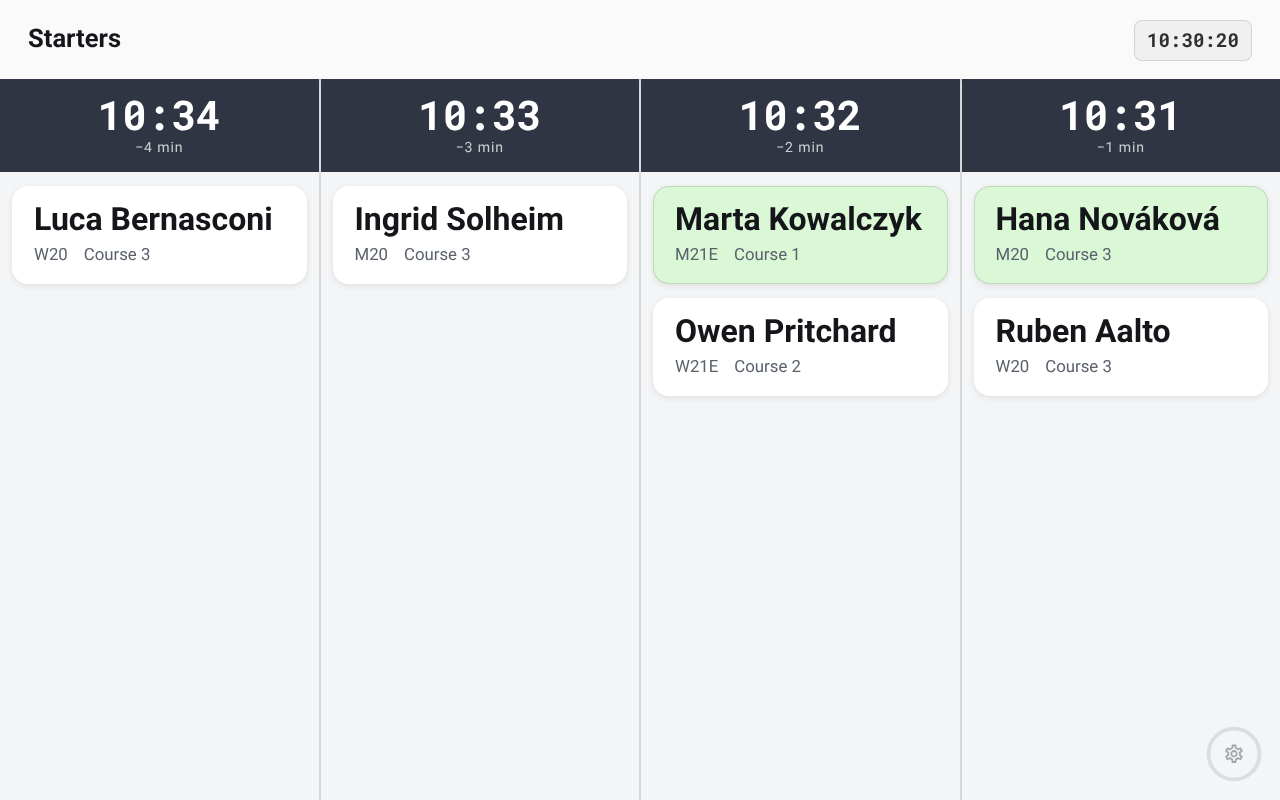
A column is a clock time, not a place in the start list. The −4 column is whoever starts four boxes from now, whether that is six people or nobody. An empty box is worth showing: it tells a start official the lane is about to have a gap, and it says so under the heading, in italic: Vacant.
The columns count down to the line — the box furthest from starting on the left, the runners about to go on the right — so the screen reads the way the lane is walked.
Set Start interval to the interval your start list was drawn on: 30 seconds, 1 minute, 2 minutes or 3 minutes. It is what the columns are counted in, which is why the settings page asks for it first. On a 30-second start the headings carry seconds as well, since two boxes half a minute apart cannot be told apart by the minute alone.
In Columns (Rows, when the layout is vertical) you then tick which of the seven boxes this screen draws. Each is labelled with how far ahead of the line it is rather than with a number to multiply — so a 30-second start offers −30 sec, −1 min, −1m30s, −2 min, −2m30s, −3 min, −3m30s, and a three-minute start offers −3 min through to −21 min. Change the interval and the labels follow it.
Each card shows the competitor's name with their class and course beneath. Within a box, runners are listed alphabetically by first name, so a competitor can find themselves without knowing their class. A card turns green once that competitor has checked in — by a radio check punch, or from the check unit's memory — so the start team can see at a glance who in a box has come through and who has not turned up yet. Checking in does not start anyone: the card stays in its box until the box reaches the line, like everyone else's. Switch on Club logos and each card also carries the runner's club logo, at the right-hand end of the class-and-course line under the name — for clubs that have a logo; the rest show just the name. Switch on Card numbers and each card carries the runner's card number at the end of the same line, so the start team can check it against the card in the runner's hand; a runner who has not been given a card yet shows none. Anyone marked as not starting — DNS, Not competing or Cancelled — is left out, as is anyone who has no start time yet. Every runner in a box is always shown — nobody has to scroll a screen at the start. Size is the largest a box's cards are drawn: a box with more names than fit at that size draws them smaller, and smaller again, until they all fit, without changing the boxes beside it. Past Tiny, a crowded box puts each card on one line and keeps shrinking it for as long as it has to. The one exception is a box squeezed to almost no height — boxes under a tall clock on a small tablet — which cannot hold even one card: its foot fades out to show there is more than it can draw. Give it room with fewer boxes, a vertical layout, or a bigger screen.
Layout is Horizontal — a column per box, side by side — or Vertical — a row per box, one under the other, with the names running across each row. Use vertical for a TV or tablet standing on its end, where seven columns across would each be too narrow for a name. Columns count down to the line, with the runners about to go at the right-hand end; rows put the box at the line at the top, so a screen standing on its end is read from the top down. When the lane moves on, the runners' cards slide from one box into the next and the times above them roll over.
Size (Tiny, Very small, Small, Medium, Large, Huge) sets how big the cards are drawn. Pick it for the reading distance: Huge for a screen people walk past, Tiny or Very small for a tablet read up close when a busy box has more names than fit at Small.
Radio control
Who has just come past a radio control, newest first. This is the screen for a spectator control or a changeover — the one people stand and watch.
Every time it opens, its settings ask which controls to watch:
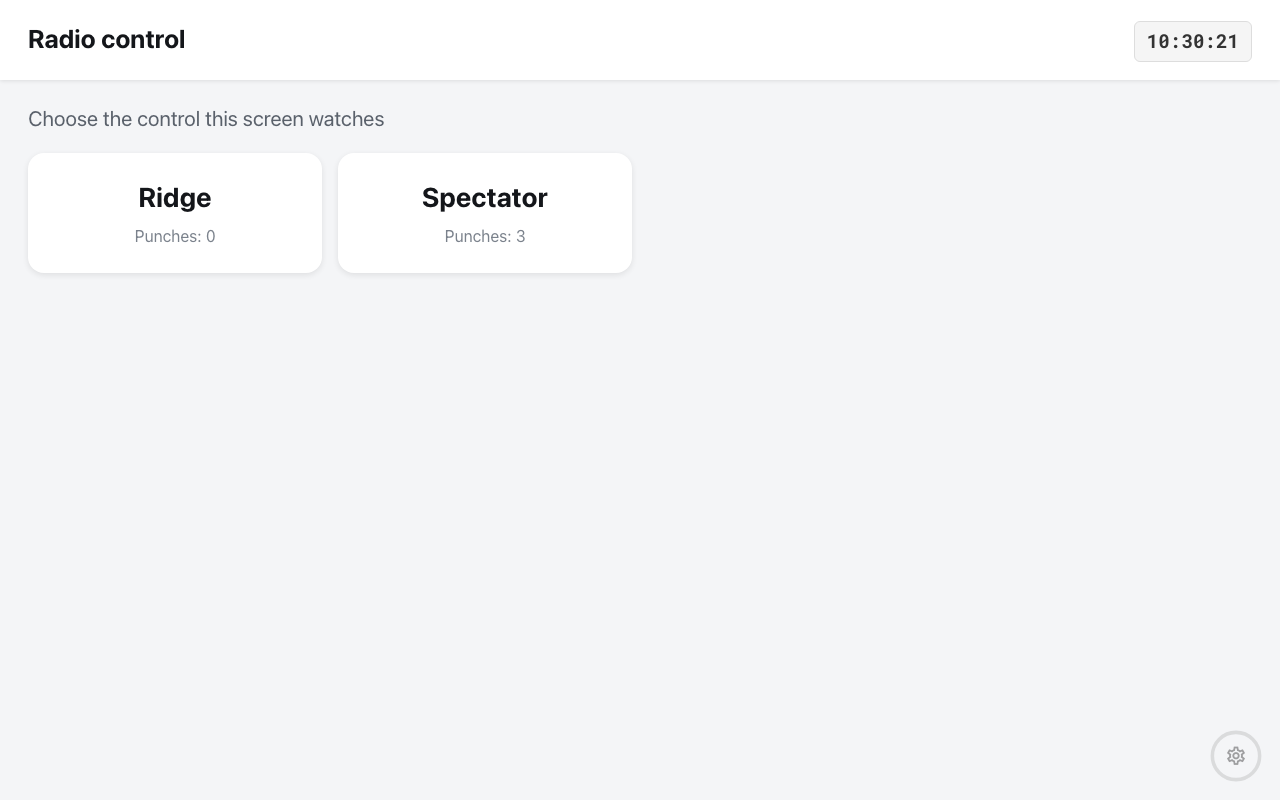
The list holds every control you have flagged as a radio, plus any control code that is actually reporting punches even if nobody flagged it. The Punches count is how you tell a control is alive before you commit a screen to it. Tap as many tiles as you want — they stay lit — then Watch.
The screen asks every time because a tablet is usually carried to a different control at the next event, and a feed that quietly came back on yesterday's control would show the crowd the wrong names. Whatever the device was watching last is already ticked, so carrying on where you left off is one press. Until at least one is ticked the button will not do anything — a feed watching nothing has nothing to show.
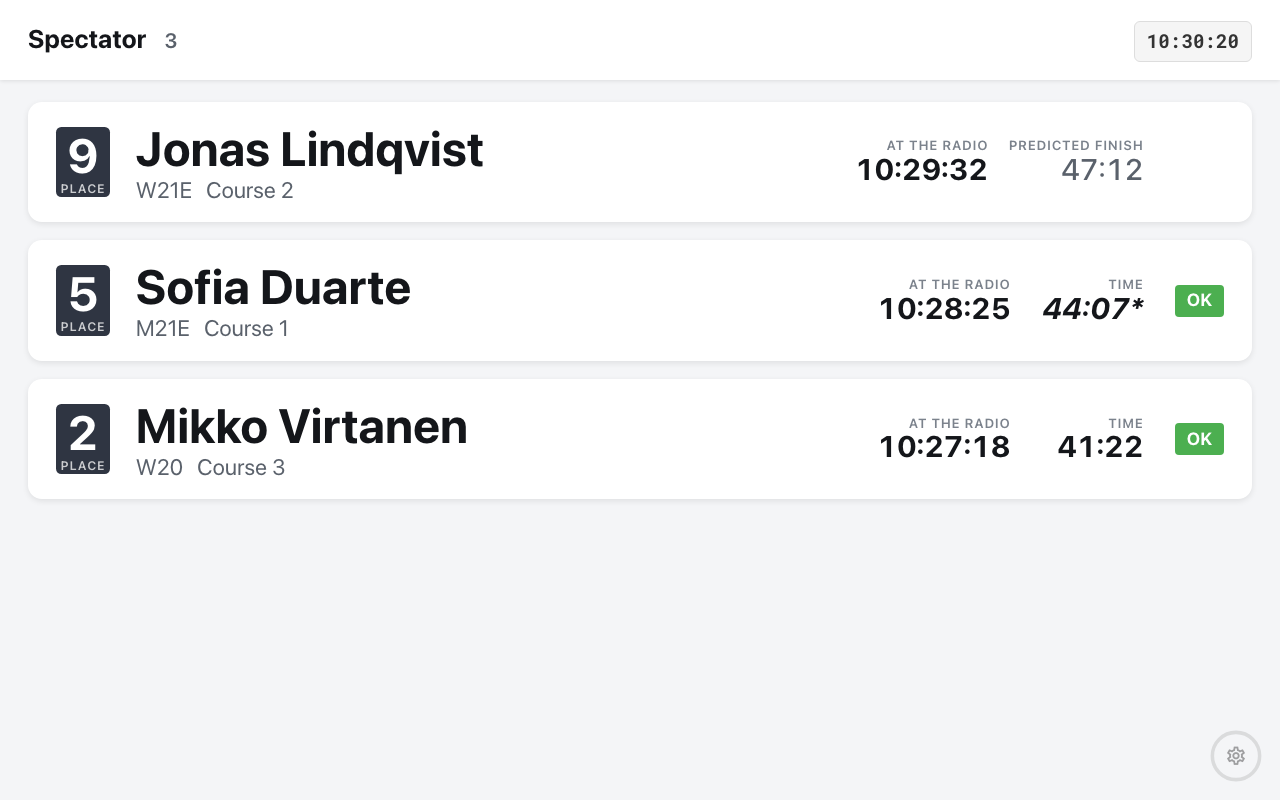
Each card reads left to right:
- PLACE — where they are in the race right now. In a relay this is the team's place, because that is the standing anyone at the fence is following, not the leg runner's rank among every runner in the class.
- Name, with class and course beneath.
- AT THE RADIO — the time of day they came past.
- PREDICTED FINISH — the time they are on course for, while they are still out.
- TIME and a status chip — once they finish, the row swaps the prediction for the time and status they ended up with. Somebody who came past twenty minutes ago has usually finished by the time anyone reads the bottom of the screen.
Note: A time in italics with a trailing asterisk came from the radio finish and has not been confirmed by a card download yet. It is a real time, but it can still change. See Downloading cards.
Columns lays the feed out 1 to 4 across. One column suits a tablet held upright beside the control; three or four put much more of the field on a big TV at once. Size sets how large the cards are drawn, from Tiny to Huge.
Watching more than one control
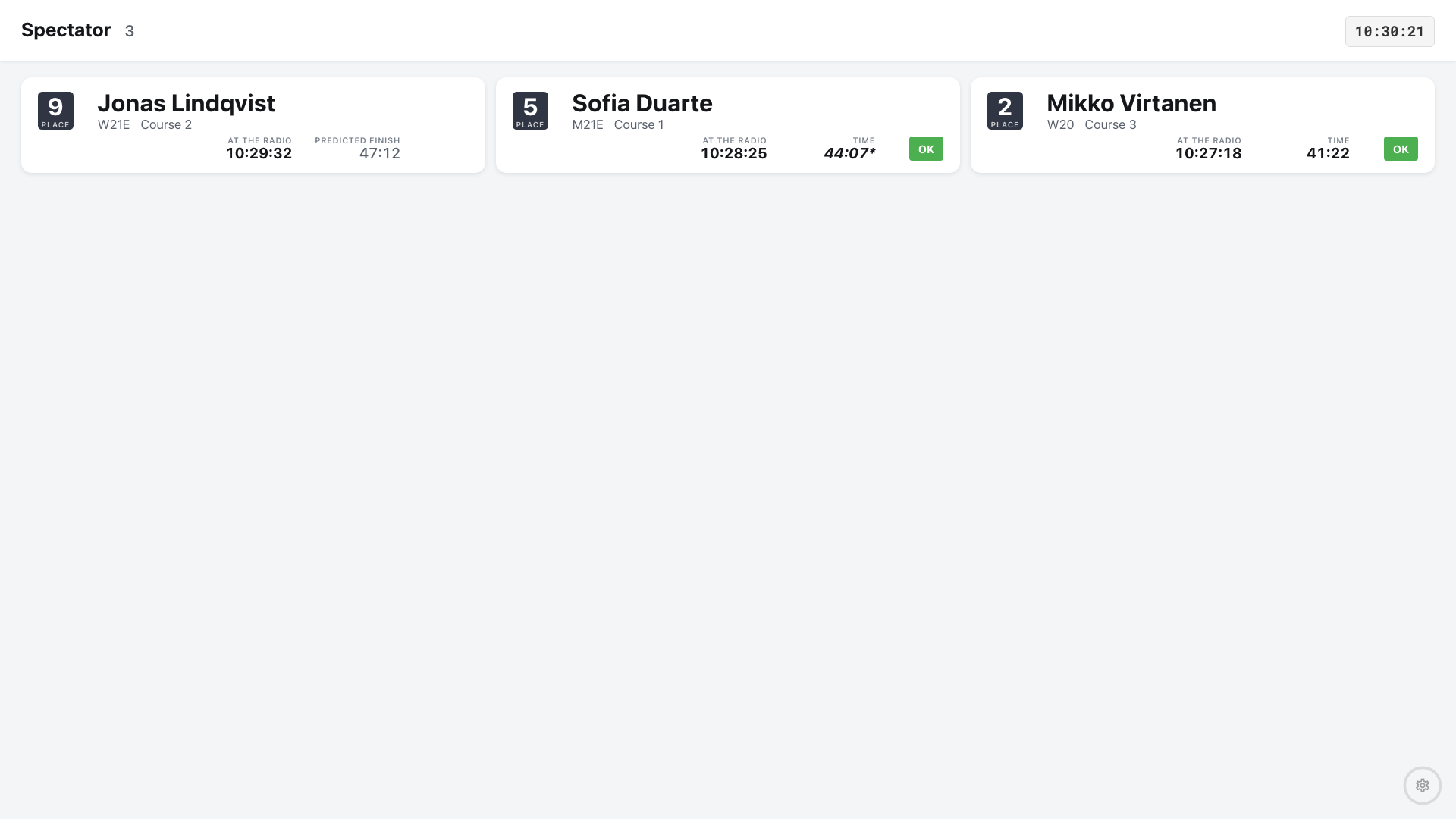
An arena often has more than one radio worth showing — the spectator control and the run-in, or two changeovers — and rarely a second tablet for the second one. Tick more than one and the screen splits into a column per control, headed by that control's name, drawn large enough to read from where the crowd is standing. The heading is what tells anyone which control the names under it came past, so it is not something to squint at.
Each column holds its own feed, newest first, and scrolls on its own without moving the columns beside it. The count under a heading is that control's punch total — the same "is it alive" check the picker gives you, kept on screen all day.
Columns greys out while more than one control is ticked: the controls are the columns then, and three across inside each of them is not a layout anyone wants. Untick back down to one control and the setting comes back. Untick them all and the screen returns to the picker.
Pending downloads
Who the finish saw come home but whose card has never been read — the runners who walk off to their car with the card still in their hand.
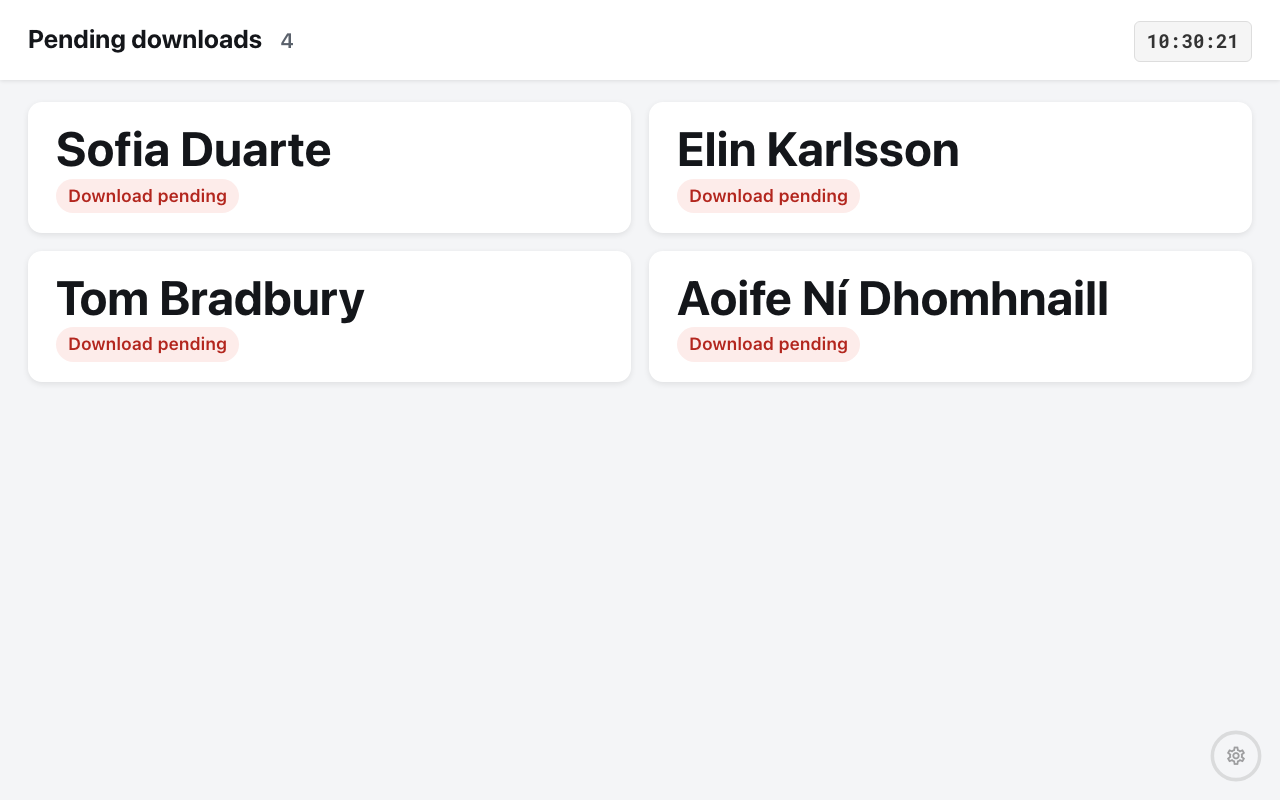
Put this one where finishers can see it: outside the download tent, or at the exit of the arena. Longest overdue is at the top, and the count beside the title is the number outstanding. When the last card is read the screen says Everyone has downloaded. Its one setting is Size, from Tiny to Huge — large enough to read from where people queue.
Competitors still out on the course are deliberately not on this list. They are a different problem — somebody who may still be running, or may be hurt — and putting them here would bury the two or three names the download tent is chasing under the whole field for most of the morning. For who is still in the forest, use Safety check: accounting for everyone.
Note: This screen needs a radio finish control. Without one, nothing distinguishes a runner still in the forest from one who has gone home, so the screen has nothing to show. See Radio punches.
Video
Two screens that work as a pair: Camera turns a phone or tablet into a camera pointed at somewhere worth watching, and Video is what everyone else looks at.
Setting a camera up
Prop a device where it can see what you want seen — a spectator control, the run-in, a relay changeover, the finish banner — open /info on it and choose Camera.
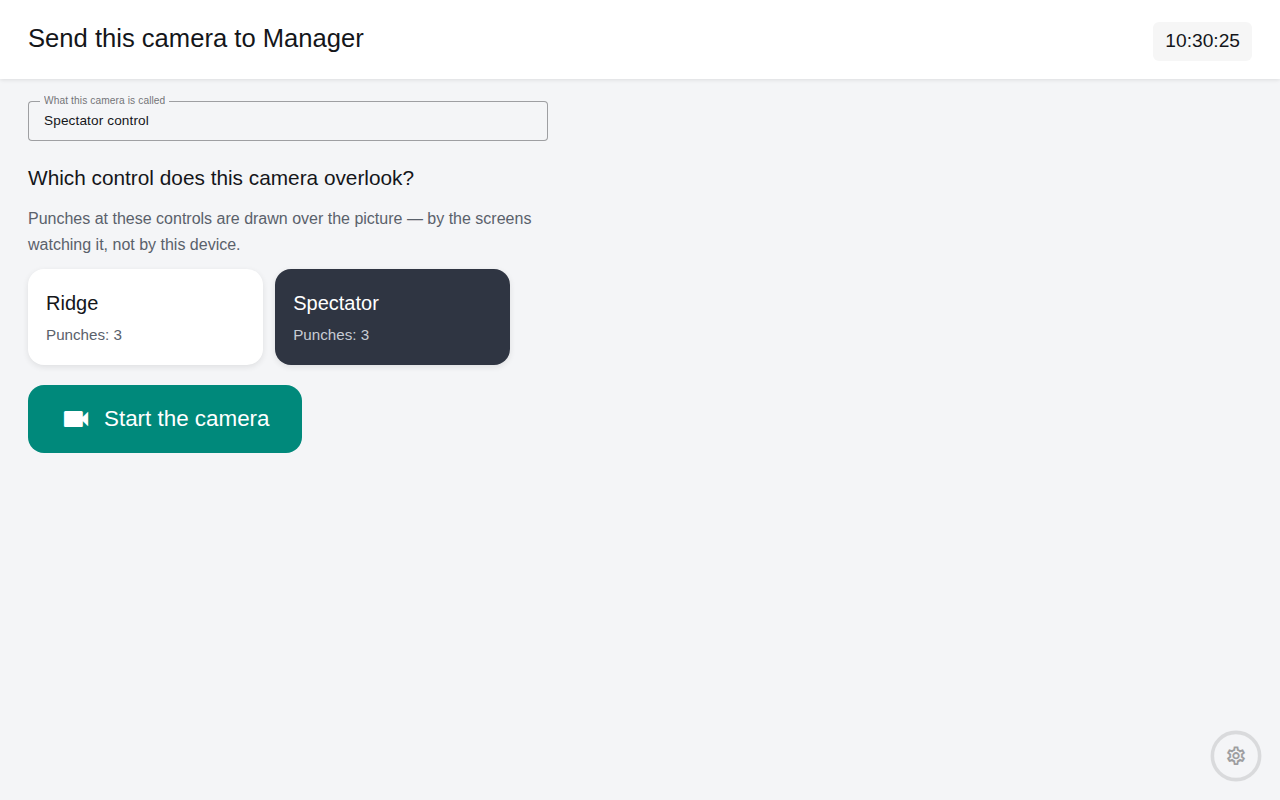
Give the camera a name people will recognise on a picker — "Spectator control", "Finish banner" — and tick the control it overlooks. That tick is what puts the punches on the picture: everyone watching sees who has just come past, drawn over the video. To check where it is pointing before anything is sent, press the play button over the preview: it shows the camera's picture without starting the camera. Then press Start and put the device down.
The rest of the settings are about what the camera makes:
- Record this camera keeps what it sends on the server, so it can be watched again later. It starts at whatever Settings → Video → Record cameras by default says (on, unless you changed it).
- Burn the time into the picture draws a clock in a corner of every frame. It is on by default and it is the one setting you cannot undo afterwards — the clock is composited into the pictures before they are encoded, so it is in the recording for good. That is the point: a file watched back on somebody else's machine months later has nothing else to say when it was taken. Where the clock goes is yours to pick, because the empty corner at one control is the finish banner at the next.
- Show punches over the picture draws the same cards a viewing screen draws, over this device's own preview, so you can confirm the camera is pointed at the control you think it is without walking to a screen. These are drawn on top of the video rather than into it, so they never reach the recording. Punches shown and Size set how many cards and how large.
- Camera picks the front or back lens, and Picture size picks how large a picture to ask for. Both are requests to the device — a camera that cannot manage what you asked says so rather than starting.
While it is running the screen shows its own picture and, along the bottom, whether it is reaching Manager, how many screens are watching, and whether it is being recorded. To stop it, or to change anything, press and hold the button in the corner — the same gesture as every other info screen — which brings the settings back. That is deliberate: a camera anybody walking past could switch off is a camera that will be switched off.
The camera keeps running while you are on that page, so moving the clock out of a finish banner or fixing which control it overlooks costs nothing: nobody watching loses the picture, and the recording has no gap in it. Stop the camera is on the settings page too, on its own and in red.
Note: A browser will not give a web page its camera over an insecure connection. If the screen says so, open Manager on that device over HTTPS and try again — the address and the certificate to install are in Settings → Server. See HTTPS and certificates.
When the wifi drops
It will. Venue wifi is not venue wifi for long, and the camera is built to expect it.
The camera does not stop filming. It holds on to the pictures it cannot send, and when the link comes back it sends those first — so the recording carries on without a gap, rather than starting a new file at every stumble with the missing minutes lost. A chip appears along the bottom saying how much it is holding, and the status chip beside it reads Reconnecting…; both go once it has caught up. The picture at the fence runs behind by however much there is to catch up on, and then comes back to live on its own.
There is a limit, and the screen says when it is reached: a phone can only hold so much before the browser would rather close the tab than let it. Past it, the oldest of what was held is dropped and a new recording begins when the link returns. How long is ridden out is Settings → Video → Ride out a dropped connection for, which is two minutes by default and shows you what that costs the device in megabytes at your chosen picture quality.
Two practical things either way. Plug the camera in: capturing and sending video all morning flattens a battery faster than anything else these screens do, and holding video while the wifi is out does not make it lighter work. And put the camera where the signal is, not where the view is best and the signal is worst — everything above is a way of surviving a bad link, not a substitute for a good one.
Watching
Choose Video and pick what to show. Live cameras come first, then anything recorded earlier at this event.
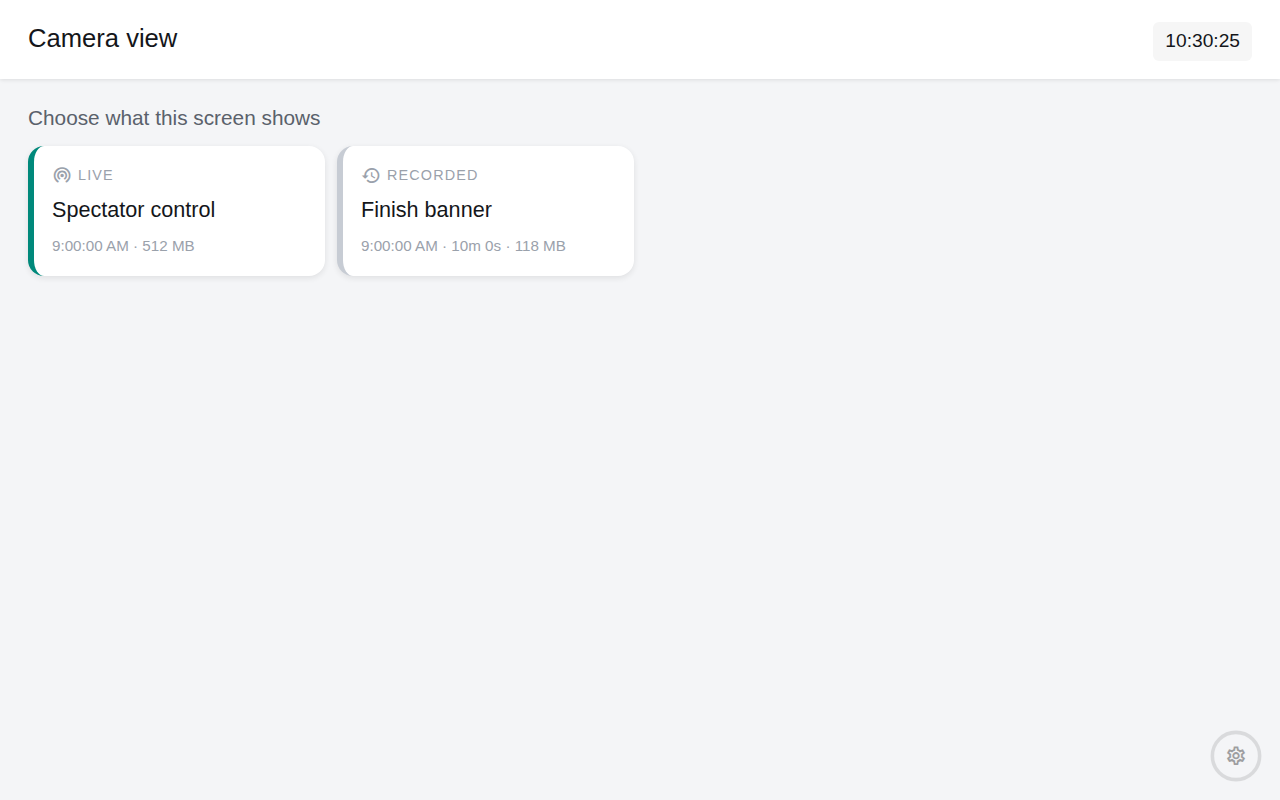
A live camera fills the screen with the punches at its control drawn down one side, so the crowd at a fence gets the picture and the names together. Show punches over the picture turns those cards off for a screen that should show the picture alone; Punches shown (3, 5 or 8) and Size set how many and how large. The cards start from when the picture does — nothing from before it. A recording gets the ordinary video controls, so you can scrub, pause and step through it.
On a recording the punches follow the picture. Wind back to 10:42 and the cards show what was known at 10:42 — which is what makes this worth having for a commentator catching up on a leg they missed, or for an official settling who crossed the line first.
The screen asks which camera it is showing every time it is opened. A tablet gets carried to a different corner of the arena far more often than it is left in one, and a screen that quietly resumed on yesterday's camera would show a crowd the wrong thing. Pick a tile, then press Watch.
A viewing screen looks after itself. If it loses the server, or the camera loses the server, it says which of the two has happened and keeps trying — you do not have to walk over and pick the camera again. When the picture comes back it jumps to what is happening now rather than playing out the minutes it missed, which is what a crowd at a fence wants. A camera that has genuinely been switched off says so, and is picked up again by itself if somebody switches it back on.
What is recorded, and what is not
Cameras record by default, so the footage exists if it turns out to be needed — nobody knows at nine in the morning that the finish will need looking at twice. Whoever sets a camera up can turn recording off for that one, and Settings → Video holds the installation-wide defaults: whether to record at all (Record cameras by default), how long to keep recordings (Keep recordings for (days), 30 by default; 0 keeps them until you delete them), the picture quality, how many minutes go in each recording file (10 by default — a long morning is several files), the free-disk floor below which recording stops (the live picture keeps working), and how long a dropped connection is ridden out. Recordings can be played and deleted from the Video section of the Screens page.
Three things to know about what is kept:
- Recordings are not in your event backups and are not sent to the cloud. They are far too large — a camera is roughly 675 MB an hour — and including them would turn a backup that takes seconds into one that takes minutes. Restoring an event on another machine will not bring its video with it. If you need the files, copy them off this server yourself; the Screens page’s Video section names the folder.
- They are tidied away some time after the event they belong to is deleted, and after the retention period you set. The tidy-up runs while Manager is open, so a Manager left closed all week does not do it until it is next opened.
- There is no sound. A camera at a spectator control would otherwise record every conversation within a few metres of it, all day.
Note: Some devices cannot encode video in a browser at all. Those fall back to sending still pictures a few times a second — enough to see a runner go past, and the screen says so at both ends. Still pictures are live only and are never recorded.
Held-back results and the PIN
If the event is holding some classes' results back (Results quarantine) and Manager has a PIN, the Radio control, Pending downloads and Video screens ask for the PIN on their settings page. Enter it and that device is shown every result, as an official's screen should be. Continue without the PIN carries on as a public screen would: a held-back class shows its start list rather than its results, and the device is not asked again until the page is reloaded.
The Start clock and Starters never ask, and a screen started from its address (below) is never asked either — nobody is standing at it to answer.
When the network drops
These screens are built to survive an outage that lasts the rest of the event, and they mostly do — but it is worth knowing what you are looking at.
- Lists do not blank. Whatever a screen had read stays on it. The starters screen keeps filling and emptying its boxes correctly for as long as the tablet has power, because its columns are minutes counted off the clock against start times that were settled before the race began.
- The clock keeps time. It carries on from the last reading it got from the server.
- A warning appears beside the clock once the link has been down for a while, and clears the moment it comes back. The start clock deliberately never shows it: it is read by everyone walking up to the line, and a warning symbol there would tell a hundred competitors their start times are in doubt in order to tell one official something they can read off any other screen.
- A screen that could not read the event at all says Could not read the event. What is shown may be out of date. rather than showing an empty list — because "everyone has downloaded" and "we never got the list" look identical otherwise.
Warning: Do not reload a screen during an outage. The page itself comes from the server, so a reload lands on an error page and the screen cannot come back until the network does. Leave it alone; it recovers on its own when the link returns.
If a screen shows There is no live event at the moment, no event has been started yet. Leave it up — it starts on its own as soon as one is under way. Every time on these screens is shown in meshO Manager's time zone, not the device's, so a device set to the wrong time zone still shows the right time.
Starting a screen on its own (Raspberry Pi and other kiosks)
A TV at the start is often driven by a small computer such as a Raspberry Pi, with a screen and nothing to work it with — no keyboard, no mouse, no touch. Such a device can't use the settings page, so everything it needs goes in the address it opens when it boots, and the screen goes straight up without anyone pressing Show:
http://192.168.1.42:5154/info/starters?autostart&boxes=1,2,3&interval=60&layout=vertical&size=largeautostartputs the screen up as soon as it has something to show. Before an event is started it waits, like any screen here, and comes up on its own once one is under way.- Everything else sets the screen up, and only for that session — nothing from the address is saved on the device. To change what a device shows, change the address it boots to.
- If the address has anything the screen doesn't understand — a misspelt name, a size it doesn't offer — the screen still comes up, and says Not used from this screen's address: across its top, followed by exactly what it couldn't use. Fix the address and restart the device.
- If somebody plugs in a mouse or touches the screen and holds the corner to reach the settings, the screen stays there until they put it back up themselves. What they change there is saved on the device as usual.
| Screen | Address | What you can set |
|---|---|---|
| Start clock | /info/clock | prestart — event, or 1 to 9 for a pre-start box · interval — 30, 60, 120, 180 · appearance — dark, light · beep — on, off · beep-interval — 30, 60, 120, 180 · short-beeps — 2, 3, 4 · warning — on, off · boxes — e.g. 1,2,3, or none · layout · size |
| Starters | /info/starters | boxes — e.g. 1,2,3 · interval · layout — horizontal, vertical · size · logos — on, off · cards — on, off |
| Pending downloads | /info/pending | size |
| Radio control | /info/radio | controls — control codes, e.g. 31,100 · columns — 1 to 4 · size |
| Video | /info/video | camera — the name the camera was given, e.g. camera=Finish%20line · overlay — on, off · rows — 3, 5, 8 · size |
| Any of them | motion — off stops the screen animating; see Animation |
Sizes are tiny, verySmall, small, medium, large and huge. Boxes are counted in start intervals, exactly as the buttons on the settings page are. A pre-start clock only offers the boxes its start interval has (see Start clock), so prestart=3 with interval=120 comes up as a −2 clock.
The camera screen can't be started this way: it asks for a PIN when Manager has one, and the browser asks before it hands over a camera, and a device with no keyboard or mouse can answer neither.
Setting up a Raspberry Pi
Use Raspberry Pi OS with desktop, and have it log in automatically.
Turn off screen blanking:
sudo raspi-config→ Display Options → Screen Blanking → No. On a tablet the screen holds itself awake; over a plainhttp://address a browser won't let it, so the Pi has to.Start Chromium on the address when the desktop starts. On current Raspberry Pi OS, add this line to
~/.config/labwc/autostart:chromium --kiosk --noerrdialogs --disable-infobars --autoplay-policy=no-user-gesture-required 'http://192.168.1.42:5154/info/clock?autostart&prestart=3&motion=off' &On older images the browser is
chromium-browser. Keep the single quotes around the address — without them its&s end the command — and the&at the end of the line, which lets the rest of the desktop carry on starting.
What each part is for:
--kioskfills the screen with no browser bars. A page can't do that for itself without a tap.--autoplay-policy=no-user-gesture-requiredlets the start clock beep. A browser holds sound back until the page has been touched, so without it the clock shows Tap the screen once to let this device play the beep all day.- Use the server's IP address, not its
.localname, which Chromium won't open — see Reaching the server: name or IP. Use plainhttp://and the HTTP port (5154 unless you changed it): a kiosk can't click past a certificate warning, and none of these screens need HTTPS. - Add
motion=offto the address. A Raspberry Pi can't keep up with the starter cards sliding between boxes; see Animation. - Give the server a fixed IP address (a reservation in the router), or the Pi's address stops working the next time the server gets a different one.
Animation
When the start lane moves on, the runners' cards slide from box to box and the times above them roll over; on the radio feed, each new punch slides in at the top. At the foot of every screen's settings page, Animation switches all of that off — for every screen on that device, not just the one you're setting up. The screens show exactly the same thing, the lane already moved on, without the movement.
Switch it off on a device that struggles to keep up, such as a Raspberry Pi, where the cards sliding makes the whole screen stutter. On a device started from its address, add motion=off instead (see Starting a screen on its own).
A device whose own settings ask for reduced motion never animates these screens, whatever this setting says.
Practical setup
- Plug the device in. The screens hold the display awake, which is what you want and also what flattens a battery by lunchtime.
- Check each screen once it is in place, from where people will actually read it. Size is the setting operators most often get wrong from a metre away.
- Anyone on your network with the link can open these screens. There is nothing secret on them — they show what the spectator screens show — but do not treat the link as private.
Related
- Creating screens — the arena screens, showing results or start times
- Commentary — the announcer's live feed
- The spectator site and kiosk — results on people's own phones, and the finish-arena kiosk
- Radio punches — where the radio feed's punches, and the video overlay's, come from
- HTTPS and certificates — what a camera device needs before a browser will hand over its camera
- Safety check: accounting for everyone — who is still out on the course
- Reaching the server: name or IP — which link to give each device
- Start times — what the starters screen is reading
- Results quarantine — when a screen asks for the PIN