
Appearance
Hire cards
Audience: Registration desk volunteers and timing operators managing rental cards.
Hire cards (also called rental cards) are SportIdent cards the organiser lends to competitors who don't have their own — newcomers, visitors, or someone who forgot theirs. The job is always the same: hand the right card out, know who's holding it, and make sure it comes back. Manager tracks all three for you.
How hire cards work in Manager
You keep one shared pool of hire-card numbers. A competitor is "on a hire card" whenever the card number recorded against them is one of those pool numbers — Manager works this out for you. There is no separate "hand out a hire card" step and no special hire-card field on the competitor: you assign a hire card simply by recording its number as that competitor's card, exactly as you would their own card.
Two consequences worth knowing up front:
- The pool is global — it's shared by every event on this server. Set it up once and it's there for all your events.
- Because being "on a hire card" is derived from the pool, a card moves on and off hire automatically. Add a number to the pool and every competitor already carrying it is flagged retrospectively; remove it and they're treated as own-card again.
Set up your hire-card pool
Do this once, before your first event (or whenever you add more hire cards).
- Open Settings → Hire Card Registry.
- Add your card numbers. There are two ways, and you can mix them:
- Quick add card numbers — type one or more numbers and/or ranges into the field and press Enter (or click Add). Separate them with commas or spaces, and write a range with a hyphen. For example:
411001, 411002 411005or411001-411010. - Range from / Range to — enter the first and last number and click Add range. Handy for a contiguous batch.
- Quick add card numbers — type one or more numbers and/or ranges into the field and press Enter (or click Add). Separate them with commas or spaces, and write a range with a hyphen. For example:
- Everything you add is merged into the list, de-duplicated and sorted, so it doesn't matter if numbers overlap or arrive out of order.
- Remove a single card with the × at the end of its row, or empty the whole list with Clear all.
- Click Save. Until you do, an Unsaved — click Save below chip reminds you the changes aren't stored yet.
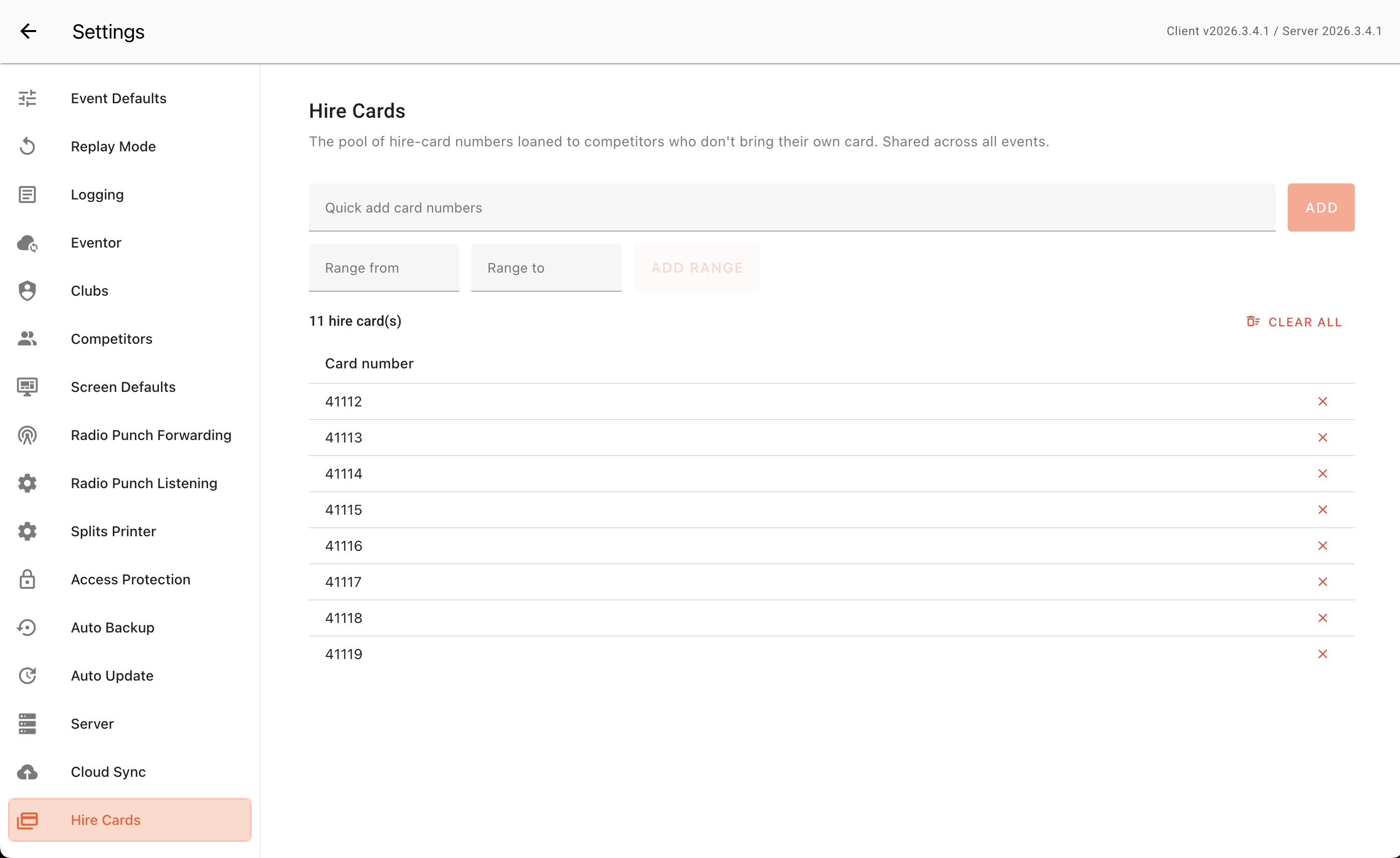
Tip: Hire cards usually come in a numbered run. Label the physical cards to match, and enter them as one range (e.g.
411001-411050) so the numbers on the table match the numbers in the box.
Note: Anything Manager can't read (letters, zero or negative numbers, a backwards range) is listed back to you as ignored rather than added silently — check the message if a count looks wrong.
Put a competitor on a hire card
Because a hire card is just a pool number recorded against a competitor, you give one out the same way you record any card:
- At the registration desk — when entering or editing the competitor, type the hire card's number into the Card number field. See Competitors, clubs and teams and Late entries.
- On the fly at download — if a competitor runs on a hire card you haven't recorded yet, download the card and assign it to them in the usual way. See Downloading cards.
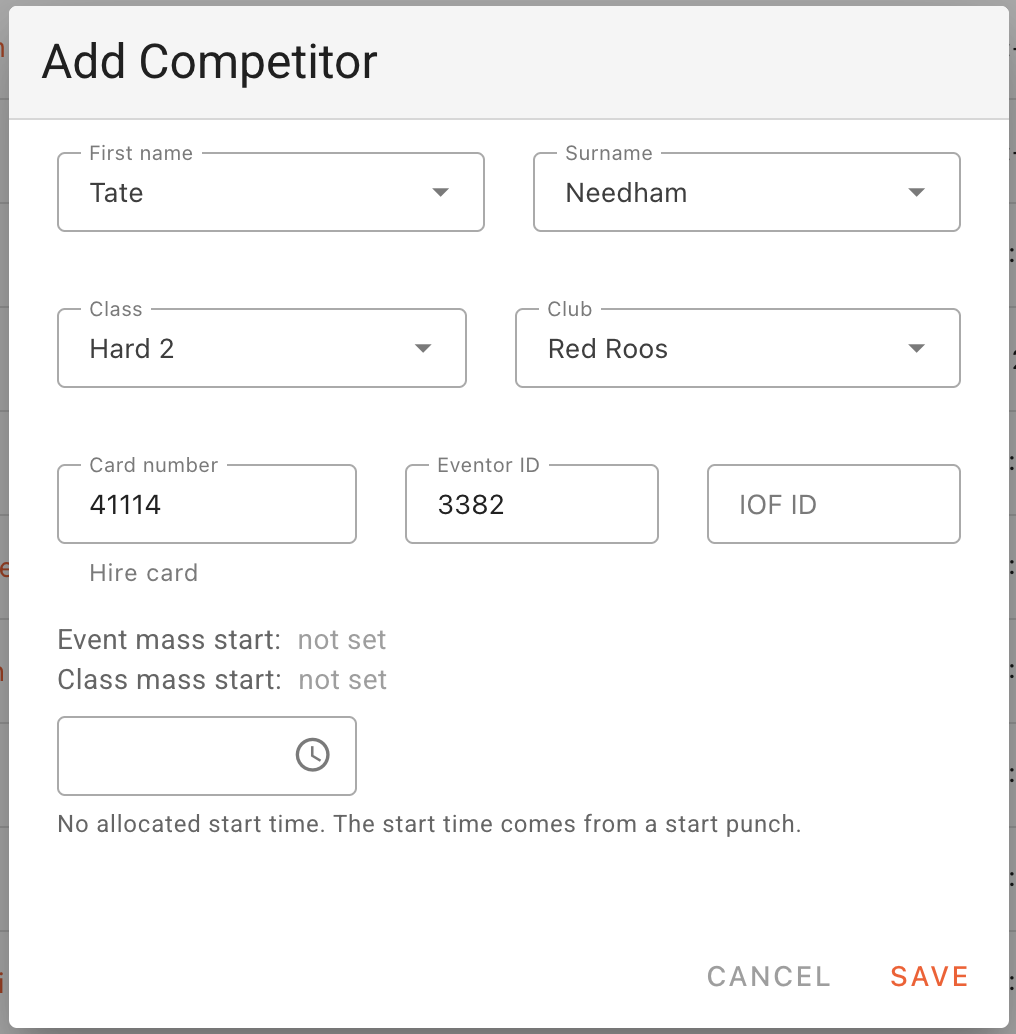
Either way, as soon as the recorded number is one of your pool numbers, Manager flags it automatically:
- In the Competitors list a small hire card marker appears next to the number, and you can narrow the list with the Card type filter (Hire card vs Own card).
- In the Edit Competitor dialog a hire-card chip appears in the header and beside the card field.
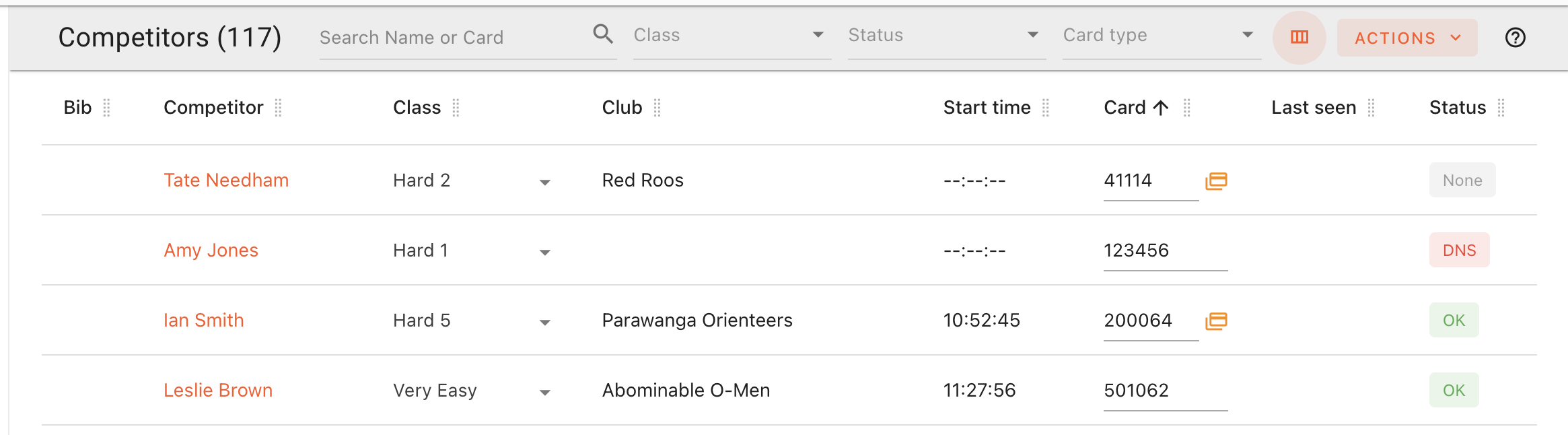
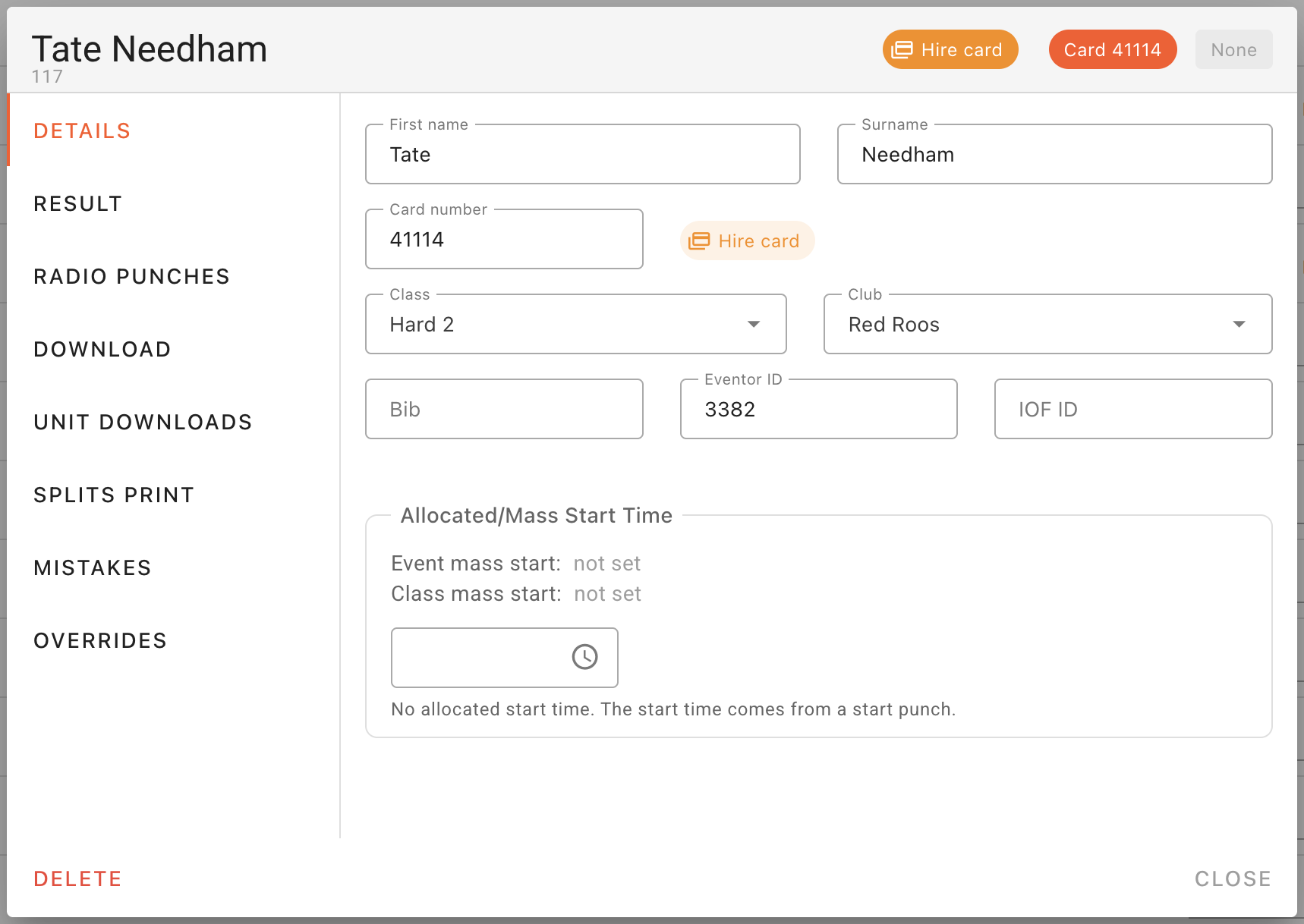
To swap a competitor onto a different card mid-event, just change their Card number — there's nothing hire-specific to undo first.
Track hire cards during the event
Open Event Data → Hire Cards for a live picture of where every card is. Three summary chips across the top count the pool by state:
| Status | Meaning |
|---|---|
| Out | A competitor holds the card but hasn't downloaded it yet — it still needs to come back. |
| Returned | The card has been downloaded, so it's been handed back and read. |
| Available | The card is in the pool but nobody in this event is currently holding it. |
The table below lists each card that's currently out or has been returned, with the Card number, the Competitor holding it (click the name to open their record), the Status, and the Returned at time once it's been downloaded. Use Search Name or Card to jump to one, or the Status filter to show only Out or Returned.
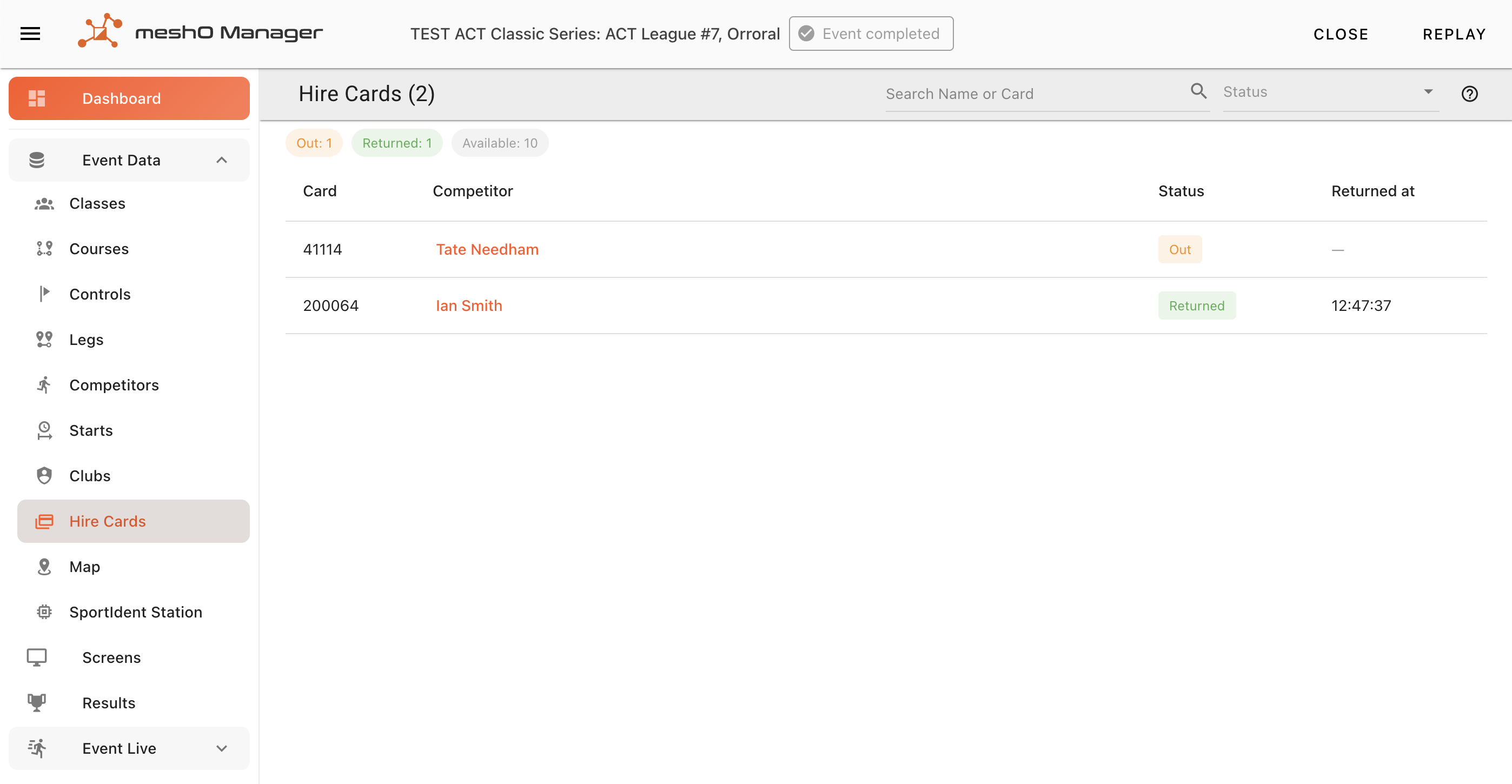
Note: A card returned by one runner and then lent to a second appears as two rows — the first Returned, the second Out — so reusing a card for a later starter never makes the earlier runner look like they still have it.
If the view tells you no hire cards have been defined, you haven't filled in the pool yet — go back to Settings → Hire Card Registry.
Collecting cards back
A card counts as returned the moment it's downloaded — there's nothing to tick off by hand. To make sure none walk off, Manager shows an unmissable prompt at download time:
- When you download a card that's in the hire pool, a Collect hire card prompt pops up showing the card number and, if known, who was using it.
- It stays on screen until you click Hire card collected, so it can't be clicked away by accident. It appears wherever you download — the Download Card screen, the dashboard tile, or anywhere in the open event.
At the end of the day, open Event Data → Hire Cards and filter to Out to see exactly which cards (and which competitors) haven't come back yet.
Tip: If you don't lend cards at a particular event and the prompt is just noise, turn it off for that event: open Edit event details → Hire Cards and switch off Show collect hire card warning on download. It's on by default and the setting is per event, so it won't affect your others.